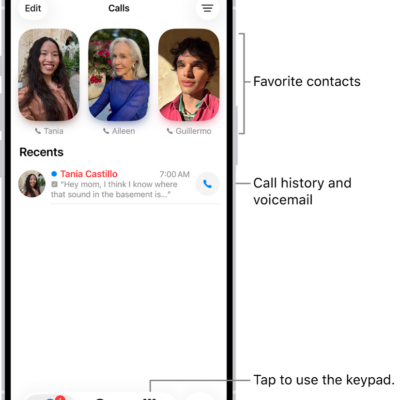
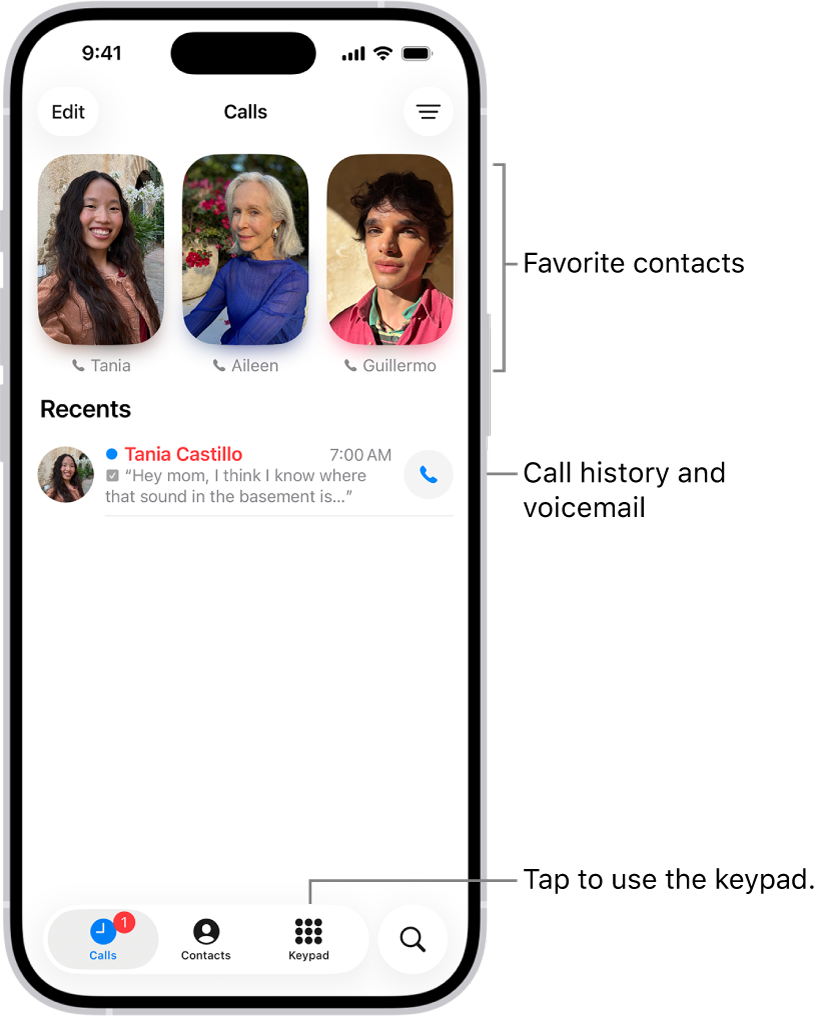
There are a number of ways you can make a phone call on your iPhone: dial the number on the keypad, or call a favorite, a recent call, or a number in your contacts list.
Siri can dial for you, too. And on models with Dual SIM, you can choose which line to use before you call. You can also add or remove contacts from your Favorites.
Here’s how to make a call on iPhone.
Dial a number
Siri: Ask Siri to call or dial a number. Speak each digit separately—for example, “four one five, five five five….” For the 800 area code in the U.S., you can say “eight hundred.” Or without using Siri:
- Start the Phone app on your iPhone.
- Tap Keypad and then do any of the following:
- Use a different line: On models with Dual SIM, tap the line at the top and choose a line.
- Enter the number using the keypad: If you make a mistake, tap the Delete button.
- Redial the last number: Tap the Call button to see the last number you dialed and then tap the Call button to call that number.
- Paste a number you’ve copied: Tap the phone number field above the keypad and tap Paste.
- Enter a soft (2-second) pause: Touch and hold the star (*) key until a comma appears.
- Enter a hard pause (to pause dialing until you tap the Dial button): Touch and hold the pound (#) key until a semicolon appears.
- Enter a “+” for international calls: Touch and hold the “0” key until “+” appears.
- Tap the Call button to start the call.
To end the call, tap the End Call button.
View information when you make a call
With Apple Intelligence,* a Call Context card with related information may appear when you start a call. This can include an upcoming or recent birthday when you call a contact, or it can include tickets, orders, or confirmation numbers when you call certain businesses. Tap the card to view the information in the related app, such as Mail or Wallet. To turn Call Context on or off, do the following:
- Open Settings, then tap Apps.
- Tap Phone, then tap Apple Intelligence & Siri.
- Turn Show When Calling on or off.
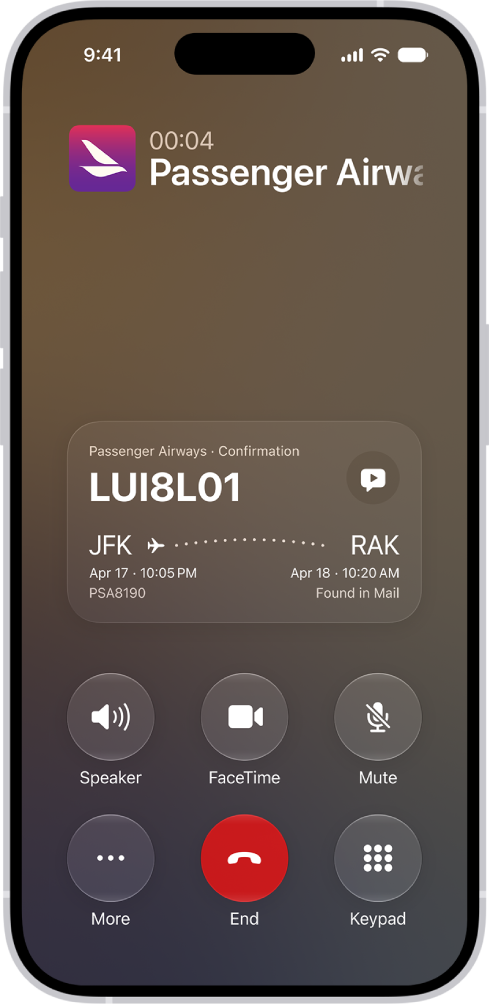
Note: Call Context identifies the business from the phone number you dial. Then it searches Mail, Messages, Wallet, and Calendar for related information, such as confirmation codes or reservation numbers.
Note: Apple Intelligence on iOS 27 or later is available on an Apple Intelligence-enabled iPhone 15 Pro, iPhone 15 Pro Max, or iPhone 16 model or later. Apple Intelligence is not available in all languages or regions. Usage limits may apply.*
Add or remove contacts from your Favorites
- Start the Phone app on your iPhone.
- Do one of the following, depending on which Phone app layout you’re using:
- Unified layout: Tap Calls, tap Edit, and then tap Add Favorite. If you’ve already added a Favorite, tap Edit, tap Edit Favorites, and then tap the Add button.
- Classic layout: Tap Favorites and tap the Add button.
- Tap a contact and choose the default method of communication (for example, message, call, or video) and the preferred number. Tap the Done button.
- To remove a contact from your Favorites, do one of the following:
- Unified layout: Tap Calls, tap Edit, tap Edit Favorites, tap the Remove button in the upper-left corner of the contact you want to remove, and then tap the Done button.
- Classic layout: Tap Favorites. Then swipe their name all the way to the left.
To contact someone in your Favorites, tap their name.
Redial or return a recent call
- Start the Phone app on your iPhone.
- Do one of the following, depending on which Phone app layout you’re using:
- Unified layout: Tap Calls, tap the name or number you want to call, tap the Call button, and tap the number you want to call. Note: To start a call as soon as you tap a name or number in the Recents list, go to Settings > Apps > Phone, then turn on Tap Recents to Call.
- Classic layout: Tap Recents and then tap the name or number you want to call.
- To get more info about a call and the caller, do one of the following:
- Unified layout: Tap the name or number in the Recents list.
- Classic layout: Tap the Info button next to the name or phone number in Recents.
Call someone on your contacts list
Siri: Ask Siri something like, “Call Eliza’s mobile.” Or without using Siri:
- Start the Phone app on your iPhone.
- Tap Contacts. Then tap the contact you want to call.
- Tap the Call button, then tap the phone number you want to call.
Unless you set a preferred line for this contact, the call uses the default voice line on models with Dual SIM.
WARNING: For important information about avoiding distractions that could lead to dangerous situations, see Important safety information for iPhone.
*Apple Intelligence is available with Siri and device language set to Chinese (Simplified), Chinese (Traditional), Danish, Dutch, English, French, German, Italian, Japanese, Korean, Norwegian, Portuguese, Spanish, Swedish, Turkish, or Vietnamese. Some features may not be available in all regions or languages. Some devices may not be available in all regions. Siri AI is available in beta in iOS 27, iPadOS 27, macOS 27, watchOS 27, and visionOS 27 and requires an Apple Intelligence–enabled device set to a supported language. Available in English to start. Siri AI will not be initially available in the EU on iOS, iPadOS, and watchOS. Certain Apple Intelligence features that rely on server-side models are subject to daily usage limits, including but not limited to Siri AI, Intelligent Photo Editing Tools, Image Playground, and AFM 3 Cloud models in Shortcuts. Daily limits may vary by feature, request complexity, system demand, system policies, and other factors. Expanded access to such features will be available for a fee in the future. Use of these features is subject to the Apple Intelligence Terms and Conditions.