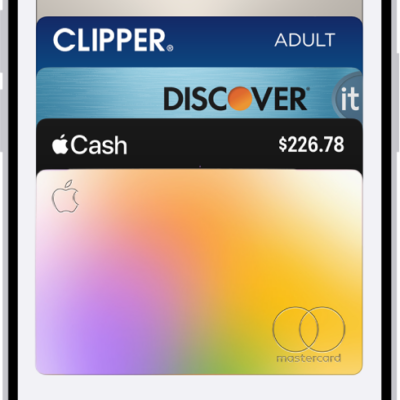
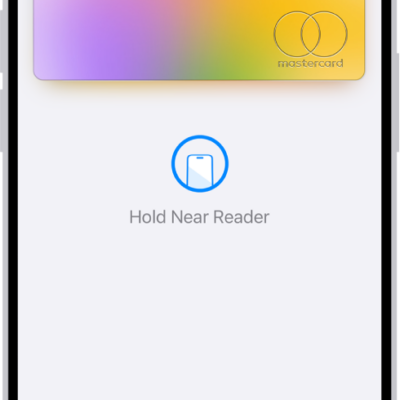
With your eligible cards stored in the Wallet app, you can use Apple Pay at contactless payment terminals, in stores, online, and in apps. Using Apple Pay can be simpler and safer than using a physical card. Your actual card number is never shared with merchants, and each transaction uses a unique security code.
You can also use Apple Pay in third-party browsers and on other devices, view preauthorized payments, and set your default card.
Note: Apple Pay and its features aren’t available in all countries or regions.
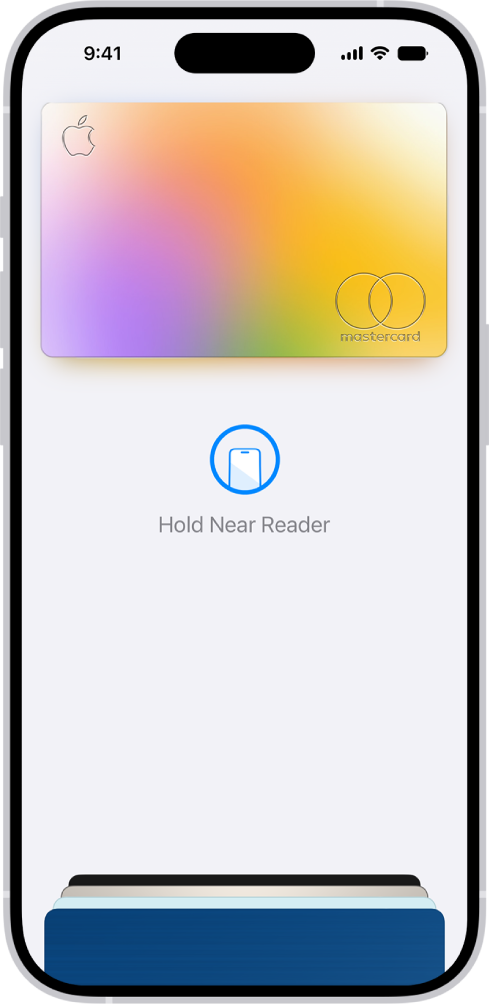
Make contactless payments in stores
At payment terminals, look for contactless payment symbols such as the following:
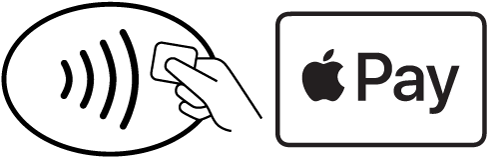
Note: In addition to accepting Apple Pay, the merchant must accept your payment card and payment network. In other countries and regions, you may see different contactless payment symbols.
-
Do one of the following:
- On an iPhone with Face ID: Double-click the side button.
- On an iPhone with Touch ID: Double-click the Home button.
- When your default card appears, authenticate with Face ID, Touch ID, or your passcode.
-
To switch to a different card, tap the cards at the bottom of the screen. Choose another card.
Tip: With a connected account such as Apple Card, you can quickly check the account balance and remaining credit by tapping the card. Tap the card again when you’re ready to pay.
-
Hold the top of your iPhone near the contactless reader until Done or a checkmark appears on the screen.
Note: If you have Location Services turned on, the location of your iPhone at the time you make a payment may be sent to Apple and the card issuer to help prevent fraud.
Use Apple Pay for purchases online and in apps
Wherever you see the Apple Pay button, you can make purchases in supported apps, App Clips, and websites.
- At checkout, tap the Apple Pay button.
-
Review the payment information and set any of the following:
-
Payment method
You can choose a different payment card and pay with rewards or installments (available on cards from participating banks and card providers in certain markets; subject to eligibility and approval).
- Billing and shipping addresses
- Contact information
Tip: If you subscribe to iCloud+, you can use Hide My Email to keep your real email address private.
-
Payment method
- Authenticate with Face ID, Touch ID, or your passcode to complete the payment.
Use Apple Pay in third-party browsers and other devices
When you shop in a third-party web browser on a supported website, you can complete the purchase using Apple Pay on your iPhone. (Not available in all countries or regions.)
- At checkout, click Apple Pay. Then scan the code using your iPhone camera.
- On your iPhone, review the payment information and set any of the following:
- Payment method
- Billing and shipping addresses
- Contact information
- Authenticate with Face ID, Touch ID, or your passcode to complete the payment.
View preauthorized payments
See preauthorized payments made with Apple Pay for future and recurring charges such as subscriptions.
- Open the Wallet app on your iPhone.
- Tap the More button, then tap Preauthorized Payments.
- Tap a payment to see the details.
- To cancel your service or manage the payment methods, contact the merchant directly. (For participating merchants, tap Manage.)
- To prevent the merchant from automatically charging your card, tap Revoke Payment Authorization.
Note: Revoking the payment authorization doesn’t cancel your service.
Set your default card, address, and preferences for Apple Pay
- Open the Settings app on your iPhone.
- Tap Wallet & Apple Pay and tap Apple Pay Defaults.
- Set any of the following:
- Transaction defaults: Set the default card, your shipping address, email, and phone number.
- Available payment options: Turn on or off Pay Later, Rewards, Offers, and Other Pay Later Options.
- Allow Payments on Mac: Use Apple Pay on your iPhone to confirm payments on your nearby Mac.