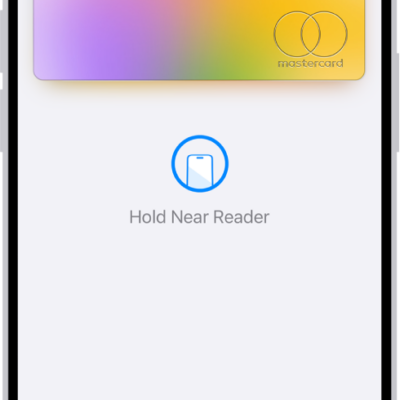
Your passes, cards, and keys saved in Wallet may show useful details, such as the account balance, recent activity, reward or loyalty points, or flight information. You can also search for transactions, adjust settings, and manage expired passes.
You can view, unhide, or delete expired passes, too. And if your iPhone is lost or stolen, you can remove your cards from Apple Pay.
Here’s how to manage passes, cards, and keys in Wallet on iPhone.
View and manage details
- Start the Wallet app on your iPhone.
- Tap an item to see its details. Then do any of the following (if available for the item):
- Review your activity: On a supported card, scroll down to see recent activity. Some cards may show older transactions grouped by month and year.
- See the card number: On a payment card, tap the Card Number button to see the last four digits of the device account number (the number transmitted to the merchant when you use Apple Pay), the physical card number (if you added the card information for AutoFill), or the virtual card number (if supported).
- Manage more options: Tap the More button or the Info button. Choose an option.
Depending on the type of card or pass, you can add funds to your account balance, adjust notification settings, contact the issuer for support, and more. (Not all options are available on all cards and passes.)
Search for items and transactions
- Start the Wallet app on your iPhone.
- Tap the Search button. Enter what you’re looking for. You can search by merchant, date, transaction amount, location, and more.
View, unhide, or delete expired passes
- Start the Wallet app on your iPhone.
- Tap the More button and tap Expired.
- Tap a pass and then do any of the following:
- See the details: Tap the Info button.
- Unhide the pass: Tap the Unhide button.
- Permanently delete the pass: Tap the Delete button.
Remove an item
- Start the Wallet app on your iPhone.
- Tap the item you want to remove. Tap the More button or the Info button.
-
Do one of the following:
-
Remove a debit or credit card: Tap Card Details, then tap Remove Card.
Note: If you remove a payment card on your iPhone, it’s not removed from Apple Wallet on your other devices. You can add the card again later.
-
Permanently delete a pass: Tap Remove Pass.
Note: If you delete a pass on your iPhone, it’s permanently removed from Apple Wallet on your other devices.
-
Remove a debit or credit card: Tap Card Details, then tap Remove Card.
Remove your cards from Apple Pay if your iPhone is lost or stolen
If you turned on Find My iPhone, it can help you locate and secure your iPhone.
Use another device or call the issuers of your cards to remove your cards from Apple Pay.