You can organize your apps into folders to make them easier to find on your Home Screen pages.
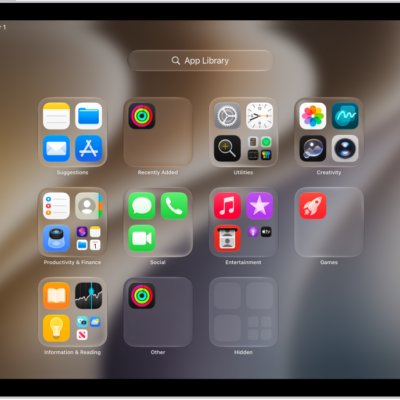
Each folder can contain multiple pages of apps. You can move an app from a folder back to a Home Screen page, where it’s easier to find and open, and when a folder is empty, it’s deleted automatically. Organizing your apps on the Home Screen, though, doesn’t affect the organization of apps in App Library.
Here’s how to organize your apps in folders on iPad.
Create a folder
- Go to the Home Screen.
- Touch and hold the Home Screen background until the apps begin to jiggle.
-
To create a folder, drag an app onto another app. Drag any other apps you want into the folder.
A folder can contain multiple pages of apps.
-
To rename the folder, touch and hold it, tap Rename, and then enter a new name.
If the apps begin to jiggle, tap the Home Screen background and try again.
- When you’re finished, tap Done.
Note: The organization of apps in App Library isn’t affected by organizing your apps on the Home Screen.
Delete a folder from your Home Screen
- Go to the Home Screen.
- Touch and hold the Home Screen background until the apps begin to jiggle.
-
Tap the folder to open it. Then drag all the apps out of it onto the Home Screen.
When the folder is empty, it’s deleted automatically.
Move an app from a folder to the Home Screen
It’s easier to find and open an app if you move it from a folder to a Home Screen page.
- Go to the Home Screen.
- Locate the folder that contains the app. Tap the folder to open it.
- Touch and hold the app until the apps begin to jiggle.
- Drag the app from the folder to the Home Screen.
See also
- Move apps and widgets on the iPad Home Screen
- Find and use your apps in App Library on iPad
- Remove or delete apps from iPad