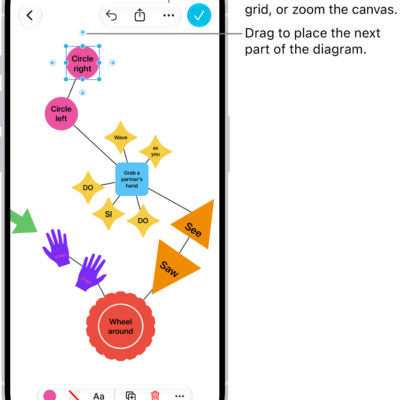
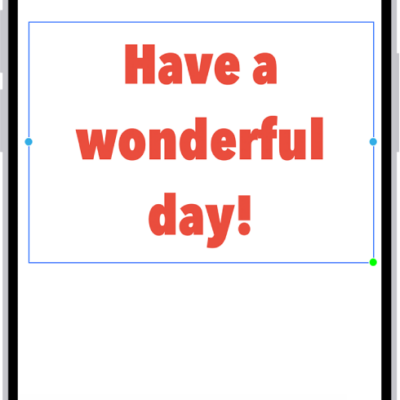
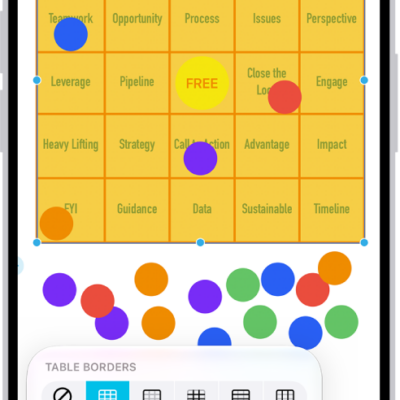
You can move, rotate, or resize items on your Freeform board. You can align, distribute, or group them, and move them to the background or foreground. You can also lock items when you want to prevent any further changes.
And it’s not one item at a time. You can select, align, and group multiple items on a board at once, and lock them in place when you want to prevent any further changes.
Here’s how to position items on a Freeform board on iPhone.
Move, rotate, or resize an item
- Open the Freeform app on your iPhone.
-
Open a board, select an item you want to position by tapping it, and then do any of the following:
- Reposition it: Drag from the center of the item.
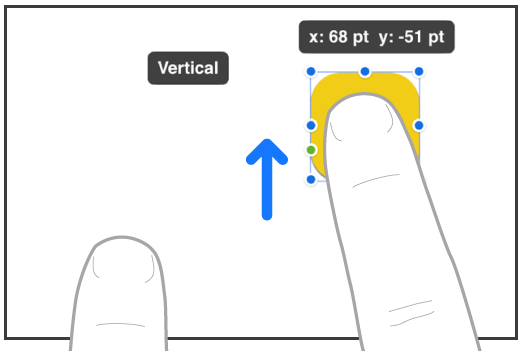
- Move it in a straight line: To constrain an item’s movement horizontally, vertically, or diagonally, drag the item with one finger while you use another finger to touch and hold anywhere on the board.
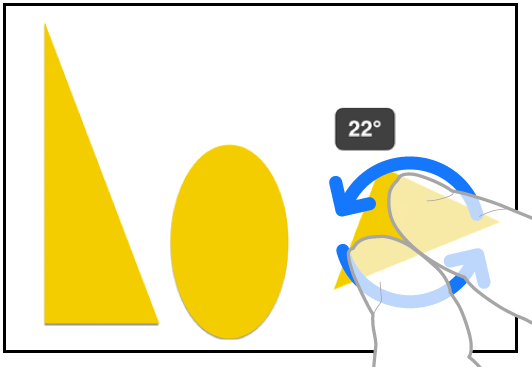
- Rotate it: Place two fingers on the item and turn your hand in the direction you want to rotate it.
- Put it in the background or foreground: Tap the More button in the formatting tools and tap Back or Front.
-
Resize it: Drag a blue dot.
In text boxes, drag a green dot to resize both the box and the text within it.
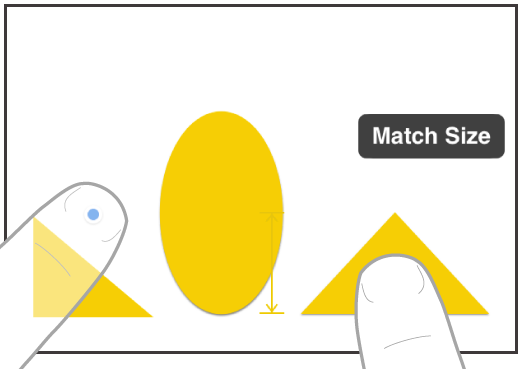
- Match its size to another item: Start resizing and then use a second finger to touch and hold the item whose size you want to match. When the words Match Size appear, lift both your fingers at the same time.
Select, align, and group multiple items on a board
Once you’ve added items to a Freeform board, you can select multiple items and align them relative to one another. Grouping several items also makes it easier to move, rotate, or resize them as a single unit.

- Open the Freeform app on your iPhone.
-
Open a board and then select multiple items by doing one of the following:
- Touch and hold an item on your board, then, with another finger, tap other items.
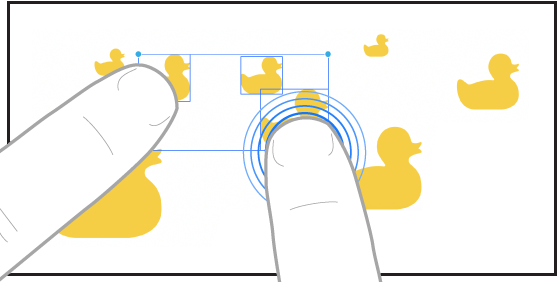
- Touch and hold the canvas, then drag the box that appears around the items you want to select.
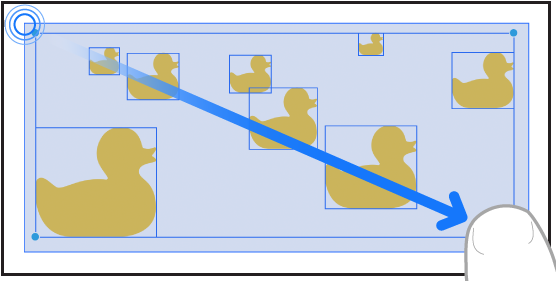
- Tap an empty space on the canvas, then tap Select Objects. Tap each item you want to select. To deselect an item, tap it again.
- Move, rotate, or resize the selected items, or tap the Arrange button. Tap an alignment option or Group.
Some items—such as 3D objects—can’t be grouped.
To align items more easily, you can also use a dot grid background and guides.
Lock an item on a board
To avoid inadvertently moving, modifying, or deleting an item on a Freeform board, you can lock it after you add it. Locking one or more text boxes to serve as headings, for example, could set off areas on a board where participants can share items.
- Open the Freeform app on your iPhone.
- Open a board. Then tap a drawing, shape, text box, or other item on your board to select it.
- Tap the More button in the formatting tools and tap Lock.
Quick tip: A large rectangle shape makes a handy workspace for your participants, so they aren’t facing a wide open canvas. Select the shape, tap the More button in the formatting tools, and tap Back, then lock it.