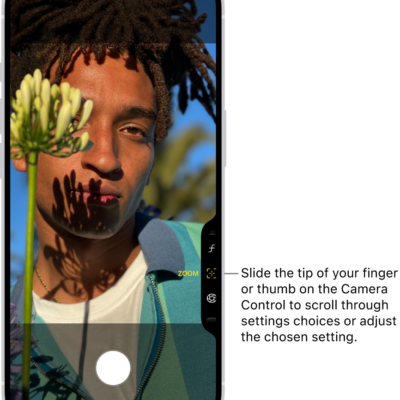
Cinematic mode applies a depth-of-field effect that keeps the subject of your video sharp while creating a beautifully blurred foreground and background. It’s available on supported models.
You don’t have to manage the focus yourself. iPhone automatically identifies the subject of the video and keeps it in focus throughout the recording, and if a new subject is identified, iPhone automatically transitions the point of focus. But you can also manually adjust the point of focus while you record, or change it later in the Photos app.
- Open Camera on your iPhone.
- Swipe left on the screen to select Cinematic mode.
-
Before recording, you can make the following adjustments:
- Tap the Camera Controls button, then tap Depth or Exposure to adjust these values. On iPhone 18 Pro models, you can also adjust additional tools, such as Shutter Speed, Lens Aperture, White Balance, and Histogram.
- Tap 2x or 3x next to 1x to zoom in (on supported models).
- Tap the resolution and fps values in the corner of the screen to change the settings (on supported models).
-
Tap the Record button or press either volume button to start recording.
- A yellow frame on the screen indicates the person in focus; a gray frame indicates a person is detected, but not in focus. Tap the gray box to change the focus; tap again to lock the focus on that person.
- If there isn’t a person in the video, tap anywhere on the screen to set the focus point.
- Touch and hold the screen to lock the focus at a single distance.
- On iPhone 15 Pro models, iPhone 16 Pro models, iPhone 17 Pro models, and iPhone 18 Pro models, tap 2x to zoom in.
For a more precise zoom control, touch and hold 1x, then slide the dial.
- Tap the Record button or press either volume button to stop recording.
Even if you didn’t record it in Cinematic mode, you can apply the Cinematic effect on iPhone 18 Pro models to a video shot in Video mode with the Main camera.
Quick tip: The Camera Control can adjust the depth-of-field effect on supported models.
Once you’ve recorded a video in Cinematic mode, you can remove or change the cinematic effect.