Save interesting items in your Reading List so you can revisit them later. You can even download the items in your Reading List and read them when you’re not connected to the internet.
A linked page can be added without opening it, too. You can view your Reading List in the sidebar, and have Safari save items automatically for offline reading. With Apple Intelligence, the items you add can be organized into suggested topics, too.

Add the current webpage to your Reading List
- Go to the Safari app on your iPad.
- Tap the Share button and tap Add to Reading List.
Quick tip: You can add a linked page without opening it. Just touch and hold the link, and then tap Add to Reading List.
View your Reading List
- Start the Safari app on your iPad.
-
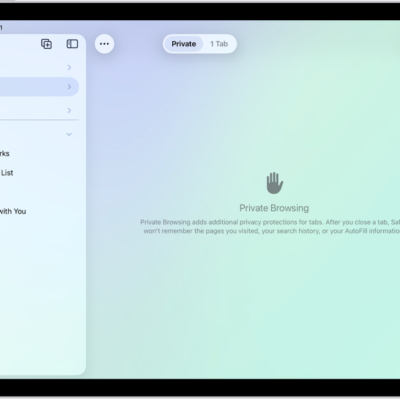
Tap the Show Sidebar button and tap Reading List (below Saved).
If you don’t see Reading List, tap the Back button at the top of the sidebar.
Recently saved reading list items appear at the top of the sidebar. The newest is on the left, and you can scroll through the others. Touch and hold a reading list item to copy, open, mark it as read, or delete it.
Tip: With Apple Intelligence, bookmarks and items you add to your Reading List are automatically organized into suggested topics if three or more of them are related. Tap a topic to view thumbnails, then tap a thumbnail to open it.
To delete an item from your Reading List, touch and hold the item, then tap Delete.
Note: Apple Intelligence on iPadOS 27 or later is available on an Apple Intelligence-enabled iPad mini (A17 Pro) and iPad models with M1 or later. Apple Intelligence is not available in all languages or regions. Usage limits may apply.*
Automatically save all Reading List items for offline reading
- Start the Settings app on your iPad.
- Tap Apps, then tap Safari.
- Turn on Automatically Save Offline (below Reading List).
*Apple Intelligence is available with Siri and device language set to Chinese (Simplified), Chinese (Traditional), Danish, Dutch, English, French, German, Italian, Japanese, Korean, Norwegian, Portuguese, Spanish, Swedish, Turkish, or Vietnamese. Some features may not be available in all regions or languages. Some devices may not be available in all regions. Siri AI is available in beta in iOS 27, iPadOS 27, macOS 27, watchOS 27, and visionOS 27 and requires an Apple Intelligence–enabled device set to a supported language. Available in English to start. Siri AI will not be initially available in the EU on iOS, iPadOS, and watchOS. Certain Apple Intelligence features that rely on server-side models are subject to daily usage limits, including but not limited to Siri AI, Intelligent Photo Editing Tools, Image Playground, and AFM 3 Cloud models in Shortcuts. Daily limits may vary by feature, request complexity, system demand, system policies, and other factors. Expanded access to such features will be available for a fee in the future. Use of these features is subject to the Apple Intelligence Terms and Conditions.
See also