Enter a URL or a search term to find websites or specific information.
Search suggestions can help as you go, and you can also search a webpage, choose a search engine, and see your favorite websites while you search. And if you don’t want to see suggested search terms, you can turn off Search Engine Suggestions in Safari’s settings on your iPhone.
Here’s how to search for websites in Safari on iPhone.
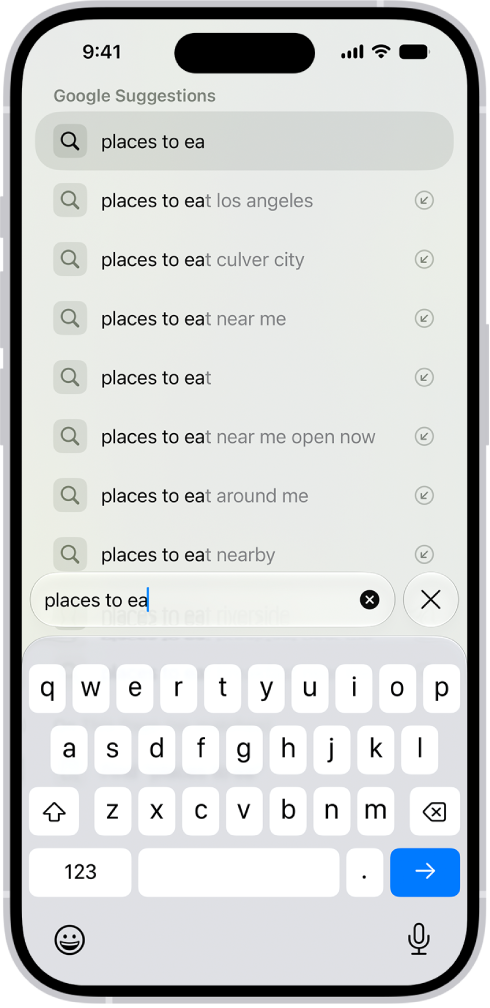
Search the web
- Start the Safari app on your iPhone.
- Enter a search term, phrase, or URL in the search field.
- Tap a search suggestion, or tap the Go button on the keyboard.
If you don’t want to see suggested search terms, go to Settings > Apps > Safari, then turn off Search Engine Suggestions.
See your favorite websites while you search
- Start the Settings app on your iPhone.
- Tap Apps, then tap Safari.
- Tap Start Page Favorites and select the folder with the favorites you want to see.
Search a webpage
Looking for a specific word or phrase on a webpage? You can find it.
- Start the Safari app on your iPhone.
- Tap the Page Menu button. Tap the Search Document button.
- Enter the word or phrase in the search field.
- Tap the Next Result button to jump to other mentions.
Choose a search engine
- Start the Settings app on your iPhone.
- Tap Apps, then tap Safari.
- Tap Search Engine and then choose a search engine.
Search for objects in your photos
Visual Look Up helps you identify and learn about popular landmarks, plants, pets, and more in your photos and videos.
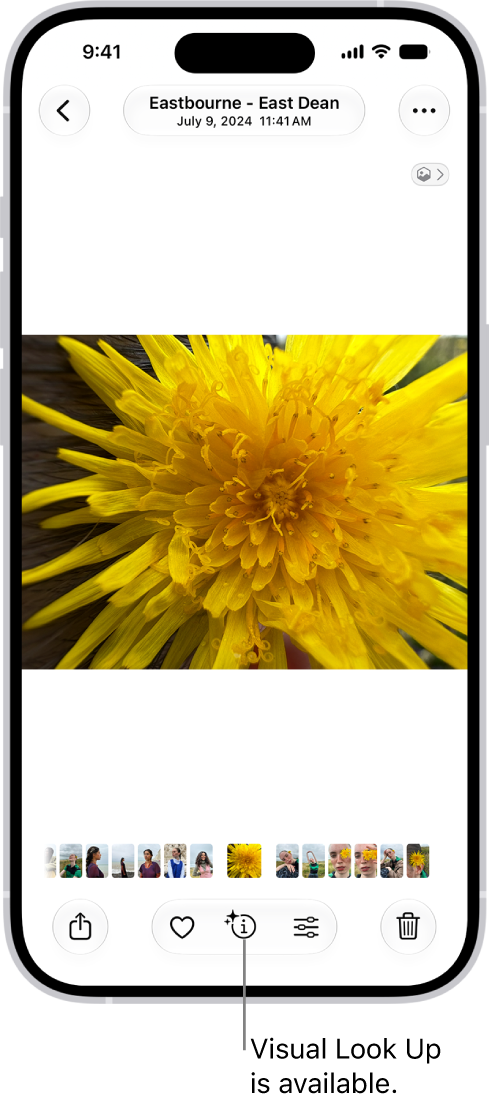
Quick tip: The same feature can also scan text and search online.