You can find saved metadata information about a photo or video in the Photos app. You can also change certain stored data such as the date, time, and location.
Depending on the photo or video, you see details like the people identified in it and a caption field that makes it easier to find in Search, along with when and where it was taken.
Here’s how to see photo and video information on iPhone.
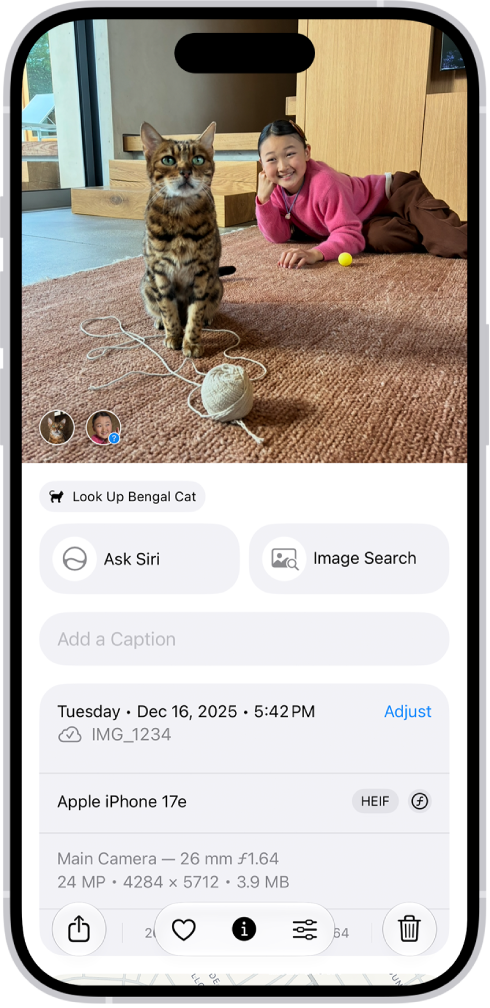
View photo and video metadata
- Open the Photos app on your iPhone.
- Tap the photo or video whose metadata you want to see. Swipe up or tap the Info button. Depending on the photo or video, you see the following details:
- People and pets identified in the photo
- A caption field to describe the photo or video, and make it easier to find in Search
- Items detected by Visual Look Up
- Event information for photos and videos taken at concerts or sporting events
- What device captured the photo or video
- The date and time the photo or video was taken (tap Adjust to edit the date and time)
- Camera metadata such as lens, shutter speed, file size, and more
- Where the photo or video was taken (tap the link to view the location in Maps; tap Adjust to edit the location; tap “Add a location” to enter a location)
- Who shared the photo or video with you, if it was shared
- What albums the photo is in (tap to open the album)
- Swipe down or tap the Info button to close.
Change the date, time, or location of a photo or video
- Open the Photos app on your iPhone.
- Tap a photo or video to open it and then tap the More button.
- Tap Adjust Info and tap Adjust Date & Time or Adjust Location.
- For date and time changes, use the calendar and clock to update, then tap Adjust.
- For location changes, enter where the photo was taken in the text field, then tap the location when it appears under Map Locations.
To change the date, time, or location of a batch of photos in your photo library, tap Select, tap the thumbnails you want to change, then follow the steps above. To revert a photo or video to its original date, time, or location, follow the instructions above, then in step 3, tap Revert.
Tag: Photos