Visual Voicemail shows you a list of your voicemail messages in the Phone app, so you can choose which ones to play and delete without listening to them all. When you store your voicemail messages in iCloud, they sync across your devices, and a badge on the Voicemail icon shows the number of unheard messages.
Setting up Voicemail starts with a voicemail password and your greeting, either Default or Custom.
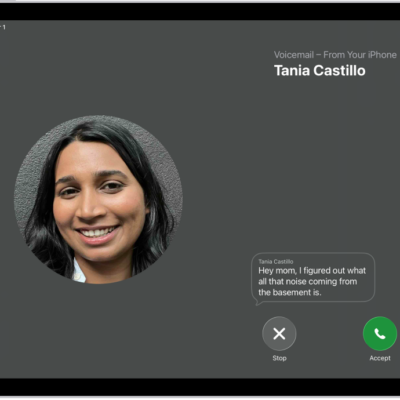
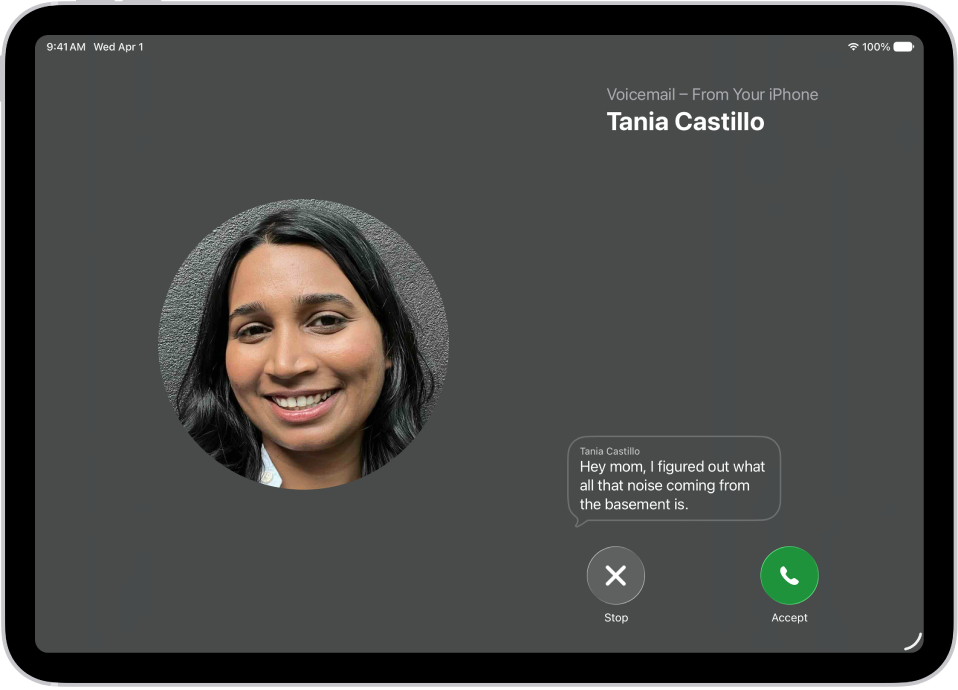
Live Voicemail lets you see a real-time transcription as someone is leaving you a message. You can even pick up the call as they’re leaving their voicemail.
Note: Voicemail, Visual Voicemail, and Live Voicemail are available from select carriers in select countries or regions.
Set up Voicemail
The first time you tap Voicemail, you’re asked to create a voicemail password and record your voicemail greeting.
- Open the Phone app on your iPad.
- Tap Voicemail, then tap Set Up Now.
- Create a voicemail password.
- Choose a greeting—Default or Custom; if you choose Custom, you can record a new greeting.
Turn on Live Voicemail
As someone is leaving you a message, Live Voicemail automatically shows you a real-time transcription. You can even pick up the call while they’re still leaving their voicemail.
To turn on Live Voicemail, do the following:
- Open the Settings app on your iPad.
- Tap Apps, then tap Phone.
-
Tap Live Voicemail and turn on Live Voicemail.
When Live Voicemail is on and a caller is sent to voicemail, your iPad displays a transcription of the caller’s voicemail as they speak. (Calling and data rates may apply.) The caller won’t be able to hear you and you won’t be able to hear them unless you choose to answer the call. To stop the incoming voicemail without answering or blocking the call, tap Stop.
If your iPad is turned off or is out of your carrier network’s range, the call is sent to carrier voicemail, if available.
If you have Silence Unknown Callers turned on, unknown numbers go directly to Live Voicemail without ringing you first. Calls identified as spam by your carrier don’t go through Live Voicemail and are instead instantly declined.
Note: Live Voicemail isn’t available in all countries, regions, or languages.
Store Voicemail in iCloud
You’re able to store and sync your Live Voicemail and Carrier Voicemail in iCloud.
- Open the Settings app on your iPad.
- Tap your name, then tap iCloud.
- Tap See All next to Saved to iCloud and then turn on Phone & FaceTime.
See also