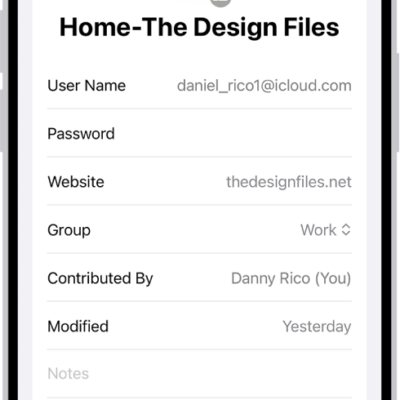
AirDrop lets you securely share passwords and passkeys for website and app accounts with someone using an iPhone, iPad, or Mac. Compared to sharing other types of information, though, AirDrop has more stringent requirements for passwords and passkeys. iCloud Keychain must be set up, and you each need to be in the other’s contacts.
Note: Want to show someone a Wi-Fi network password you saved? See our article, Find a Wi-Fi password.
Check the AirDrop requirements
Sharing passwords and passkeys with AirDrop comes with more stringent requirements than sharing other types of information.
- iCloud Keychain must be set up on your iPad.
- The person you’re sharing with must be in your contacts list in the Contacts app, and they must be listed with the email address they use for iCloud.
- You must be in the other person’s contacts list in the Contacts app, and you must be listed with the email address you use for iCloud.
Send a password or passkey
Someone on iPad or iPhone needs to open Control Center and allow AirDrop to receive items before you can share with them. On a Mac, they need to allow themselves to be discovered in AirDrop in the Finder.
- Go to the Passwords app on your iPad.
- Tap All. Tap the account you want to share.
- Tap the Share button, then tap Share with AirDrop.
- Tap the device or picture of the person you want to send the password or passkey to.
Receive a password or passkey
- If you haven’t already done so, allow AirDrop to receive items.
- When you receive a request to accept a password or passkey from someone else, tap Accept.
Your iPad saves the password or passkey, so you can view its information and let iPad automatically fill it in on the account’s sign-in screen. It’s saved to your iCloud Keychain too, so it works on other devices signed in to your Apple Account.
See also