You can share the internet connection from your iPhone with other devices using a feature called Instant Hotspot. It’s useful when your other device doesn’t have internet access from a Wi-Fi network, and it uses the Personal Hotspot on your iPhone.
Other devices can connect to your Personal Hotspot through Wi-Fi, Bluetooth®, or a cable. It shares your iPhone’s cellular connection, and it’s faster to connect your Apple devices if they’re signed in to the same Apple Account.
Other devices can connect to your Personal Hotspot in several ways:
- Connect your other device to your iPhone through Wi-Fi settings.
- Pair your two devices with Bluetooth®.
- Connect your other device to your iPhone with a cable.
Another iPhone, an iPad, a Mac, a Windows device, and more can use the Personal Hotspot on your iPhone.
Note: Personal Hotspot isn’t available with all carriers. Additional fees may apply. The number of devices that can join your Personal Hotspot at one time depends on your carrier and iPhone model. Contact your carrier for more information.
Before you begin
For Instant Hotspot to work, make sure all of these are true:
- Both devices have Wi-Fi and Bluetooth turned on.
- The devices are within 30 feet (10 meters) of each other.
- Both devices meet minimum system requirements for Instant Hotspot.
If you’re using a VPN, its configuration shouldn’t prevent local networking, since that may interfere with some Continuity features.
Sharing your Personal Hotspot with your Apple devices? They connect faster if you’re signed in to the same Apple Account on both.
Note: Personal Hotspot only works by sharing the cellular internet connection on your iPhone, not a Wi-Fi network your iPhone is connected to.
Set up Personal Hotspot on your iPhone
- On your iPhone, open the Settings app.
- Tap Cellular and then tap Set Up Personal Hotspot.
- Follow the onscreen instructions.
Quick tip: Your Personal Hotspot uses your device’s name, so to rename it, you need to change the device name. Go to Settings > General > About, then tap Name.
When you set up your Personal Hotspot, you set up a password to connect to it. To change the password later, go to Settings > Cellular > Personal Hotspot, then tap Wi-Fi password and enter a new password.
With two SIMs set up on your iPhone, Personal Hotspot uses the line you choose for cellular data.
Note: If Cellular Data is turned on in Settings > Cellular and Set Up Personal Hotspot still isn’t an option, ask your carrier about adding Personal Hotspot to your plan.
Turn Personal Hotspot on and off on your iPhone
- On your iPhone, open the Settings app.
- Tap Personal Hotspot.
- Follow the onscreen instructions.
You decide who is allowed to use your Personal Hotspot and can set a password. And if you’re in a Family Sharing group, you can choose whether to share your Personal Hotspot automatically with specific family members.
Connect to a Personal Hotspot with Wi-Fi
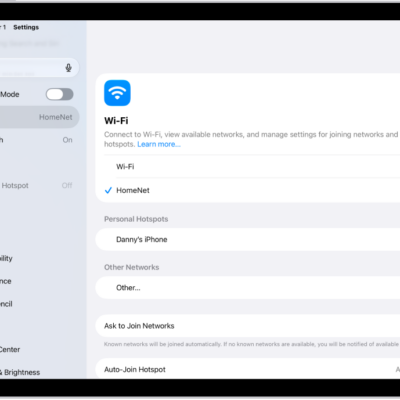
Another device can join the Personal Hotspot on your iPhone through Wi-Fi settings, whether it’s a Mac, a Windows device, another iPhone, an iPad, or one of many other devices that can join a Wi-Fi network.
- On the device that you want to connect to the Personal Hotspot on your iPhone, do any of the following:
- On an iPhone: Swipe down from the top-right edge to open Control Center. Tap the Wi-Fi Status menu to turn Wi-Fi on. Then choose your iPhone.
- On an iPad: Swipe down from the top-right edge to open Control Center. Tap the Wi-Fi Status menu to turn Wi-Fi on. Choose your iPhone.
- On a Mac: Click the Wi-Fi Status menu in the menu bar and then choose your iPhone.
- On a Windows device or other device: Follow the manufacturer’s instructions to connect to a Personal Hotspot.
- Enter the password you set up for your Personal Hotspot to connect. If you’re connecting another Apple device and you’re signed in to the same Apple Account on both devices, you don’t need to enter a password.
Note: A Mac connected to your Personal Hotspot shows the Personal Hotspot icon in the Mac’s status bar.
To save battery life, your devices automatically disconnect when you’re not using the hotspot.
Connect to a Personal Hotspot with Bluetooth
Instead of Wi-Fi, a Mac or Windows device can connect to the Personal Hotspot on your iPhone using Bluetooth. Both devices need Bluetooth turned on.
-
On your Mac, open the System Settings app.
Note: If your Mac has macOS 12.5 or earlier, choose Apple menu > System Preferences.
- Click Bluetooth in the sidebar. (You may need to scroll down.)
-
On your iPhone, open the Settings app and then tap Bluetooth.
Keep Bluetooth Settings open to make sure that your device is discoverable.
- On your Mac, select your iPhone when it appears. (It may take a moment.)
Once it’s connected by Bluetooth, your Mac can use your iPhone’s cellular connection.
To connect your Windows device to your iPhone over Bluetooth, set up a Bluetooth network connection by following the manufacturer’s directions.
Connect to a Personal Hotspot with a USB cable
A Mac or Windows device can also connect to your iPhone’s Personal Hotspot with the USB cable that came with your iPhone. Another cable that fits the ports on your iPhone and the other device works, too.
If you see an alert on your iPhone that says Trust This Computer? tap Trust. You may be asked to enter your device passcode to proceed. If you see an alert on your Mac that says “Allow accessory to connect?” click Allow.
Note: To connect a Windows device to your Personal Hotspot with a USB cable, you need Apple Devices or iTunes installed.
Once it’s connected by a cable, your Mac or Windows device can use your iPhone’s cellular connection.
If your Personal Hotspot isn’t working
- Make sure that your devices have Wi-Fi and Bluetooth turned on.
- Your devices must be within 30 feet (10 meters) of one another.
- Maximize compatibility in Settings > Personal Hotspot, then enable Maximize Compatibility. Maximize Compatibility may reduce performance for devices connected to your Personal Hotspot when turned on.
When you share a Personal Hotspot from your iPhone, it uses cellular data for the internet connection. To monitor your cellular data network usage, go to Settings > Cellular.
With Family Sharing, any member of your family can use your Personal Hotspot.