Got a tip for us?

personal hotspot

  • If your iPhone’s Personal Hotspot is not working after iOS 26 update, ensure the internet works and you’re entering the right password.
  • You can also try disabling Low Data mode or restarting your phone’s Wi-Fi.
  • If your iPhone Personal Hotspot still won’t work on iOS 26, then restarting the phone or resetting network settings might help.

Your iPhone personal hotspot feature can come in handy in so many ways. For instance, if your home internet is experiencing an outage or if you brought your laptop to a cafe that doesn’t offer Wi-Fi access, you can instead use your cellular data plan to get your other devices online. But your iPhone’s Personal Hotspot won’t work after updating to iOS 26. Why?

This question has many possible answers, and most of them depend on the cause. Here’s how to fix your iOS 26 Personal Hotspot issue.

How to fix your iPhone Personal Hotspot when it’s not working on iOS 26

If your iPhone Personal Hotspot isn’t working on iOS 26, run through this troubleshooting list to figure out why. Try connecting to Personal Hotspot again after each step.

Make sure your iPhone’s internet connection is working

On your iPhone, go to SettingsCellular and check to make sure cellular data is switched on. You should also try to use the internet on your phone to make sure you’re not in an area with slow or bad reception.

You should also check and ensure you haven’t exceeded your cellular data limit for the month — if you’re on a prepaid plan with a limit, your data speeds will be throttled when you pass it, rendering your hotspot essentially useless. To solve this issue, contact your data provider.

See also: iPhone Cellular Data Not Working on iOS 26? How to fix it

Note: If you set up your iPhone to use two SIMs, Personal Hotspot uses the line you select for cellular data.

Make Sure Personal Hotspot is set up properly on your iPhone

  1. On your iPhone, go to SettingsPersonal Hotspot and check to make sure Allow Others to Join is on.
  2. Remember the iPhone’s Wi-Fi network name and password that appear on this screen. Optionally, you can change the Wi-Fi Password. Your Wi-Fi network name is your iPhone name, which you can change in SettingsGeneralAbout.
  3. Stay on this screen until you connect the other device to your iPhone Personal Hotspot.

If you can’t find or turn on Personal Hotspot on your iPhone, check that your wireless carrier enabled it and that your wireless plan supports it.

Turn Personal Hotspot on and off on your iPhone

  1. On your iPhone, go to SettingsPersonal Hotspot, then turn off Allow Others to Join.
  2. Wait for about 15 seconds, then turn on Allow Others to Join.

Make sure the password is right

If you see a password error when you try to join Personal Hotspot, look at the password on your iPhone and make sure you’ve entered the password correctly on the device you’re connecting with — if it’s not, you won’t be able to connect to your iPhone Personal Hotspot.

On your iPhone, go to SettingsPersonal Hotspot to see your Personal Hotspot password. If you’re still having trouble, you can also change the password to something that will be easier to enter without mistakes.

Turn your Wi-Fi on and off

Speaking of bugs in the system, even though your phone’s Wi-Fi isn’t usually the victim of them, it’s not impossible for that to be the case.

If it doesn’t seem to be working, try switching it off and back on again and see if that fixes the issue.

  1. On your iPhone, go to Settings and tap Wi-Fi.
  2. Tap the toggle for Wi-Fi to turn it off.
  3. Wait about 15 Seconds.
  4. Tap the toggle for Wi-Fi to turn it on

On the device that needs to connect to your iPhone Personal Hotspot, turn Wi-Fi off and back on as well. Please also make sure that you connect to the correct Wi-Fi network. The network name is the same as your iPhone and the Personal Hotspot icon might appear next to it.

Disable Low Data mode

Low Data Mode is an iOS feature that is designed to restrict background network use and save cellular data usage. If the feature is enabled, it could be the reason why your iPhone Personal Hotspot is not working after iOS 26 update. Try turning Low Data mode off and see if that fixes the issue.

  1. On your iPhone, go to Settings and tap Cellular.
  2. Tap Cellular Data Options, select Data Mode, then select Standard.

Turn on Maximize Compatibility.

On your iPhone, go to SettingsPersonal Hotspot and turn on Maximize Compatibility. Then try connecting your devices again to your iPhone Personal Hotspot.

Note: When you turn on Maximize Compatibility, internet performance and Wi-Fi security might be reduced for devices connected to the hotspot.

Try restarting your devices

It’s possible the problems you’re experiencing with your hotspot could easily be simply solved by restarting your devices. Restart your iOS 26 device and the other device that needs to connect to Personal Hotspot.

Reset Network Settings

On your iPhone, go to SettingsGeneralTransfer or Reset iPhoneReset, then tap Reset Network Settings. This also resets Wi-Fi networks and passwords, cellular settings, and VPN and APN settings that you’ve used before.

Connect to your iPhone Personal Hotspot with Bluetooth

Wi-Fi isn’t the only way to connect devices to your iPhone hotspot. You can connect a phone or computer to the Personal Hotspot on your iPhone using Bluetooth instead of Wi-Fi. Both devices must have Bluetooth turned on.

To connect a device to the Personal Hotspot on your iPhone using Bluetooth, follow the steps below:

  1. On your iPhone, go to Settings and tap Bluetooth.
  2. Tap the toggle for Bluetooth to turn it on – when it’s on, it will have a green background instead of gray.
  3. Connect to the iPhone Bluetooth from your other device, and confirm the connection on your phone.

Connect to your iPhone Personal Hotspot with a USB cable

You can also connect a Mac or Windows device to the Personal Hotspot on your iPhone using the USB cable that came with your iPhone (or another cable that matches the ports on your iPhone and other device).

Note: If you see an alert on your iPhone that says Trust This Computer? tap Trust. You may be asked to enter your device passcode to proceed. If you see an alert on your Mac that says “Allow accessory to connect?” click Allow.

As soon as it’s connected by a cable, your Mac or Windows device is able to use the cellular connection on your iPhone.

Conclusion

In most cases, this is about all you can do to fix any iOS 26 hotspot issues you might be having. If none of these troubleshooting options can solve your problem, it may be a bug in iOS 26, or you might need to take your phone in to be looked at.

If you’re stuck in a situation where Personal Hotspot is missing on your iPhone or iPad, you’ve come to the right place. This issue is generally pretty easy to diagnose, and I’ll walk you through the process step-by-step so you can fix the no Personal Hotspot on iPhone or iPad issue for good.

The Personal Hotspot feature in iPhones and iPads is a lifesaver. It lets you share your cellular data with someone else in need or from one of your devices to another. This is especially useful when someone is in dire need of an internet connection. If your iPad or iPhone hotspot disappeared, keep reading. We’ll look at all the different fixes you can try to restore missing Personal Hotspot option on your iPhone or iPad.

How to Fix Missing personal hotspot on iPhone or iPad

There can be many things that cause an iPhone or iPad Personal Hotspot to disappear. Please try the tips below and after each tip, check to see if the Personal Hotspot setting becomes available.

1. Make sure Cellular Data is enabled on your iPhone

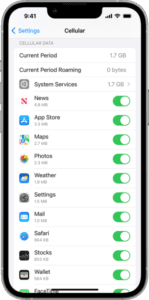
If cellular data is disabled, your iPhone hotspot won’t show up. Go to Settings > Cellular Data and then toggle on Cellular Data.

If Cellular Data option is already enabled, you may need to toggle it off and on to restore the missing hotspot feature.

An iPhone screen showing cellular data settings  

2. Turn airplane mode on and off

This is a simple but effective tip. I often do this whenever I have a connection problem, including Personal Hotspot problem. On your iPhone, tap Settings, find Airplane Mode. Switch it on, and wait for about a minute and then turn it off.

3. Update your iPhone

A software bug may be preventing Personal Hotspot from showing on your iPhone. It’s possible that Apple has already released an update to fix the issue.

To check for iOS update, go to Settings > General > Software Update. If an update is available, you’ll be asked to download and install it.

4. Check for carrier settings updates

As carrier settings updates come with bug fixes, installing these updates may help solve the problem when Personal Hotspot is missing on your iPhone or iPad.

To check for carrier settings updateS, go to Settings > General > About. A popup will appear if a new carrier settings update is available. Tap Update.

Please note: you need a stable Internet connection to install carrier settings updates on your iPhone or iPad.

5. Make sure that your wireless carrier plan supports Hotspot

You may not know if the Hotspot feature is attached to your phone service. If you are not sure, contact your carrier. If this is the case, you may not see the Hotspot settings on your iPhone.

6. Restart your iPhone

It’s always worth following the age-old advice of turning your device off and on again if Personal Hotspot option is missing on your iPhone or iPad,. Here is how you can do this:

  • iPhone X, 11, 12, 13, 14, or 15: Press and hold the side and the volume up (or down) together until you see the power off slider. Drag the slider. The wait for about a minute. Then press and hold the side button until the Apple logo appears.
  • Other iPhone models: Press and hold the side or top button until the power off slider appears. Then slide the slider. Then press and hold the side or top button to turn your iPhone back on.

7. Force restart your iPhone

If a regular restart doesn’t resolve your issue, the next step is to try force restart. Different iPhone models require different procedures for this. Here is how:

  • iPhone 8 or later (iPhone X, iPhone 11, iPhone 12, iPhone 13, iPhone 14, and iPhone 15): First press and release the volume up button and press and release the volume down button and then press and hold the Side button until your iPhone restarts.
  • iPhone 7, iPhone 7 Plus: Press and hold the side and volume down buttons together until you see the Apple logo.
  • Other earlier iPhone models (iPhone 5, iPhone 6 etc): Press and hold the home and power buttons together until your iPhone restarts.

8. Remove and Reinsert the SIM Card

In every mobile phone, the SIM card is essential to make calls, send messages, and use mobile data.

When your iPhone or iPad has trouble recognizing the SIM card properly, it will naturally cause Personal Hotspot to disappear. So, the way to solve this is to simply remove and reinsert the SIM card.

  • Insert a SIM ejector tool into the hole next to the SIM tray and press until the tray ejects.
  • Inspect the SIM Card for any damage. If it’s dusty, wipe it off with a soft damp cloth, but be sure it’s completely dry before reinserting it into your iPhone.
  • Put your SIM card back into the tray, reinsert the SIM tray into your iPhone, and cross your fingers. If the Personal Hotspot option appears, congratulations — you fixed the issue!

9. Reset APN Settings

Wrong APN data can also cause your iPhone hotspot to disappear. If your carrier has this feature and you know the codes, you can add them yourself. Alternatively, you can reset your APN Settings. Doing so will erase any custom APN settings you have previously configured, and your iPhone will revert to the default APN settings provided by your mobile network provider.

To reset your APN settings, follow the steps below:

  1. Go to Settings > Cellular > Cellular Network.
  2. Scroll down to the bottom of the screen and tap Reset Settings.

10. Reset network settings

Resetting the network settings on your iPhone or iPad will clear out anything potentially preventing Personal Hotspot from showing up. Thus, it may fix your problem. Please note that doing so will also erase your current networking settings such as Wi-Fi networks and passwords, cellular data settings and VPN settings. To do this:

To reset network settings, tap Settings > General > Transfer or Reset iPhone > Reset > Reset Network Settings. If asked, enter your passcode.

11. Reset Your iPhone

If nothing works, it’s time to reset your iPhone. Go to Settings > General > Transfer or Reset iPhone > Reset > Reset All Settings. This restores all your iPhone’s settings to their default state without deleting any data.

Erasing all data and wiping your device’s operating system should be a last-ditch solution when your iPhone hotspot still isn’t showing up. If you want to go that route, go to Settings > General > Transfer or Reset iPhone > Reset > Erase All Content and Settings to begin to factory reset your entire iPhone. But you should be sure to make a backup first.

Alternatively, you can achieve the same outcome using Finder or iTunes on a computer. Connect your phone to your computer, open the Finder or iTunes app, choose your iPhone in the left-hand panel, and click on Restore iPhone.

12. Still no Personal Hotspot on iPhone or iPad?

If all else fails and Personal Hotspot is still not showing on your iPhone or iPad, you’re going to need support. Here are your options:

  • Contact your carrier: There’s a possibility your carrier has disabled the Personal Hotspot option for your account. For more information, you’ll need to contact your carrier’ support team (AT&T, Verizon, T-Mobile US) ETC. and raise the issue with them.
  • Contact Apple Support: There’s a chance the issue you’re facing is hardware-related. If that’s the case, no amount of fiddling with settings will restore missing Personal Hotspot option on your iPhone or iPad.Contact Apple Support for help.

Wrapping It Up

I really hope this article has helped you to understand, diagnose, and fix the no Personal Hotspot issue on your iPhone or iPad. If have any questions or comments you’d like to share, please leave a comment below and I’ll do my best to respond as soon as possible.

Thank you so much for reading and I wish you all the best,

iPhone 12 Pro Max

The iPhone Personal Hotspot feature transforms your phone into a Wi-Fi hotspot that can share its internet connection with other nearby devices. However, that can’t happen if iPhone 12 Pro Max Hotspot keeps disconnecting. If you are also facing iPhone 12 Pro Max hotspot issues, you have come to the right place. This article explains a number of tips to fix iPhone 12 Pro Max hotspot that won’t stop disconnecting.

Creating a personal hotspot is something that you might need to do from time to time if you don’t have ready access to Wi-Fi with your iPhone. However, you could encounter a situation where your iPhone 12 Pro Max personal hotspot keeps Disconnecting. If that is happening with your iPhone consistently, you’ll need to figure out a way to solve the problem. This troubleshooting guide explains exactly why your iPhone 12 Pro Max hotspot keeps disconnecting and how to fix the issue.

It is possible that the problem may be with your iPhone, the other device that needs to connect to your iPhone 12 Pro Max Personal Hotspot, or your wireless cellular carrier.

How to fix iPhone 12 Pro Max Hotspot keeps disconnecting issue

If your iPhone 12 Pro Max Personal Hotspot keeps disconnecting, follow these steps—in this order—to get it working again.

These instructions apply to iPhone 12, iPhone 12 mini, iPhone 12 Pro, and iPhone 12 Pro Max that Hotspot keeps disconnecting.

Try these steps first

  • Using a hotspot (or called tethering) is a carrier service. Most major carriers (AT&T, Verizon, etc) offer this service but it may depend on your service plan and data allowance. Reach out to your carrier to ensure that it does not impose any restrictions for using a hotspot. For example, some carriers do not support game systems or smart TVs.
  • If other devices won’t connect to your hotspot, it may be because the devices are out of range. Ensure that the other devices and your iPhone 12 Pro Max are close to each other (within 15 feet).
  • Check to see if the problem is with the hotspot, your iPhone that provides Personal Hotspot, or the other device(s) that connected to it:
    • Try connecting a different computer or mobile device to the hotspot. If this device can connect, then the problem is not with the hotspot.
    • Try connecting it to other Wi-Fi connections, if it cannot connect, then the problem is not the hotspot.
    • Try visiting another website (e.g., Apple.com or geeksmodo.com). if they can load, then the problem is not the hotspot.
  • Please ensure that your iPhone 12 Pro Max is running the latest version of the iOS software. You can update (or check for updates) by going to Settings > General > Software Update.
  • Please ensure that the other device is running the latest version of its software/firmware. Contact its manufacturer for further help.
  • Make sure that Personal Hotspot is enabled on your iPhone 12 Pro Max (Settings > Personal Hotspot). Furthermore, ensure that Allow Others to Join is turned on. And lastly, ensure that Maximize Compatibility is enabled (Settings > Personal Hotspot).
  • Restart your iPhone 12 Pro Max and the other device(s) that keeps disconnecting to your Personal Hotspot.
  • Turn off Wi-Fi and wait 20 seconds and turn on Wi-Fi on the other device that is trying to connect to your iPhone 12 Pro Max.

Update your carrier settings

Update your carrier settings on your iPhone. This update may fix your iPhone 12 Pro Max hotspot problem. Here is how:

  • On your iPhone, go to Settings > General > About.
  • if a new update is available, tap download and Install.

Reset network settings

Reset network settings on your iPhone 12 Pro Max. Please note that this will erase Wi-Fi networks and passwords, cellular settings, and VPN, proxy and APN settings that you have used before. If your settings are misconfigured, that may cause this problem. Resetting may fix it. You can do that by going to Settings > General > Reset > Reset Network Settings. You will be asked to enter your passcode. And then your iPhone will restart.

See also: My iPhone Personal Hotspot Is Not Working

Still, iPhone 12 Pro Max Hotspot Keeps Disconnecting?

If your iPhone 12 Pro Max hotspot keeps disconnecting after trying the above steps, you may want to:

  • Get in touch with Apple support.
  • Get in touch with your Service provider.
  • Get in touch with the manufacturer of the other device.

Is your iPhone 14 Pro Max hotspot not working? It can be really frustrating when you need an emergency internet connection and can’t get your hotspot to work. Luckily, we have a few troubleshooting tips for you that may get your iPhone 14 Pro Max hotspot up and running.

Note: information in this article apply to iPhone 14, iPhone 14 Plus, iPhone 14 Pro and iPhone 14 Pro Max.

How to Fix iPhone 14 Pro Max Personal Hotspot Not Working Issue

If your iPhone 14 Pro Max Personal Hotspot isn’t working, follow these solutionss—in this order—to get it working again.

Turn Personal Hotspot Off and On

Sometimes you need to reset your Personal Hotspot to get it working again. Do that by turning it on and off: Go to Settings > Personal Hotspot > move the Allow Others to Join slider to off/white and then back to on/green.

Turn Cellular Data On and Off

Since your iPhone personal hotspot lets other devices use your cellular data to connect to the internet, turning your cellular data off and on again can sometimes act like a “reset,” like how sometimes all you need to do to make a gadget work again is to turn it off and back on. Go to Settings > Cellular > move the Cellular Data slider to off/white and back to on/green.

Restart iPhone to Fix Personal Hotspot

You know how we just talked about how sometimes all you need to do to get something to work is turn it off and on again? Well, if none of the above options have worked, that’s what it’s time for now. Go to Settings > General > Shut Down.

Update iOS

If your personal hotspot is enabled and still not working, you may want to try updating to the latest available version of iOS. You can tell if you need an update by going to Settings > General > Software Update.

Enable Maximize Compatibility

The iPhone 14 Pro Max offers different networking features and options than earlier devices, including 5G. These options can sometimes cause a problem for older models connecting to them. Solve this by going to Settings > Personal Hotspot > move the Maximize Compatibility slider to on/green.

Update Carrier Settings to Fix iPhone 14 Pro Max Hotspot problem

Like iOS, sometimes your cellular carrier will need to make updates. These settings control your iPhone’s ability to operate on your carrier’s network: they allow you to make calls, text, and use cellular data. Since hotspots depend on cellular data to work, if these settings are out of date, you may not be able to use your hotspot until they’re updated.

When carrier settings need to update, you may see a notification asking for your permission to install these updates (or, in the case of mandatory updates, letting you know that those updates are happening). If you’ve put off these updates, you can check for any available updates:

Go to Settings > General > About.

Confirm Your Phone Plan Includes Personal Hotspot

Have you changed your phone plan recently or switched phone companies? Personal Hotspot might not be working because your plan doesn’t include it. Most phone companies’ data plans include Personal Hotspot these days, but some don’t. You may also be able to remove the feature. So, before you do anything else, log into your phone company account and make sure your plan includes Personal Hotspot. If it doesn’t, add it.

Reset Network Settings

If you’re still stumped, it may be time to try resetting your network settings. I’ve left this tip until now because it can be a bit of pain to reconfigure your Wi-Fi and settings as you like them after resetting, but sometimes it’s the only option. You can reset network Settings by going to Settings > General > Transfer or Reset iPhone > Reset > Reset Network Settings.

Make Sure There Are No Problems With Your Phone Company Account

If you’ve tried all of these methods, and your iPhone 14 Pro Max hotspot still doesn’t work, it may be time to look for outside help. Consider contacting your cellular provider to see if there is any reason on their end your hotspot might not be working.

What to Do If iPhone 14 Pro Max Personal Hotspot Still Isn’t Working

At this point, if iPhone 14 Pro Max Personal Hotspot still isn’t working, it’s time to bring in the experts. You can contact Apple support for help over the phone or make an appointment for in-person support at your local Apple Store. If anyone can help with a problem this stubborn, it’s Apple.