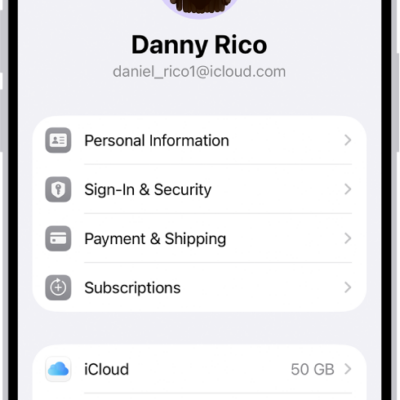
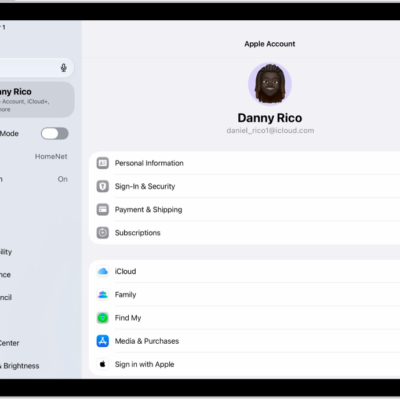
Your Apple Account gives you access to Apple services such as the App Store, the Apple Games app, the iTunes Store, Apple Books, Apple Music, FaceTime, iCloud, iMessage, and more. When you create a new Apple Account in China mainland or India, you can use your mobile phone number as your Apple Account user name.
You can also change your Apple Account settings, and add or update the payment method associated with it.
Sign in to your Apple Account
If you didn’t sign in during setup, do the following:
- Start the Settings app on your iPhone.
- Tap Apple Account.
- Tap one of the following:
- Use Another Apple Device: Bring your other iPhone or iPad (with iOS 17, iPadOS 17, or later) nearby and then follow the onscreen instructions.
- Sign in Manually: Enter your email address or phone number, then enter your password. If you don’t have an Apple Account, you can create one.
- If you protect your account with two-factor authentication, enter the six-digit verification code.
Change your Apple Account settings
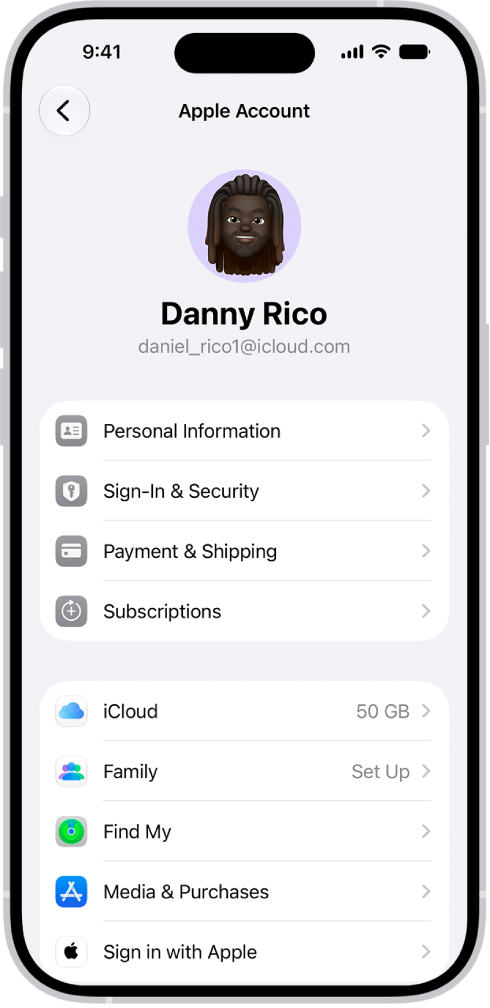
- Start the Settings app on your iPhone.
- Tap your name, then do any of the following:
- Update Personal Information: Update your name, birthdate, and Memoji or photo associated with your Apple Account. You can also set up your preferences for communication from Apple, and see how your data is managed.
- Change Sign-In & Security: Change your Apple Account password, turn on two-factor authentication, add or remove phone numbers and emails you can use to sign in, and set up Account Recovery or Legacy Contact.
- Manage Payment & Shipping: Select your payment methods and shipping address for your Apple Account and purchases from the Apple Store.
- View and manage your subscriptions: View and manage your subscriptions from Apple and subscriptions that you purchased in apps from the App Store.
- Use iCloud.
- Set up Family Sharing.
- Use Find My.
- Manage Media & Purchases: Manage the accounts linked to Apple Music, Apple Podcasts, Apple TV, and Apple Books and select purchasing settings.
- Use Sign in with Apple.
Add or update the payment method associated with your Apple Account
Apple media purchases and services use the payment information associated with your Apple Account.
- Start the Settings app on your iPhone.
- Tap [your name], then tap Payment & Shipping. You may need to authenticate with Face ID or Touch ID.
- Tap Add Payment Method or tap an existing payment method.
Tag: Apple Account