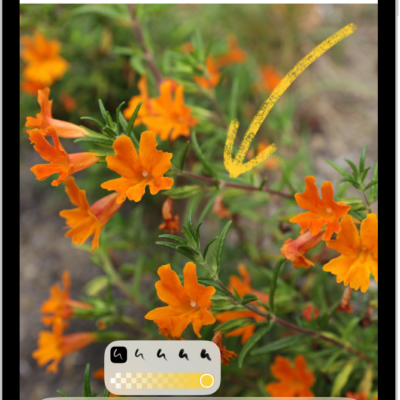
You can use Apple Pencil to quickly take a picture of the iPad screen, then mark it up to share with others or use in documents. You can draw on the screenshot with Apple Pencil and change drawing tools with the tool palette, then send it in a message or save it in a note.
- To capture the screen, swipe up with Apple Pencil from either corner at the bottom of your iPad.
-
To mark up the screenshot, draw with Apple Pencil.
Use the tool palette at the bottom of the screen to change drawing tools. See Draw and handwrite with Markup on iPad.
- To send the marked up screenshot to others (such as in a message), or to save it in a document (such as in a note), tap the Share button. Choose an option.
- When you’re finished, tap Done, then choose an option.
See also
- Enter text with Scribble on iPad
- Draw with Apple Pencil on iPad
- Quickly write notes with Apple Pencil on iPad
Tag: Apple Pencil