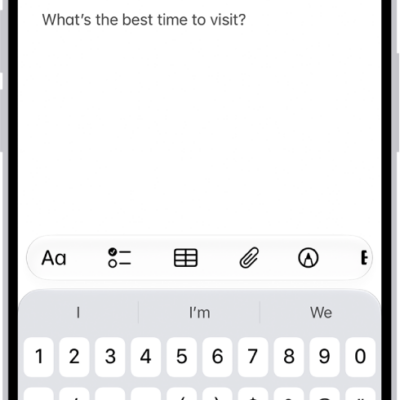
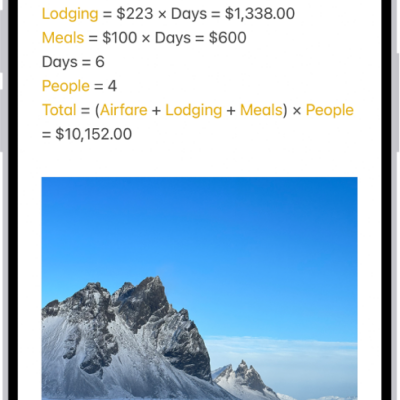
Use the Notes app to create, view, pin, and delete notes, and keep them up to date on all your devices with iCloud.
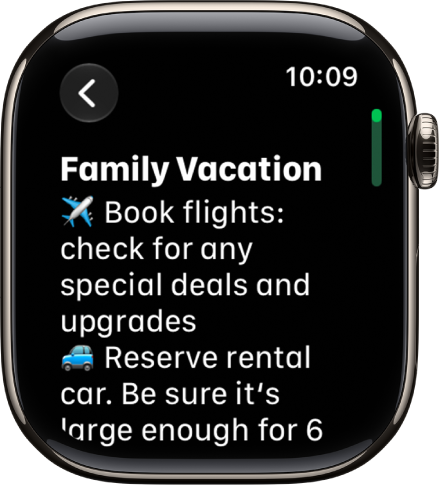
With iCloud, your notes and any changes you make appear on your paired iPhone and other devices. Pinned notes stay at the top, and the rest are sorted by date. Editing existing notes happens on your iPhone, iPad, or Mac, though.
Here’s how to take notes on Apple Watch.
Note: Use your iPhone, iPad, or Mac to edit existing notes; your changes sync with iCloud.
Keep your notes up to date on all your devices with iCloud
Through iCloud, your notes appear on your paired iPhone, along with any changes you make to them, and on other devices where you’re signed in to your Apple Account.
Create a new note
- Start the Notes app on your Apple Watch.
- Tap the New Note button.
View a note
Note: Notes on Apple Watch don’t show some formatting and certain attachments, like tables and audio recordings.
- Start the Notes app on your Apple Watch.
-
Turn the Digital Crown to scroll through your notes list.
Pinned notes appear at the top, followed by notes sorted by date.
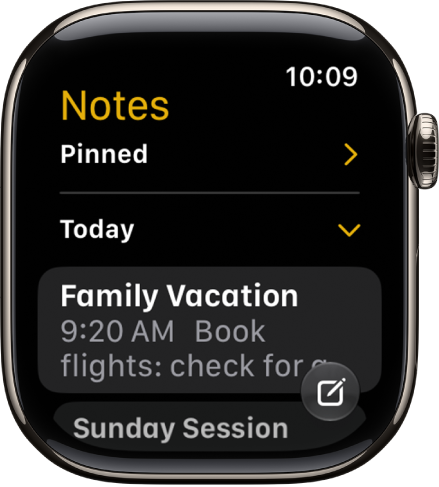
- Tap a note to open it.
Pin a note
Notes you access often can stay at the top of the list for convenience.
- Start the Notes app on your Apple Watch.
- Swipe right on the note and tap the Pin button.
Delete a note
- Start the Notes app on your Apple Watch.
- Swipe left on the note you want to remove and tap the Delete button.
If you change your mind, you can recover the note. Deleted notes remain in Recently Deleted for 30 days. On your iPhone, open the Notes app, go to the Recently Deleted list, swipe left on the note, then tap Move and choose a folder.
See also
- Use reminders on Apple Watch
- Use Siri to perform everyday tasks
- Update your Apple Account settings on Apple Watch