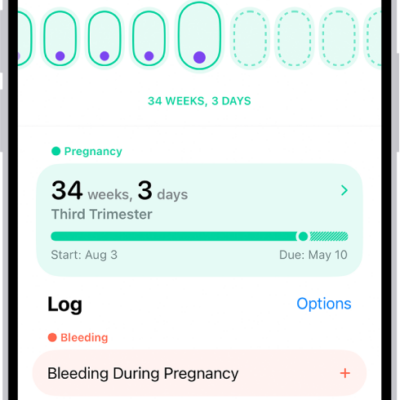
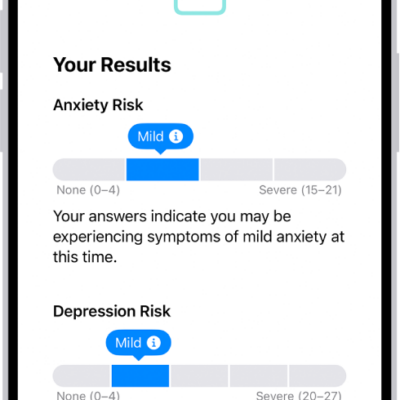
When you log a pregnancy in the Health app on iPhone or iPad, you can view your gestational age on Apple Watch and log bleeding and symptoms.
The Health app on iPhone and the Cycle Tracking app on Apple Watch can help you better understand your data during pregnancy by making adjustments and recommendations to reflect changes in your physical and mental health. On iPhone or iPad, you can log the first day of your last period or an estimated due date.
Log a pregnancy on iPhone or iPad
- Go to the Health app on iPhone or iPad.
-
Do one of the following:
- On iPhone: Tap Browse, then tap Cycle Tracking.
- On iPad: Tap the sidebar, then tap Cycle Tracking.
- Scroll down and tap Factors. Then tap the Add button.
- Tap Pregnancy, then tap Begin.
-
Do one of the following:
- Log the first day of your last period: Tap Last Menstrual Period.
- Log an estimated due date: Tap Estimated Due Date.
- Log how far along the pregnancy is in weeks: Tap Estimated Gestational Age.
- Log when the embryo was transferred during IVF: Tap Embryo Transfer Date.
Note: To log a previous pregnancy, tap Log a Past Pregnancy.
- Tap Next, follow the onscreen instructions and tap Next.
-
Tap Next and then do the following:
- Turn on mental health questionnaire reminders (optional): Tap Turn On Notifications.
- Add your pregnancy to your Medical ID (optional): Tap Turn On Notifications.
- Review your medication information: Tap Learn More below a medication to learn about any potential impact on your pregnancy and tap Next.
- Review the Cycle Timeline and tap Done.
While logging a pregnancy, you get a variety of recommendations of notifications that should be turned on or off during and after pregnancy:
- Walking Steadiness: Recommended to be turned on. Walking Steadiness can alert you more quickly during your third trimester, when the risk of falling can increase.
- High Heart Rate (Apple Watch only): If your high heart rate notification threshold is set below 120 beats per minute (bpm), you’re asked to review and adjust it.
- Cardio Fitness (Apple Watch only): Cardio Fitness notifications are recommended to be turned off during and until 12 weeks after the end of your pregnancy.
View your pregnancy summary
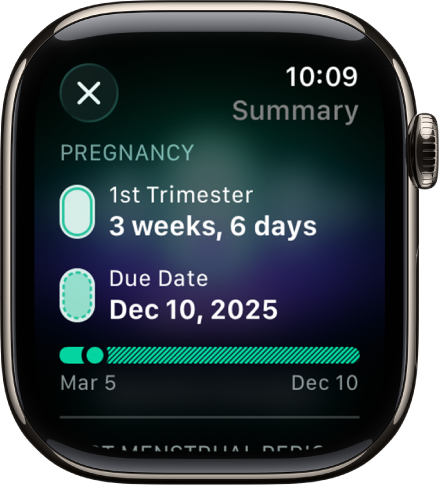
- Open the Cycle Tracking app on your Apple Watch.
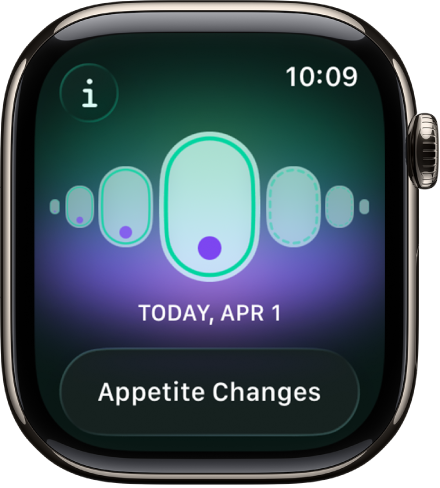
- Tap the Info button to view your gestational age, estimated due date, and last menstrual period.
Log bleeding and other symptoms
- Open the Cycle Tracking app on your Apple Watch.
-
Do any of the following:
-
Log bleeding: With the day showing in the timeline, tap Log. Tap Bleeding During Pregnancy, tap Had Bleeding, tap a bleeding level, and then tap Done.
Note: If you’ve logged bleeding during your pregnancy, you receive a notification recommending that you contact your doctor or care team.
-
Log symptoms or other information: With the day showing in the timeline, tap Log. Tap Symptoms, choose an option, and then tap Done.
Your most recently logged symptoms appear below Recent Symptoms.
-
Log bleeding: With the day showing in the timeline, tap Log. Tap Bleeding During Pregnancy, tap Had Bleeding, tap a bleeding level, and then tap Done.
See also