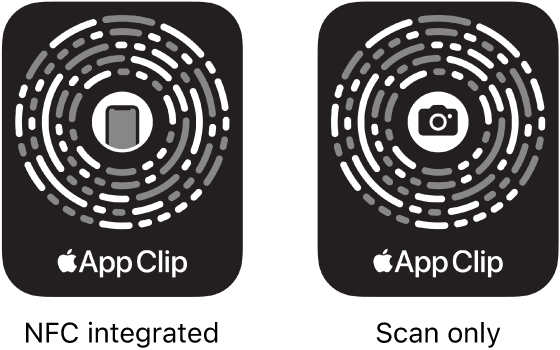
You can do a task quickly with an app clip, a small part of an app, like rent a bike, pay for parking, or order food. Discover App Clips in Safari, Maps, and Messages, or in the real world through NFC tags, QR codes, and App Clip Codes, unique markers that take you to specific App Clips.
You can also find App Clips you used on iPhone, and remove them.
Get and use App Clips
- Get App Clips from any of the following:
- App Clip Code or QR code: Scan the code using the iPhone camera or Code Scanner in Control Center.
- NFC-integrated App Clip Code or NFC tag: Hold your iPhone near the NFC tag.
- Maps: Tap the app clip link on the information card (for supported locations).
- Safari or Messages: Tap the app clip link.
- When the app clip appears on the screen, tap Open or Play.
Some App Clips support Sign in with Apple, and you can then use Apple Pay for purchases online and in apps.
With some App Clips, you can tap the banner at the top of the screen to see the full app.
Find App Clips you used on iPhone
Go to App Library, tap the search field at the top of the screen, then scroll down to the end of the alphabetical list.
Remove App Clips
- Go to App Library and tap the search field at the top of the screen.
- Enter the name of the app clip, or scroll down to the App Clips at the bottom.
- Touch and hold the app clip you want to delete, then tap Remove App Clip.
Tag: App Store