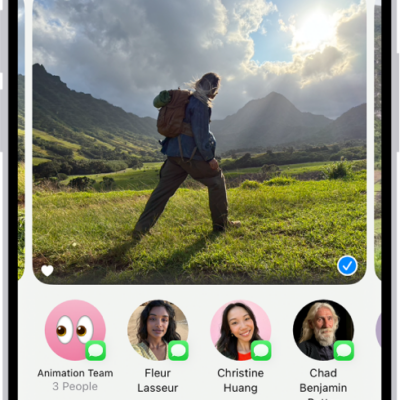
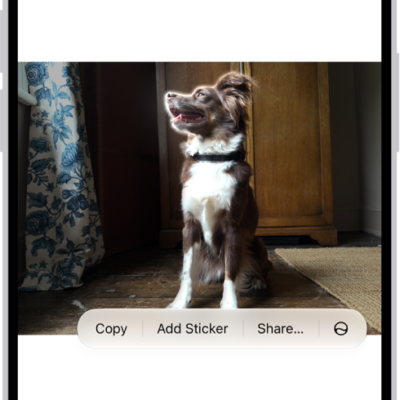
iPhone uses your Apple Account to create your contact card, called My Card, in the Contacts app. You can also add or edit details, including your name, address, phone number, and birthday, as well as the Contact Poster, which you can share with people when you call or send a message to them.
Keeping My Card current pays off elsewhere, too. When you edit it, your AutoFill information in Safari updates automatically.
Complete or edit My Card
- Open the Contacts app on your iPhone.
-
Tap My Card at the top, then tap Edit.
If you don’t see My Card, tap the Add button and enter your information, then return to the contact list, touch and hold your contact, and tap Make this My Card.
- Enter your contact information.
To help you, Contacts suggests addresses and phone numbers as you go.
Add or edit your home address
- Open the Contacts app on your iPhone.
- Tap My Card at the top, then tap Edit.
- Tap Add Address and then add your address.
- Tap the label that appears to the left of the address and select Home.
AutoFill in Safari can fill in your address automatically for things like online shopping or online forms. Any edits to your My Card update your AutoFill information automatically, too.
Add or edit your avatar and poster
An avatar and poster you set can appear automatically when you call or send a message to others.
- Open the Contacts app on your iPhone.
- Tap My Card at the top, then tap Edit.
- Tap your contact photo and choose a style.
- Tap Customize to edit your avatar and poster.
Share your name and contact image
People in your contacts can automatically get your updated name, photo, and poster, if you choose.
- Open the Contacts app on your iPhone.
- Tap My Card at the top, tap Edit, and then tap your contact photo.
- Turn on Name & Photo Sharing to start sharing your contact photo and poster with others. (You may need to scroll down.)
Select Always Ask if you want a prompt before your name, photo, and poster are shared with anyone. Otherwise, you can share automatically with Contacts Only.
Add or edit contact pronouns
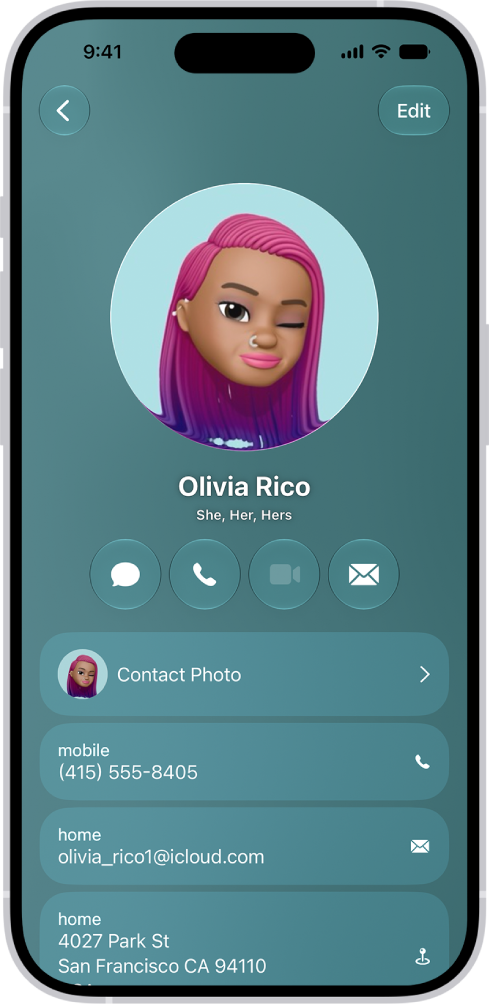
In the Contacts app, you can add or edit your own pronouns or another contact’s.
- Open the Contacts app on your iPhone.
- Tap My Card at the top to add your pronouns, or select another contact to add theirs.
- Tap Edit and tap add pronouns.
-
Select your language, then add the correct pronouns.
You can also add pronouns in other languages by tapping Add Pronouns again.
- Tap Add.
Note: Sharing your contact information through Contacts or NameDrop doesn’t share your pronouns by default. And when you share another contact’s information, their pronouns are never included.
Create or edit your Medical ID
In an emergency, a Medical ID provides information about you that may be important, like allergies, medical conditions, and your emergency contacts.
- Open the Contacts app on your iPhone.
- Tap My Card at the top of your contacts list. Then tap Edit.
- Scroll down. Then tap Create Medical ID or Edit Medical ID.