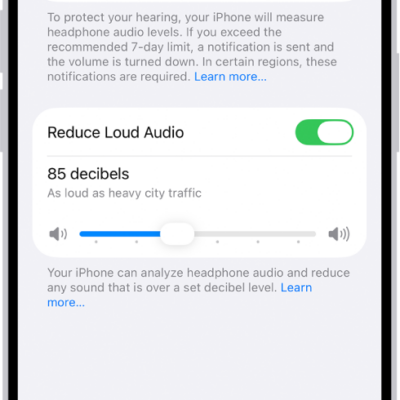
You can set a maximum decibel level to ensure that headphone audio doesn’t become uncomfortable for you. iPad analyzes your headphone audio and reduces any sound above this level, and you can also check whether the current audio level is OK or loud with a headphone level meter.
AirPods, EarPods, and many other wired and wireless headphones work with Hearing in Control Center, and you can improve the accuracy of audio measurements for third-party Bluetooth headphones.
Reduce loud headphone sounds in Settings
- Open Settings, tap Sounds & Haptics, tap Headphone Safety, and then tap Reduce Loud Audio.
- Turn on Reduce Loud Sounds, then drag the slider.
Note: Once you’ve set up Screen Time for a family member, you can stop them from changing their Reduce Loud Sounds level. To do that, go to Settings > Screen Time > Content & Privacy Restrictions > Reduce Loud Sounds and select Don’t Allow.
Check your headphone level while you listen
Hearing in Control Center can check the current decibel level of headphones you’re using with iPad. It works with AirPods, EarPods, and many other wired and wireless headphones.
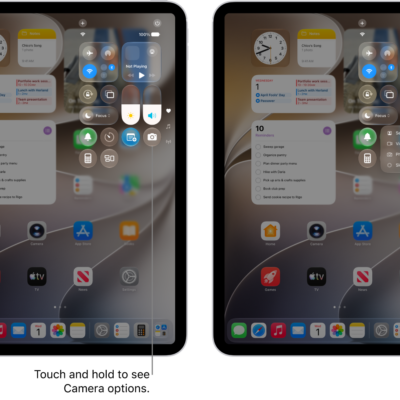
- Open Control Center. Then touch and hold in the Control Center area.
-
Tap Add a Control and tap the Hearing Devices button.
The audio level (in decibels) of your headphones is displayed on the Headphone Level meter.
Note: Scroll below the Headphone Level meter, and you can turn Live Listen on or off there, too. Read our guide, Use iPad as a remote microphone with Live Listen. You usually won’t use headphone level monitoring and Live Listen at the same time: The Headphone Level monitor is meant for listening to audio playback, and Live Listen is meant for listening to external sounds with the iPad microphone.
Improve the accuracy of audio measurements for third-party Bluetooth headphones
Classify your Bluetooth® devices as headphones, speakers, or other devices.
- Open Settings, tap Bluetooth, and then tap the information button next to the name of the device.
- Tap Device Type, then choose a classification.
Connecting AirPods, EarPods, or other compatible headphones to your iPad automatically sends the headphone audio levels to iPad. Apple or Beats headphones give the most accurate headphone audio measurements, while audio played through other headphones can be estimated based on your iPad’s volume.
See also
- Use AirPods with iPad
- Use EarPods with Lightning Connector on iPad
- Connect iPad to Bluetooth accessories