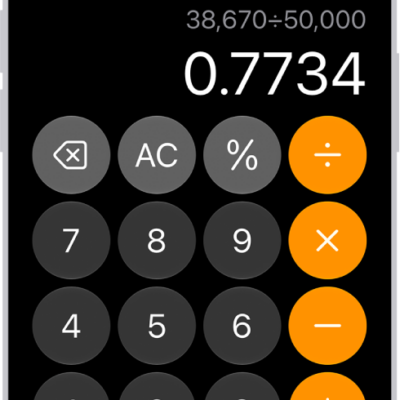
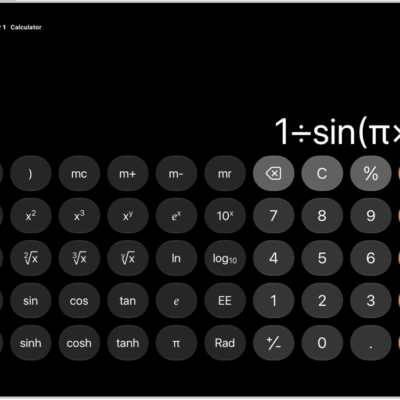
You can use the scientific calculator for exponential, logarithmic, and trigonometric functions. You can also view complete expressions with parentheses, trigonometry, and multiple operations before you get the final answer.
You can work with stored values, use trigonometric and hyperbolic functions, choose radians or degrees, and use mathematical constants. You can even generate a random number between 0 and 1. It follows the standard order of operations, too, so multiplication is completed before addition and subtraction.
Note: The Calculator app uses the standard order of operations. For example, multiplication is completed before addition and subtraction. Add parentheses around expressions that you want calculated first.
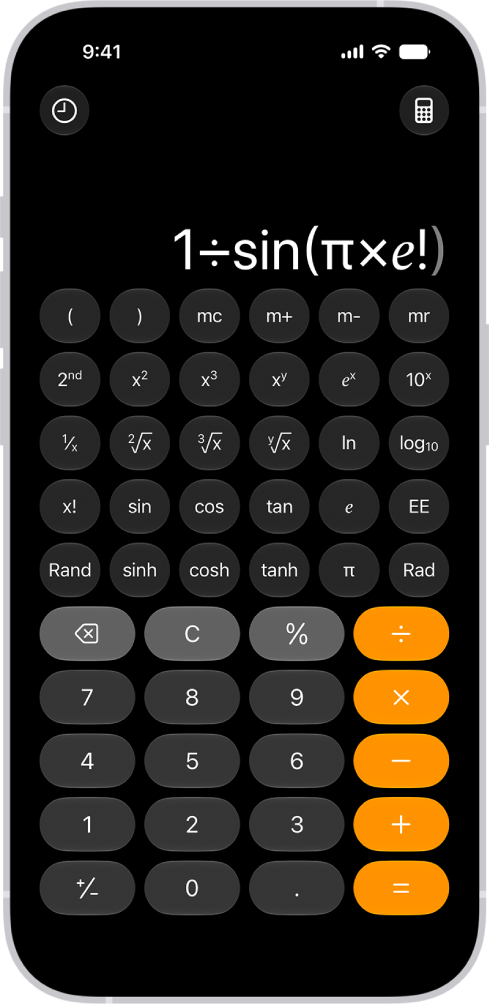
Switch to the scientific calculator
- Open the Calculator app on your iPhone.
- Tap the Change Mode button and tap Scientific.
Work with stored values
- Open the Calculator app on your iPhone.
- Tap the Change Mode button and tap Scientific.
- As you calculate, you can do any of the following:
- Add the value on the screen to memory: Tap m+.
- Subtract the value on the screen from memory: Tap m-.
- Recall the stored value in memory: Tap mr.
- Clear the stored value from memory: Tap mc.
Use exponential and logarithmic functions or notation
- Open the Calculator app on your iPhone.
- Tap the Change Mode button and tap Scientific.
- Do any of the following:
- Square a value: Enter a number and tap x2. Then tap =.
- Cube a value: Enter a number, tap x3, and tap =.
- Raise a value to the power of y: Enter a base number, tap xy and enter the value of y. Then tap =.
- Raise e to the power of x: Enter the value of x, tap ex, and then tap =.
- Raise 10 to the power of x: Enter the value of x, tap 10x then tap =.
- Calculate a factorial: Enter a number and tap x!. Tap =.
- Calculate a reciprocal: Enter a number, tap 1/x, and tap =.
Quick tip: Instead of tapping the × and 10x keys, tap EE as a shortcut for scientific notation.
Use the keys just below those keys to get the inverse functions: the square root, cube root, yth root, natural logarithm, and logarithm.
To access additional functions (such as yx or powers of 2), tap the “2nd” key near the left.
Use trigonometric and hyperbolic functions
- Open the Calculator app on your iPhone.
- Tap the Change Mode button and tap Scientific.
- Find any of the following:
- Sine: Tap sin and enter a number. Tap =.
- Cosine: Tap cos, enter a number, and then tap =.
- Tangent: Tap tan and enter a number. Then tap =.
- Hyperbolic sine: Tap sinh, enter a number, and then tap =.
- Hyperbolic cosine: Tap cosh, enter a number, and tap =.
- Hyperbolic tangent: Tap tanh, enter a number, and then tap =.
To access the inverse of these functions (such as arcsine or arctangent), tap the “2nd” key near the left.
Use radians or degrees
The scientific calculator uses degrees by default.
- Open the Calculator app on your iPhone.
- Tap the Change Mode button and tap Scientific.
- Tap Rad to switch to radians.
When you’re using radians instead of degrees, the label Rad appears, and the Rad key becomes Deg.
To switch back to degrees, tap the Deg key.
In portrait orientation (with your iPhone held vertically), you’ll find the Rad/Deg key just above the ÷ key. In landscape orientation (held horizontally), it’s near the bottom center.
Use mathematical constants
- Open the Calculator app on your iPhone.
- Tap the Change Mode button and tap Scientific.
- Do any of the following:
- Insert pi: Tap π.
- Insert Euler’s number: Tap ℯ.
Generate a random number between 0 and 1
- Open the Calculator app on your iPhone.
- Tap the Change Mode button and tap Scientific.
- Tap Rand.
Hold your iPhone vertically (in portrait orientation), and the Rand key sits just above the Delete key. Turn it horizontally (in landscape orientation), and the Rand key is in the bottom left.