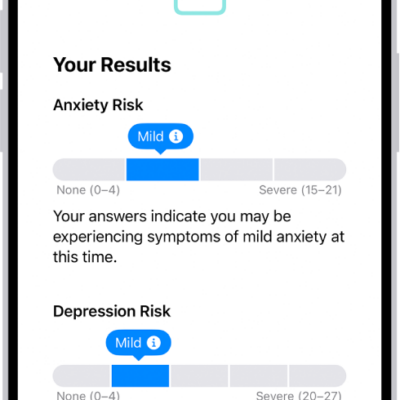
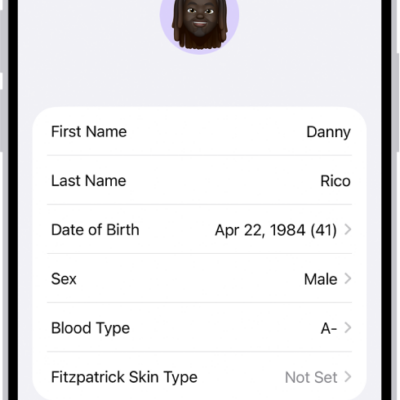
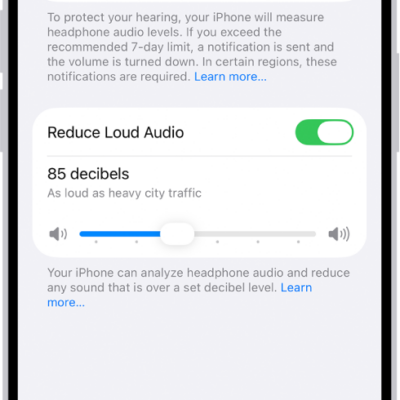
You can view your health and fitness information in one place. For example, you can check whether your metrics change over time, and see how well you’re meeting goals for activity, sleep, mindfulness, and more.
Your most important health categories, like Medications, Heart Rate, and Steps, can be pinned to the Summary screen, and you can view your highlights and health trends. You can also view trends, highlights, and details for a specific health category.
Customize your pinned health categories on the Summary screen
You can pin the health categories that matter most to you, like Steps, Heart Rate, Medications, and more, and arrange them however you like.
- Start the Health app on your iPhone.
- Tap Summary, then tap Edit next to Pinned.
- Do any of the following:
- Pin a health category: Tap the Pin button next to a category.
- Unpin a health category: Tap the Delete button next to a category.
- Reorder the health categories in your Pinned list: Drag the Reorder button next to an category up or down.
- When you’re finished, tap the Done button.
View your highlights
- Start the Health app on your iPhone.
- Tap Summary and scroll down to Highlights to see highlights of your recent health and fitness data.
- Do the following:
- View more data about a highlight: Tap its graph.
- View all highlights: Tap Show All Highlights.
View your health trends
Health can alert you to significant changes in data like your resting heart rate, number of steps, and amount of sleep, which helps you keep track of your health data over time. Trend lines show how much these metrics have changed, and for how long.
- Start the Health app on your iPhone.
- Tap Summary. Scroll down to Trends to view any recent trends.
- If Health has detected trends, you can do the following:
- View more data about a trend: Tap its graph.
- View all trends: Tap Show All Health Trends.
To receive notifications about your health trends, tap Summary, tap your picture or initials, tap Notifications, then turn on Trends.
View trends, highlights, and details for a specific health category
- Start the Health app on your iPhone.
- Tap Browse to display the Health Categories screen, then do one of the following:
- Tap a category. (To see all categories, scroll up and down.)
- Tap the search field, then type the name of a category (such as Mobility) or a specific type of data (such as Walking Speed).
- Depending on the data type, you may be able to do the following:
- View details about any of the data: Tap the Details button.
- See weekly, monthly, and yearly views of the data: Tap the tabs at the top of the screen.
- Manually enter data: Tap Add Data.
- Pin to the Summary screen: Tap Pin to Summary. (You may need to scroll down.)
- View which apps and devices are allowed to share the data: Below Options, tap Data Sources & Access. (You may need to scroll down.)
- Delete data: Tap Show All Data below Options, swipe left on a data record, and then tap Delete. To delete all data, tap Edit and tap Delete All.
- Change the measurement unit: Tap Unit below Options, then select a unit.
Learn more about health and fitness
- Start the Health app on your iPhone.
- Tap Summary, then scroll down to Get More From Health or Articles.
- Tap an item to learn more.
In many health categories, the details include recommended apps alongside your data.