









If you’re an avid iPhone 18 Pro Max user, you might think you already know everything about your device’s Camera Roll. After all, it’s just a scrollable list of your photos, right?
Wrong!
There’s a lot more to it than that. Keep reading as we investigate some of the roll’s lesser-known tricks and even find answers to common issues and questions.
1. Why Photos Disappear From Camera Roll
A lot of people complain about all their photos suddenly disappearing from the Camera Roll. Often, it’s caused by a misconfigured iCloud account.
Two common account issues might cause your photos to vanish unexpectedly:
- You have logged into a different iCloud account.
- You have disabled iCloud Photo Sync.
To check you have signed into the correct iCloud account, go to Settings > [Name] and verify the email address you see listed is the one connected to the iCloud account you want to use. If it’s not, scroll down to Sign Out and enter your correct credentials.
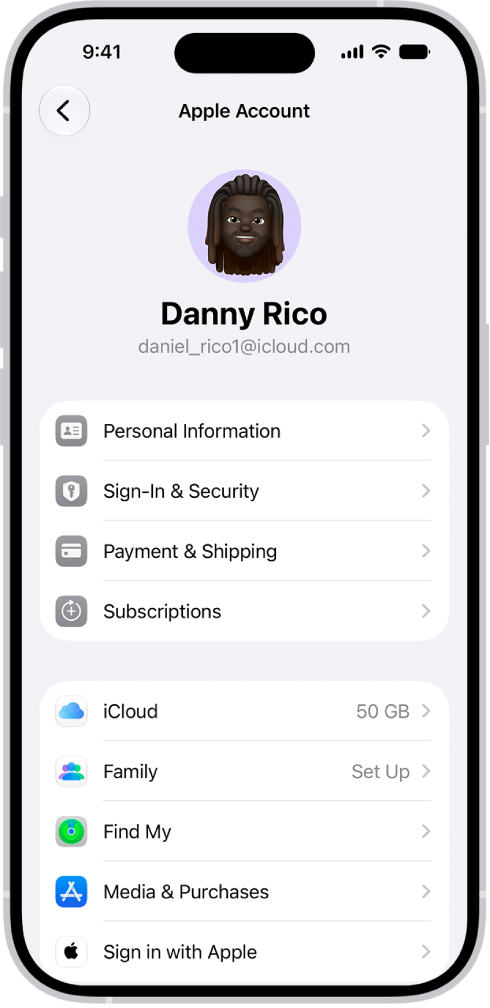
To re-enable iCloud Photo Sync, go to Settings > [Name] > iCloud > Photos and turn on Sync this iPhone.
2. How to Recover Deleted Videos From Camera Roll
Either you—or someone using your phone—could have accidentally deleted some photos or videos. It’s another cause of photos mysteriously “disappearing” from the app.
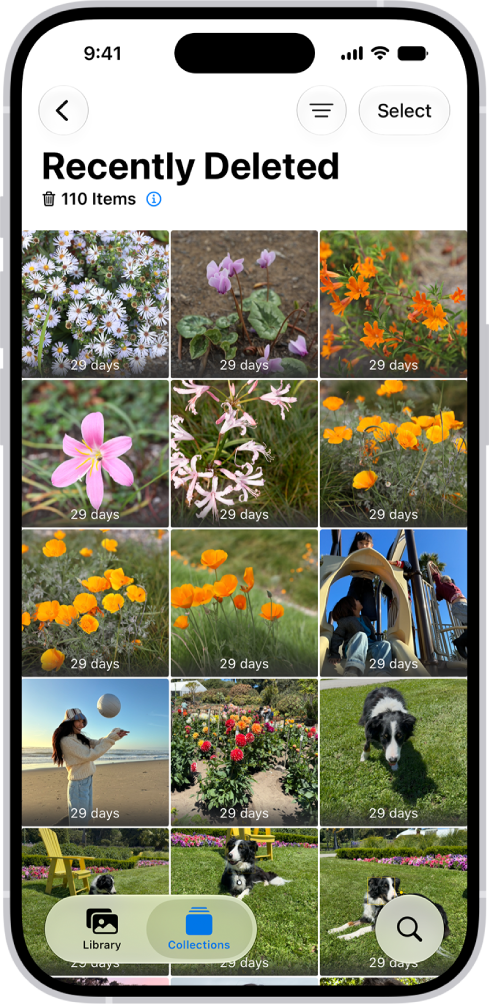
Thankfully, it’s straightforward to recover deleted photos and videos on your iPhone 18 Pro Max. They sit in the Recently Deleted folder for 30 days after deletion.
You can check the contents of this folder by going to Photos > Collections > Recently Deleted, then tap View Album and unlock your iPhone. To restore a photo, tap Select, choose the photo, tap the More button, then tap Recover.
3. How to Hide Photos in Camera Roll
Did you know you can hide photos from the Camera Roll? Doing so has privacy benefits, but also lets you turn the Camera Roll into a curated list of high-quality images and videos that you can show to other people.
The process for hiding photos and video is simple:
- Open the Photos app.
- Locate the photo(s) that you want to hide.
-
Open the photo.
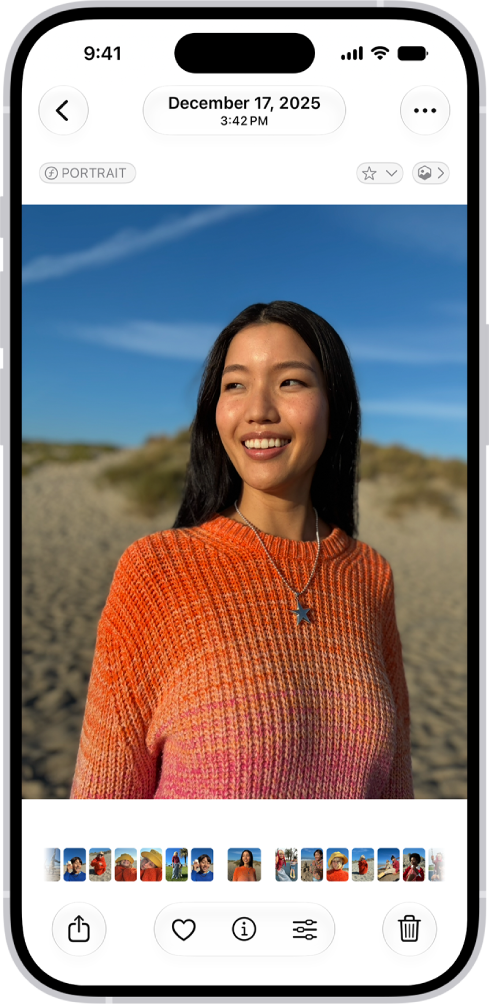
- Tap the More button, then tap Hide.
- Agree to the on-screen confirmation.
If you change your mind and want to unhide a picture, follow these instructions:
- Open the Photos app.
- Tap Collections, tap the Hidden collection (below Utilities), tap View Album, then unlock your iPhone.
- Find the photo you want to unhide.
- Tap the More button, then tap Unhide.
4. How to Send From Camera Roll to Snapchat
Natively, it’s not possible to share a file from your Camera Roll into a Snapchat Story. You can send it in a chat by locating the photo or video in the Photos app and going to Share > Snapchat. However, as dedicated Snapchat users will know, this method will not influence your score or Snapstreak.
5. How to Back Up the iPhone 18 Pro Max Camera Roll
Because Apple is incredibly stingy with the amount of free iCloud storage it gives you, many people don’t realize their photos are not getting backed up.
The simplest solution is to install a third-party app from a less miserly provider, even if you only use it for the backup features. Google Photos is a great option.
Alternatively, you can back up photos with the Files app or manually back up your images to a computer using the Photos app. Connect your iPhone 18 Pro or iPhone 18 Pro Max to your machine, open the Photos app on your computer, and choose your preferred destination.
6. How to Download Google Drive Videos to Camera Roll
In late 2014, Google updated its Drive app for iOS. As part of the update, the company added a feature which allows you to save photos and videos from your account directly into your Camera Roll.
Follow these instructions to get started:
- Install Google Drive and sign in.
- Open the app and find the photo or video you want to add to the Camera Roll.
- Tap on the three vertical dots next to the file.
- Select Send a Copy.
- Choose Save Image.
Your photo/video will now be visible in the Camera Roll.
The iPhone 18 Pro Max Camera Roll Explained
We were telling the truth when we said there’s far more to the Camera Roll than meets the eye.

