Have you ever wondered why your iPhone 18 Pro or iPhone 18 Pro Max is not notifying you of texts? You might not get new text notifications due to misconfigured settings or software bugs. Usually, the issue is temporary, and you can solve it with some quick, straightforward fixes.
If text messages are not showing up on your iPhone, your device isn’t displaying notifications for an incoming SMS or iMessage, or your locked iPhone doesn’t make a sound when you get a text, look at these handy solutions to fix such issues.
1. Check Notification Settings for Messages
When text messages are not showing up on your iPhone 18 Pro or iPhone 18 Pro Max as notifications, make sure the Messages app is permitted to show them on the Lock Screen, Notification Center, and elsewhere.
To do this, follow these simple instructions:
-
Open Settings and tap Notifications > Messages.
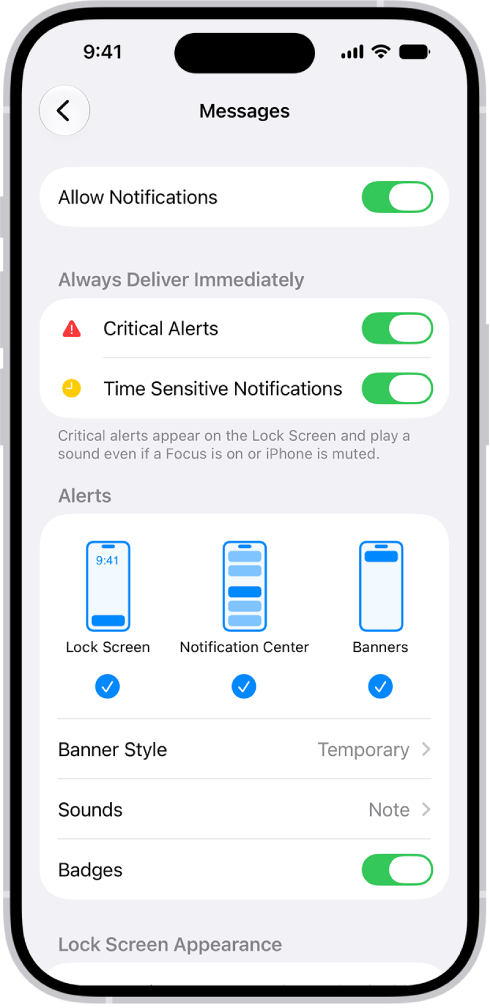
- Ensure Allow Notifications is green.
- Next, check the boxes for Lock Screen, Notification Center, and Banners.
- Tap Sounds and choose a loud message tone.
- If you don’t see the actual message content on your iPhone’s Lock Screen, tap Show Previews and choose Always.
After following the above steps, new text messages via SMS and iMessage should show up on your iPhone and make a sound when the device is locked.
2. Ensure the Person Isn’t Muted
If you’re wondering why your iPhone 18 Pro Max is not notifying you when you receive a text from one person, you might have muted that person. Once you mute a person or group, your iPhone won’t alert you when they send you a new text or iMessage. Below, you’ll find out how to fix this:
-
Open the Messages app and go through your conversations.
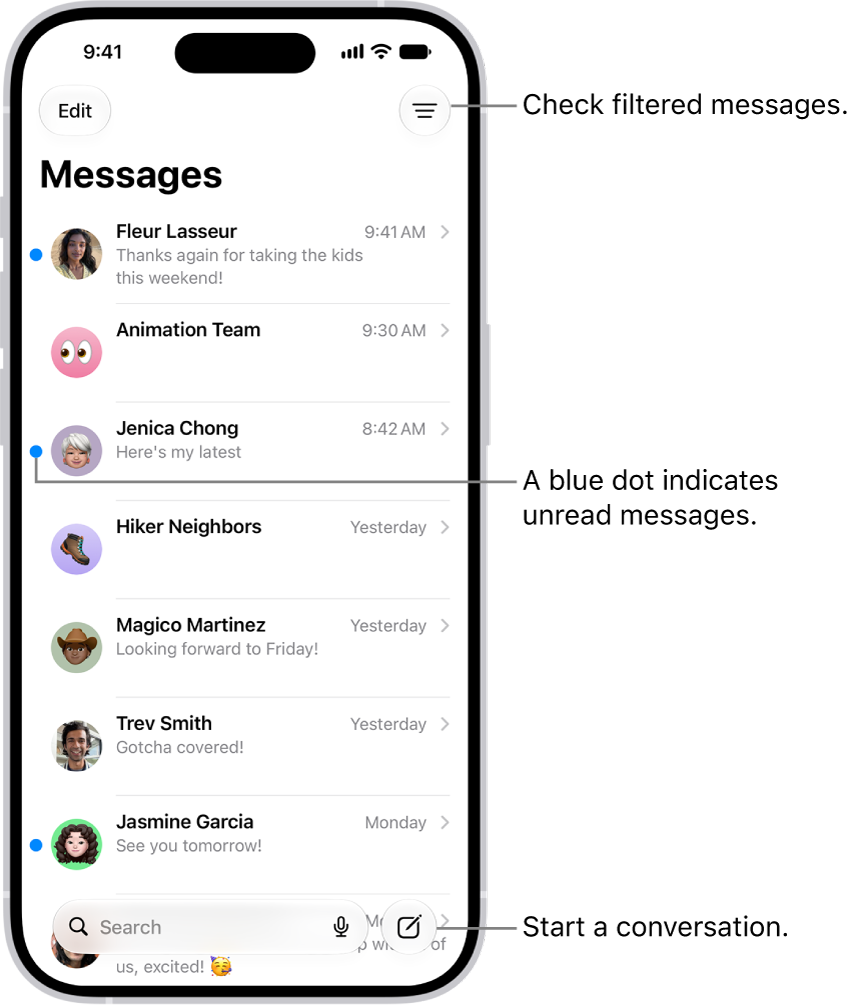
- Swipe left on the conversation that has a gray slashed bell icon.
- Now, tap the bell icon to unmute this message thread and get alerts.
3. Turn Off Silent Mode and Focus
After you put your iPhone in silent mode, new texts won’t have a notification tone. Press and hold the Action button to turn Silent mode on. Press and hold the Action button again to turn Silent mode off. If your Action button isn’t set to Silent mode, go to the Settings app on your iPhone, tap Sounds & Haptics, then turn Silent mode on or off.
Secondly, when your iPhone is in Focus (or Do Not Disturb) mode, it does not vibrate or play a sound for new texts. You can fix this by opening the iOS Control Center and ensuring the Focus toggle (crescent moon icon) isn’t purple. If it is, tap on it to toggle the feature off.
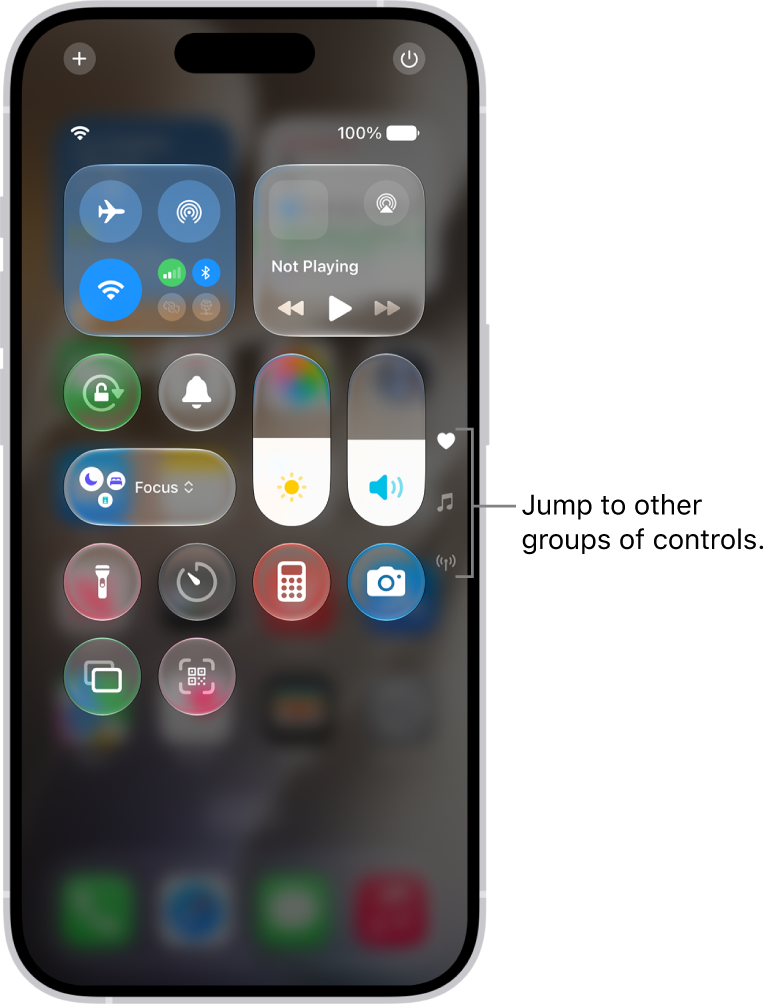
That said, you can set up Focus modes that let you configure which apps and people you want to allow notifications from.
4. Force Quit the Messages App
Slowly swipe up from the bottom to the middle of the screen while you’re in the Messages app and hold until you see the App Switcher. Now, swipe up on the Messages app card to force quit.
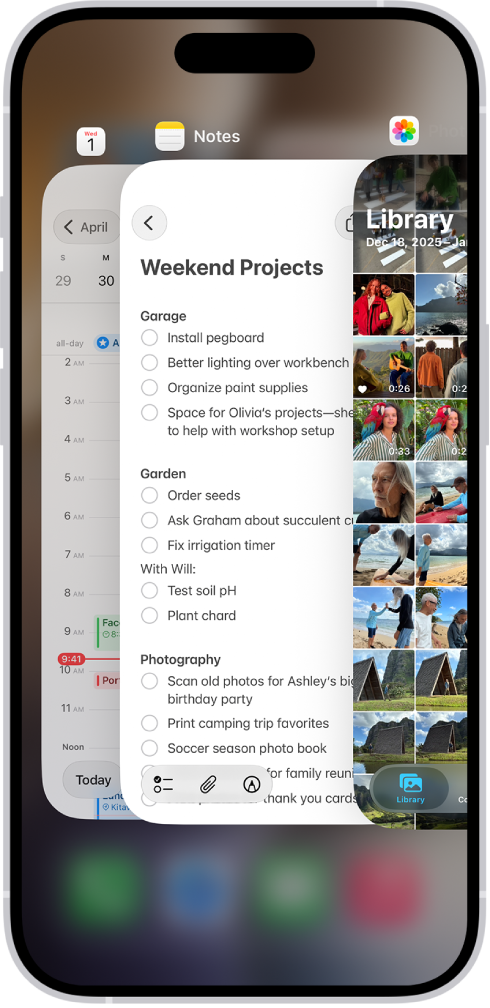
After a few seconds, open this app again, and hopefully, this should smoothen the notification issues.
5. Ensure iMessage Is Enabled
Before you move ahead, it’s essential to check if iMessage is activated and switched on or not. To do that, go to Settings > Apps > Messages and make sure iMessage is enabled.
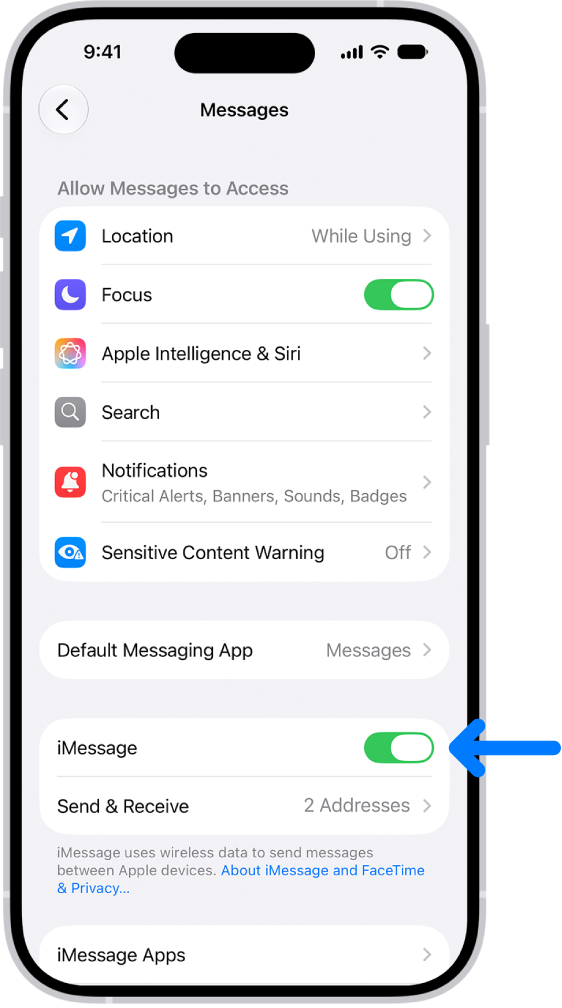
Next, tap Send & Receive and check you have the correct phone number and email here. You should start receiving notifications again after doing this.
6. Restart Your iPhone 18 Pro Max
Often, things might not work correctly on your iPhone due to temporary glitches. Usually, a quick restart fixes these issues.
To turn off your iPhone, use the physical buttons or go to Settings > General and tap Shut Down. Drag the slider to turn off iPhone. After a minute, turn on your iPhone either by using the side button or plugging in your charger.
7. Turn Off Screen Unknown Senders
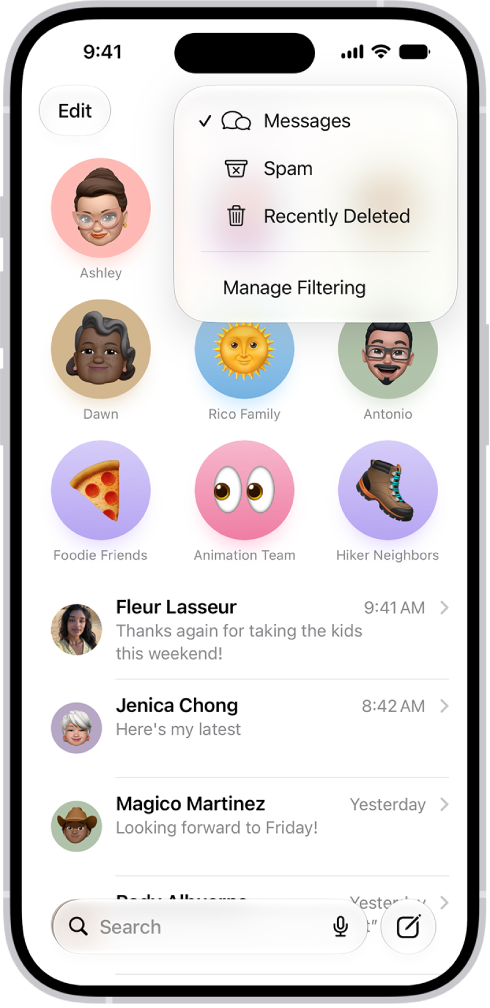
iPhone lets you automatically filter spam and texts from unknown people. When you enable this, you might miss a few meaningful text notifications in rare cases. Plus, if someone who isn’t in your contact list messages you, the Messages app will sort their text into a separate list and not notify you of it.
To fix this, go to the Messages app, tap the Filter button, then tap Manage Filtering and turn off Screen Unknown Senders.
8. Disconnect Bluetooth Devices
If you forget and leave Bluetooth buds or devices connected to your iPhone, the new text message sound may output via that instead of the on-device speaker. To fix this, open the Settings app, tap Bluetooth, then turn off Bluetooth. Alternatively, you can disconnect these devices from the iOS Control Center by tapping the Bluetooth icon.
9. Make Sure the Person Isn’t Blocked
It’s unlikely that you’ll think someone’s not messaging you because you’ve accidentally or intentionally blocked them. Nonetheless, knowing how to fix this problem is smart if you suspect this is the case.
After you block a person, they can’t call or text you. If you aren’t getting texts from a specific person, make sure they aren’t added (accidentally or on purpose) to the block list.
- Open Settings and tap Privacy & Security.
- Tap on Blocked Contacts.
- If the person is listed here, swipe left on their name or number and tap Unblock.
10. Ensure Custom Text Tone Isn’t Set to “None”
Did you ever set “None” as the alert tone for a particular contact and forget about it? If yes, here is how to revert that and have a proper tone for new texts from that person:
- Tap the person’s name in the Contacts app, then tap Edit.
- Tap Text Tone and choose a different alert tone instead of “None.” Tap on Done to save this change.