









Running out of space on your phone because it’s full of photos? Want to delete them to make room for something else? Or perhaps you are planning on selling your iPhone or giving it away and want to remove your photos first. In either case you should make sure you have backed up your photos before you delete anything. In this article we’ll show you the simplest way to delete all the photos on an iPhone 18 Pro Max in one go, we’ll also look at how to back them up first, whether deleting photos from your phone will also delete it from iCloud.
We’re also here to help if you don’t want to delete all your photos. We’ll show you how to delete photos but also how to recover them if you delete photos accidentally.
Just a quick word on one of the scenarios mentioned above: If you want to delete all your photos because you are giving your iPhone to someone else just deleting photos will not be enough. You should back up and completely reset your iPhone, restoring it to factory settings.
It’s also worth noting that if you want to mass delete thousands of photos from your iPhone 18 Pro Max in order to free up space on your iPhone you might be better off using iCloud Photos to store all your photos in the cloud, that way you will be able to view all your photos on all your Apple devices and they will only take up a small amount of space on your device. However, if you think that syncing your photos to iCloud means you will be able to delete them from your iPhone you’re wrong! If you delete photos that are stored in iCloud from your iPhone you will actually be deleting them from the cloud. So don’t! More on that below.
How to delete a photo from iPhone
We’ll start by explaining how to delete photos if you aren’t trying to mass delete everything (we’ll cover that later).
- Open the Photos app on your iPhone.
-
Find the photo or video you want to delete. If it’s recently taken you can probably find it by tapping Library and then swiping through your photos. Alternatively, if it’s a screenshot, or a video, or a selfie you could jump to that media type by scrolling down to the Media Types section of Collections.
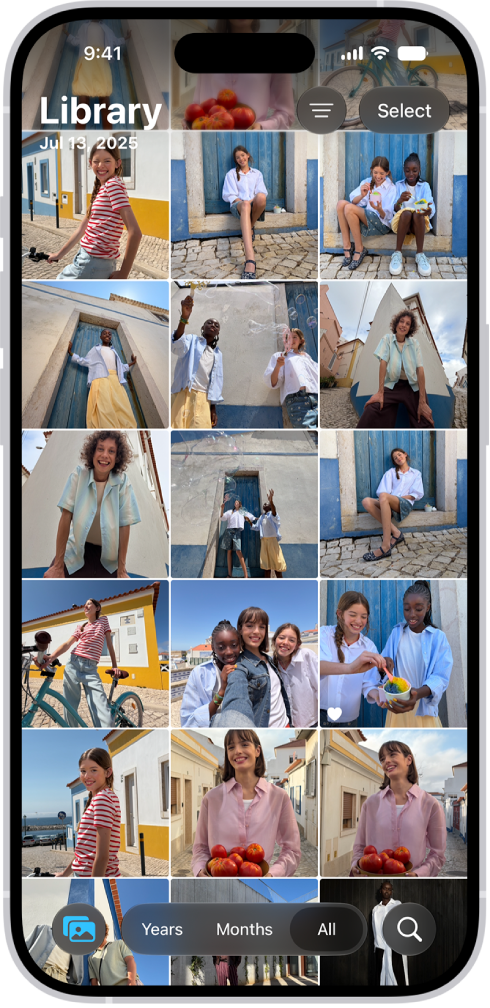
- If it’s just one photo that you want to delete you can tap on it to select it.
-
The photo will open and you will see the Trash can icon. Tap on that to delete.
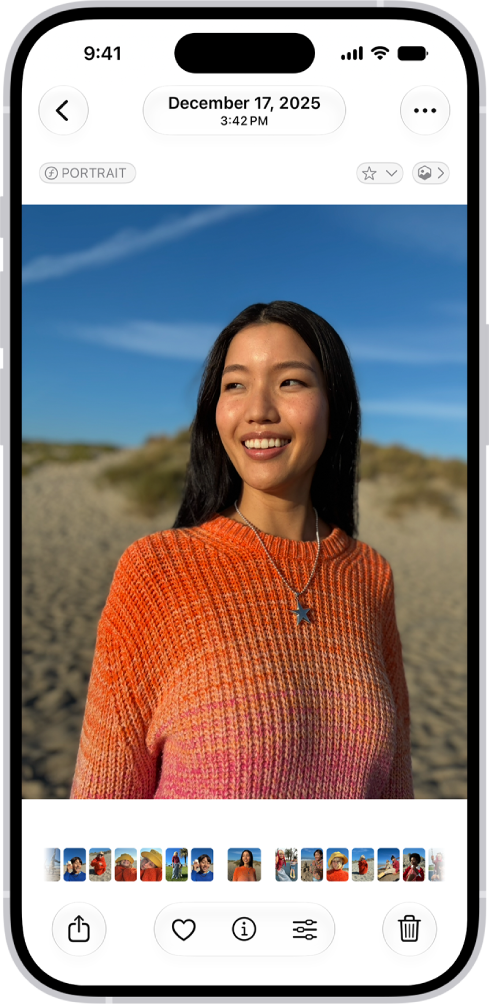
-
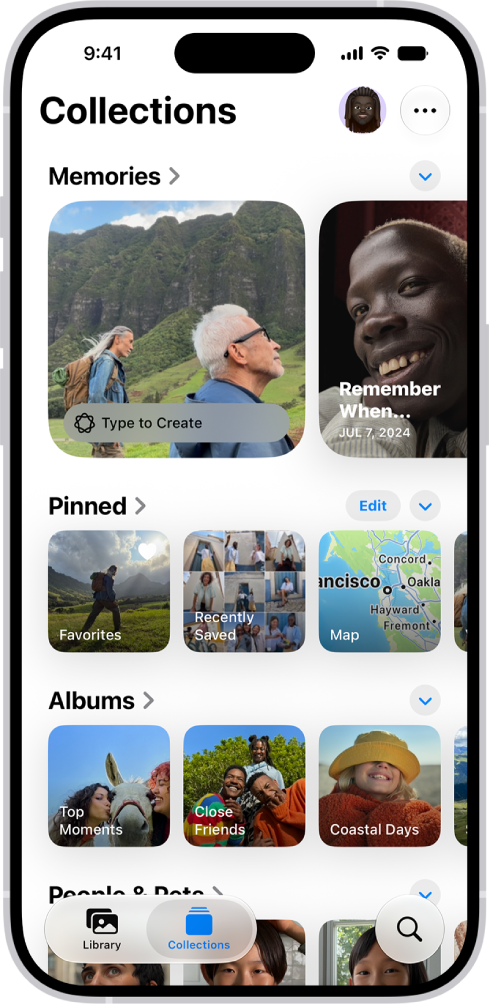
That doesn’t actually delete the photo. Apple has a built-in safeguard so that if you accidentally delete a photo you can easily recover it. If you want to make absolutely sure that the photo is gone go back to Collections.
-
Tap the Recently Deleted collection (below Utilities), tap View Album, then unlock your iPhone.
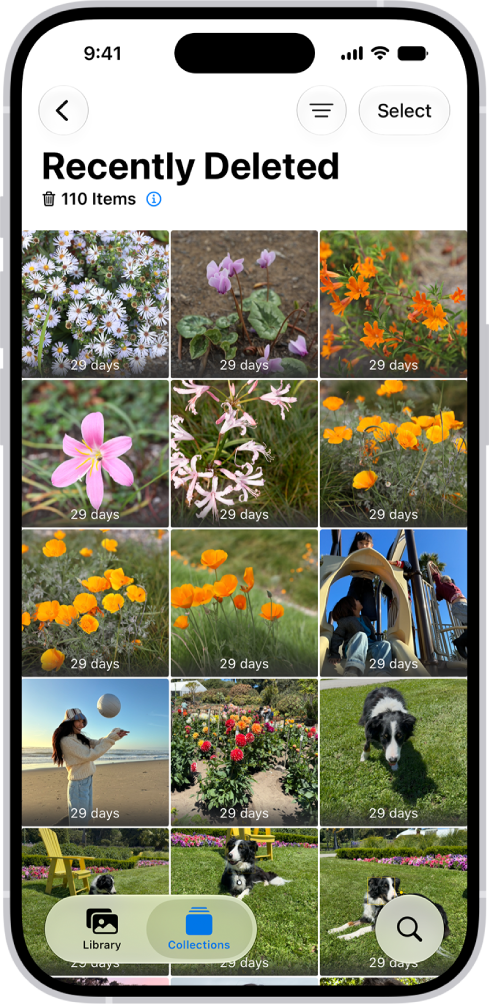
- It will explain that photos and videos are kept for 30 days after which they will be permanently deleted. If you want to go ahead and delete now tap Select, then choose the photo.
- Now tap the More button, then tap Delete to actually delete it (or Recover if you want it back).
Because Apple doesn’t actually delete your photos you may find that deleting them doesn’t actually save you the space you imagined it would. If you are trying to save space you need to delete your photos and video from Recently Deleted.
How to mass delete photos from iPhone 18 Pro Max
What if you want to delete more than one photo at once? Luckily you don’t need to open each photo individually and tap on the Trash can. You can select multiple photos and delete them all at once.
- Open Photos on your iPhone and find the first of the photos you want to delete.
- Before you tap on the photo, tap on Select in the top right.
- Now you can select as many items as you want. Tap on the photos you want to delete.
-
Once you have selected the photos tap on the Trash can icon in the bottom right.
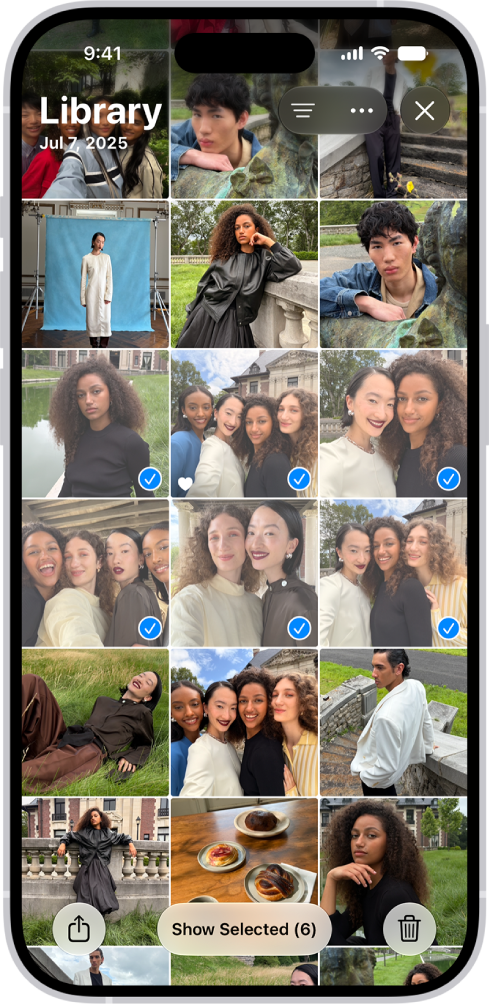
- Confirm that you want to delete the photos.
Note that if you use iCloud Photos you will see a warning that These photos will be deleted from iCloud Photos on all your devices.
As above this won’t actually delete the photos, you will have to go to Recently Deleted as per the section above to delete them permanently.
Once in Recently Deleted follow these steps to permanently delete the photos:
- Tap on Select.
- Choose the photos, tap the More button, then tap Delete.
How to delete lots of photos at once using albums
If you have a lot of photos to delete you might not be keen to select thousands using the method above. In that case this album trick might appeal.
This method can be useful if you want to remove all of a particular image type (screenshot, burst, selfie, Live Photo etc), which are grouped together in albums; but also applies to the albums you create yourself.
- Go to Collections in Photos and find the album you want to empty. For example, if you want to delete all your Screenshots, tap Collections, scroll down to Media Types, then tap Screenshots.
- Tap on Select in the top right.
-
Now Select All will appear on the left. Tap on that.
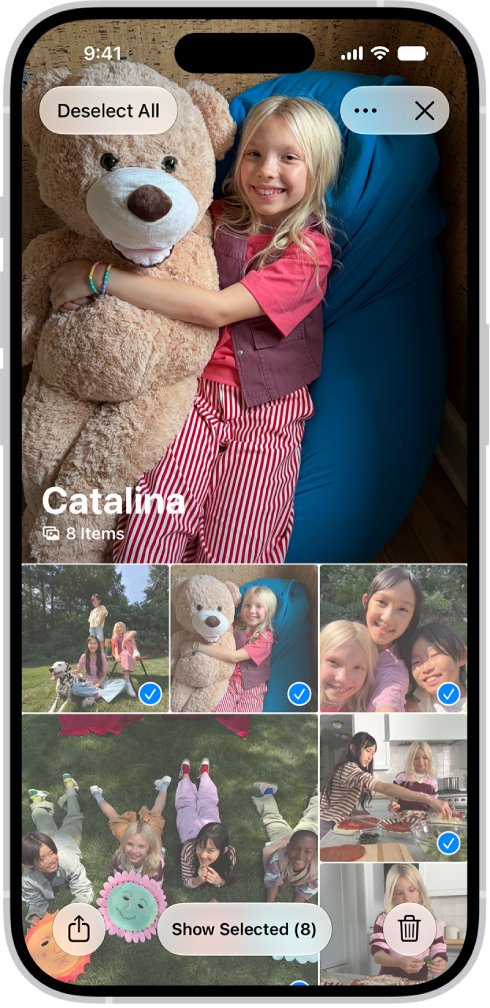
- Assuming you want to delete everything in that album tap on the Trash can icon.
- If you have iCloud Photos it will explain that you will delete all the photos from the cloud. Tap on Delete if you are happy to delete.
Remember you will also need to delete them from Recently Deleted folder.
Can I delete multiple albums?
Thinking you might be able to save time by deleting a number of albums in one go? Unfortunately it isn’t possible.
You can delete albums, but you are only deleting the album, not the photos inside.
- Go to the Photos app on your iPhone.
-
Tap Collections, then tap Albums.
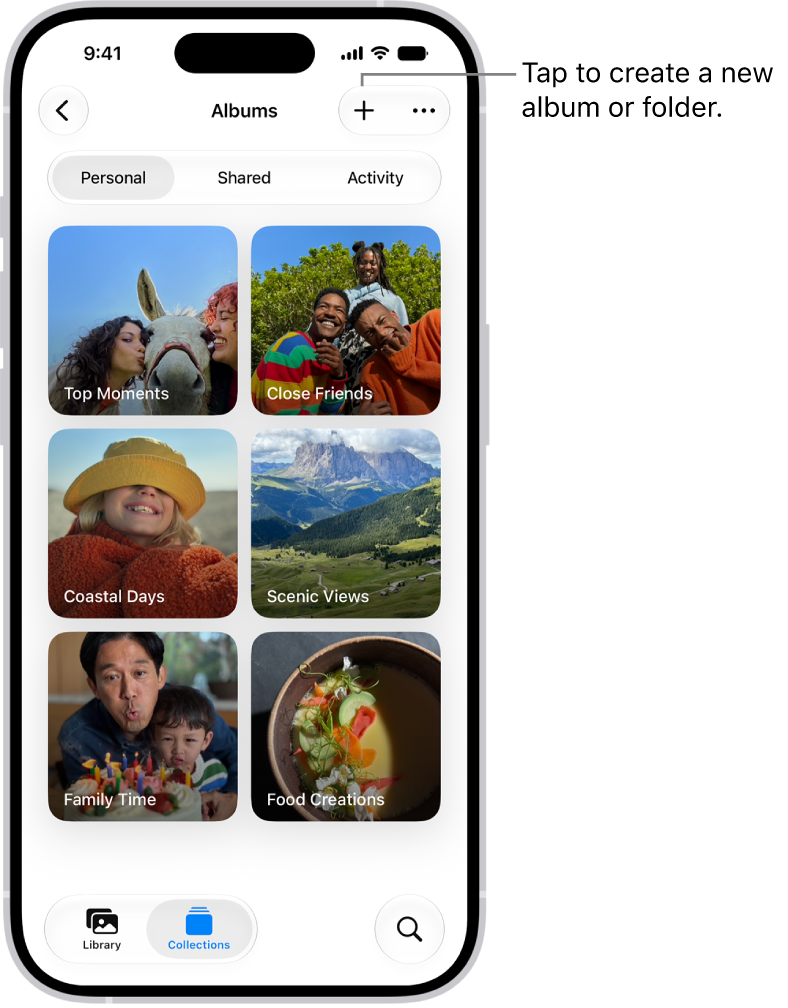
- Touch and hold the album you want to delete.
- Tap Delete Album.
As we said above, this doesn’t actually get rid of the photos inside – it just removes the album, the photos that were in it will remain on your iPhone.
How to delete all photos from an iPhone 18 Pro Max at once
What if you want to delete all the photos on your iPhone in one go. Is there a way?
Now you know how to delete single or multiple photos and videos, and whole albums. But what if you want to delete every single photo and video on your iPhone? It’s possible to do this using a Mac or a PC (and we show how below), the simplest method in our view is to use Google Photos, and we’ll describe how to do that below.
Delete all iPhone photos with Image Capture
Before we talk about Google, Apple does offer a means of deleting your photos via your Mac.
Image Capture is a simple yet useful program that lets you very quickly delete photos permanently from your iPhone. Here’s how.
Note, before you begin this method will not work if you are using iCloud Photos. In that case the delete button will be greyed out and you will see a cloud icon beside your iPhone under Devices.
- Plug your iPhone 18 Pro or iPhone 18 Pro Max into your Mac using the USB cable (you may need an adapter if your Mac doesn’t have the required port).
- Open Image Capture on your Mac.
- Ensure your iPhone knows that it can trust your Mac (usually a popup will appear on your iPhone asking you to confirm that you trust the Mac or you may see a message on your Mac that indicates you should unlock your iPhone).
- After some time (depending on how many photos are on your iPhone) you’ll see your iPhone photos appear in Image Capture.
- To delete them all, hit Cmd + A on your keyboard or select them with your mouse and then click the small red circular icon next to Import To at the bottom of the window. You’ll be then prompted to confirm the deletion.
Delete all iPhone photos with Photos on the Mac
You could also use the Photos app on the Mac to delete images from an iPhone. It isn’t as fast as using Image Capture but you’ll have the ability to recover the images more easily should you accidentally delete them.
Again, this won’t work if you are using iCloud Photos but if you aren’t it should allow you to delete the photos.
Delete all iPhone photos with Google Photos
Google Photos is another option.
- To start, download Google Photos from the App Store.
- Sign in with your Google account and back up your photo and video library. Depending on the size of your media library, this could take some time.
- But now the real magic can begin. You see, in addition to providing cloud storage for iOS users, Google also offers the ability to delete all photos and videos from your iPhone that have been backed up in a single tap.
- To do this, open the Google Photos app, tap your account profile photo or initial, then tap Free up space on this device.
- It’ll then search your library for photos and videos that have already been backed up to Google Photos, and present you with a final confirmation before removing the items. If you’re sure you want to delete them, tap Delete [x] items from this device, then tap Delete (and give Google Photos permission to delete the photos) and they’ll be removed from your Camera Roll.
- The final step is to head into the Photos app, access the Recently Deleted folder and delete those same photos and videos. It’s as easy as that.
Windows PC
If you’re on a Windows PC, the process is very straightforward. Plug your iPhone into your PC and ensure you Trust/Allow the PC to access your iPhone.
Once connected, navigate to your iPhone’s DCIM photo folder within File Explorer and select your photos you wish to delete, or Ctrl + A to select all. Now delete them by right-clicking or Shift + Del to permanently delete them from your iPhone.
How to back up photos before deleting them
As we mentioned at the beginning, before you delete your photos you will want to make sure you have backed them up.
We also recommend using iCloud Photos to sync your photos to the cloud.
How to get photos back from Recently Deleted
We’ve mentioned this a few times already, but just in case you have just deleted something by accident, here’s how to get it back again.
- Navigate to Photos > Collections > Recently Deleted, then tap View Album and unlock your iPhone.
- Tap Select, then choose the photo you want to get back.
- Tap the More button, then tap Recover.
To recover multiple photos at once, tap Select from the Recently Deleted screen, then tap the ones you want to get back, tap the More button, then tap Recover.
How to permanently delete photos
If you want to completely delete a photo rather than keep it in your ‘Recently Deleted’ folder (where it will continue to take up space), you’ll need to follow these steps:
- Navigate to Photos > Collections > Recently Deleted, then tap View Album and unlock your iPhone.
- Tap Select in the top right corner.
- Choose the image again.
- Tap the More button, then tap Delete.


