









It can be a heart-sinking moment. You’ve captured that precious moment forever on your iPhone 18 Pro Max, but when you go to play back the recorded video you find, for some unknown reason, it’s sideways. This could be due to holding the phone at a certain angle as you hit the record button, either way it needs fixing.
Thankfully, this is a reasonably straightforward process.
To rotate a video follow these steps:
- Open the video in the Photos app on your iPhone 18 Pro or iPhone 18 Pro Max.
- Tap on Edit.
-
Tap on the Crop icon.
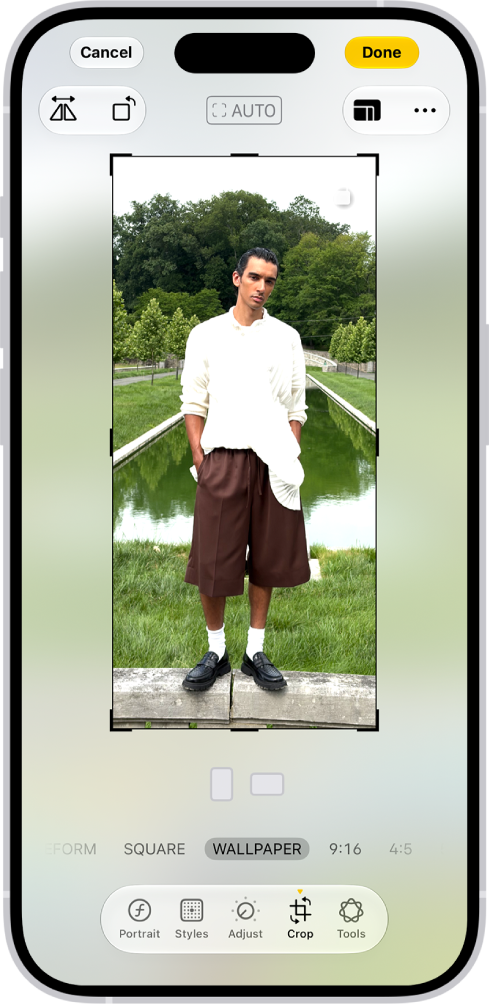
- You can now simply straighten the video, if it was filmed at a bit of a jaunty angle. Tap a button below the frame to straighten, tilt vertically, or tilt horizontally. Drag the slider to make adjustments.
- If you want to rotate it 90-degrees (or more if necessary!) tap on the rotate icon.
- Then tap Done.
Tags: iOS 27, iPhone 18 Pro Max


