









StandBy is one of the standout features of iOS. Your iPhone 18 Pro or iPhone 18 Pro Max can show time by displaying it on the clock face of your choice, your preferred widgets, notifications, Live Activities, and other helpful data when it is in StandBy.
However, many users are having difficulty getting the StandBy feature to work properly on their iPhones. If you’re experiencing a similar problem, you’ve come to the right place, as we’ll discuss a few troubleshooting steps you can follow when StandBy doesn’t work on your iPhone.
1. Check if StandBy Is Enabled
Before we get into advanced troubleshooting methods, let’s start with a basic solution: making sure StandBy is enabled. If you haven’t enabled StandBy in your iPhone’s settings or accidentally turned it off, it won’t work.
To check if StandBy is enabled on your iPhone, launch the Settings app and tap the StandBy option from the menu. Turn on the toggle next to StandBy if it isn’t already enabled. Now, see if it works as intended. If not, refer to the other methods.
With the Always-On display, StandBy stays on to show useful information.
2. Make Sure You’re Using StandBy Correctly
If StandBy is still not working, it could be because you’re not using it properly. To use StandBy correctly, connect your iPhone to power and put it down in landscape orientation at an inclined angle.
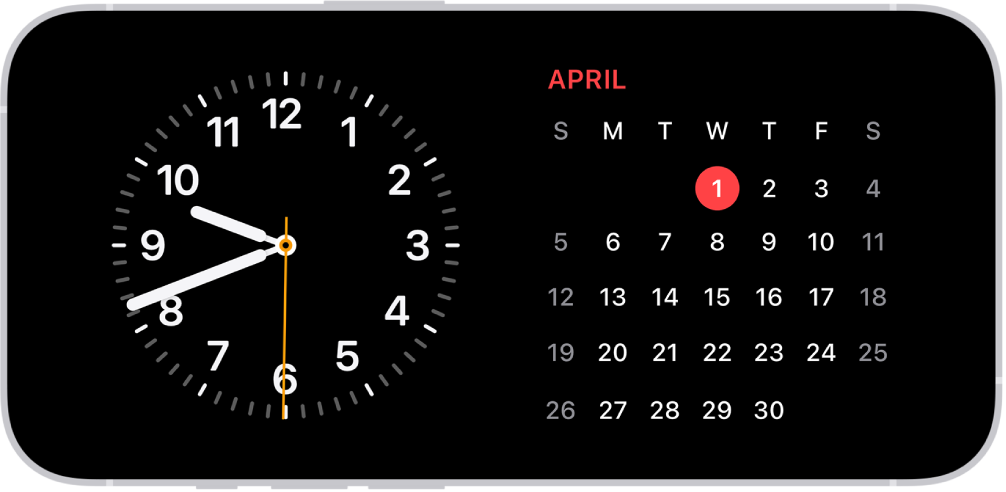
If you do everything right, it should start working as intended, after which you can personalize StandBy on your iPhone by changing the Photos view, clock style, or even adding widgets.
3. Use an MFi-Certified Charging Accessory
Check whether the cable or MagSafe charger you’re using to charge your iPhone is MFi-certified if you’re still unable to access StandBy on your device. That’s because if it’s not MFi-certified, you might occasionally get the This accessory may not be supported pop-up.
Although Apple doesn’t require you to use an MFi-certified charger, we highly recommend it, especially when StandBy fails to activate on your iPhone.
4. Restart Your iPhone
If StandBy is still not working, your last option is to restart your iPhone 18 Pro Max. Simply turning your iPhone off and turning it back on is one of the easiest ways to fix any software issue you could be facing with your device. Therefore, a simple restart is also a potential fix when StandBy isn’t working. Simultaneously press and hold the side button and either volume button until the sliders appear, then drag the Power Off slider. Press and hold the side button until the Apple logo appears.

However, if you’re still out of luck after a reboot, you should contact Apple Support or make an Apple Store appointment at a Genius Bar for in-person assistance.
Enjoy StandBy in All Its Glory
We hope one of these troubleshooting steps helped you finally get StandBy to work on your iPhone as intended. Take advantage of StandBy when your iPhone is simply lying on your desk.
Even when you’re not actively using your iPhone, StandBy lets you quickly check any information that might be important or glance at the time without having to press any button or raise your iPhone. But that’s not to say the feature doesn’t have its fair share of annoying quirks.


