









Notifications can be very useful: reminding you of upcoming appointments, new episodes of podcasts you enjoy, alerting you to important emails or Messages you don’t want to miss, or letting you know that you’ve received messages on your social media platform of choice. But notification overload isn’t fun. Here’s how to lessen the number of pings you get on your iPhone 18 Pro or iPhone 18 Pro Max.
How to stop notifications for certain apps
There are likely to be some notifications you want to receive and others you’d prefer not to see. In that case it is easy to tweak which apps can send you notifications.
When you first install an app, you’ll usually be asked whether you want to allow notifications. While you may permit this at the time, if the various messages get too much you can always turn off notifications for that specific app via Settings.
Stop notifications on iPhone 18 Pro Max
Here’s the steps required:
- Open Settings > Notifications.
-
Scroll down and select the app you want to disable.
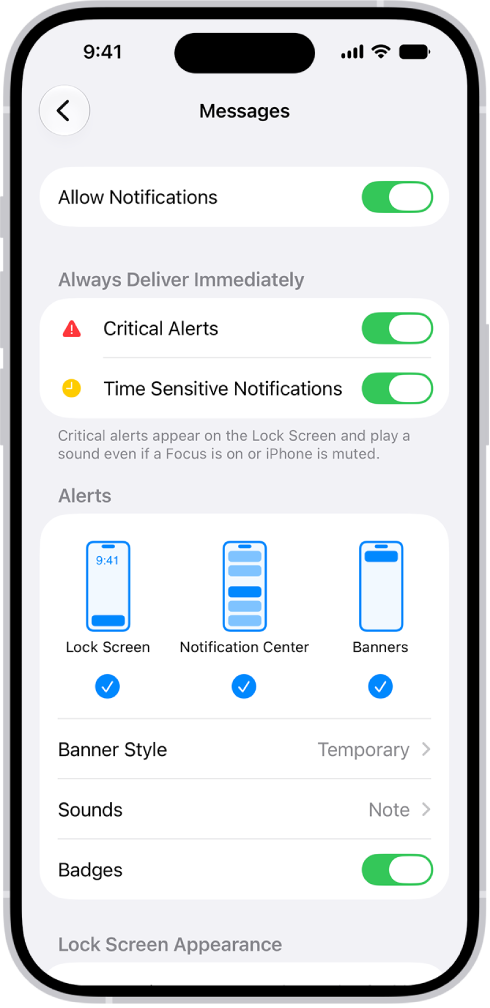
- Turn off Allow Notifications.
How to hide notification previews (keep messages private)
One reason you might want to stop notifications is if they risk revealing information to anyone else. Most notifications display a summary of their contents, which can be a nightmare if you’re trying to plan a party for someone in your family or are awaiting a job interview invite while still at your present place of employment.
Thankfully, it’s possible to remove the content previews without stopping the notifications entirely. Here’s how it’s done:
Hide notification previews on iPhone
- Open Settings > Notifications.
- Tap a specific app or go to the next step for a general setting.
- Tap Show Previews.
- Select Never.
How to disable all notifications
There isn’t a direct setting that will allow you to turn off all notifications, but there are features that achieve the same goal. You can use the Scheduled Summary feature that will hold back all non-urgent notifications until a specified time of day. Then you’ll be presented with them when you deem it more convenient.
To set this up, take the following steps:
Turn off notifications on iPhone 18 Pro Max
- Open Settings > Notifications.
- Tap Scheduled Summary.
- Turn on Scheduled Summary, then tap Continue (if it appears).
- Select the apps you want to include in your Summary.
- Schedule times for the notification summary.
Do iPhone notifications use data?
One reason that you might want to turn off notifications is that you’re worried about the amount of data that might be used up by your iPhone constantly accessing the internet to check for any push notifications. While this process does involve data, it should only be a minimal amount and certainly not enough to burn through your data plan.
If you’re worried about this though, you can check how much data is being used by opening Settings > Cellular > System Services and checking Push Notifications.
Hopefully, all of these tips will help you get on top of all the possible distractions that come with being connected to the internet. If you still find your mind ill at ease, maybe give meditation and mindfulness apps like Headspace or Balance a go, to see if that makes things a little more bearable.


