Got a tip for us?

Apple Books

In the Books app, you can find today’s bestsellers, view top charts, explore series, and browse lists curated by Apple Books editors. After you select a book or audiobook, you can read or listen to it right in the Books app.

Before you buy, you can read a sample, listen to a preview, or mark a title as Want to Read. Free titles download right away. For the rest, you pay with the payment method on your Apple Account.

Note: Apple Books isn’t available in all countries or regions.
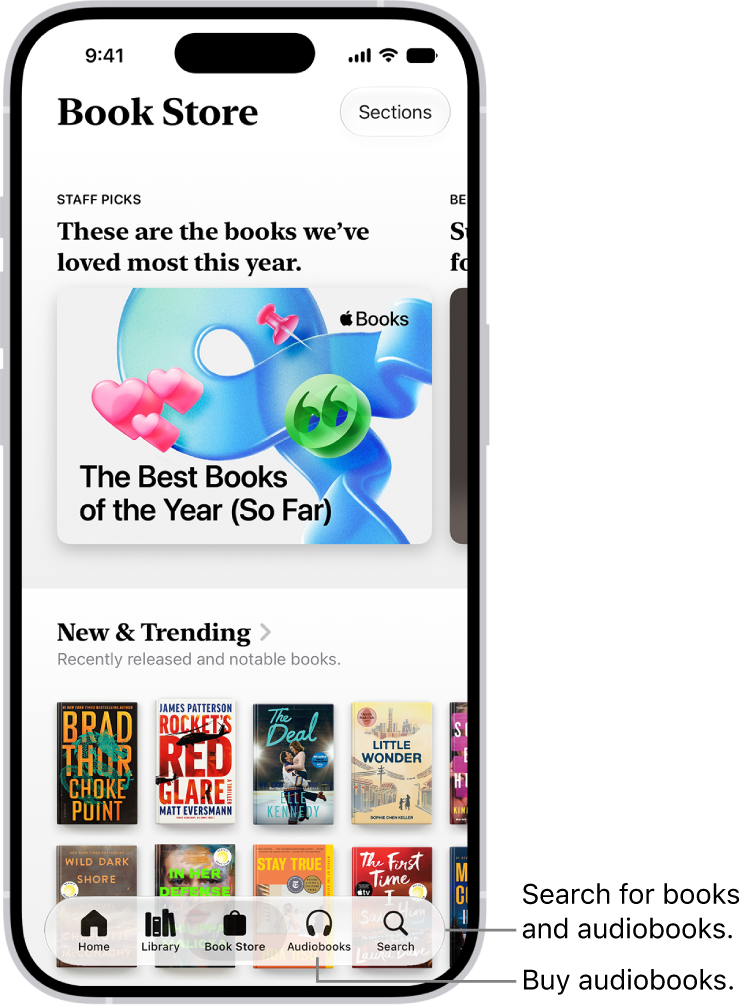
The Book Store screen in the Books app. At the bottom of the screen are, from left to right, the Home, Library, Book Store, Audiobooks, and Search tabs. The Book Store tab is selected.

  1. Start the Books app on your iPhone.
  2. Tap Book Store or Audiobooks to browse titles, or tap Search to look for a specific title, author, series, or genre.

    Tip: Tap Sections at the top of the screen to view titles in categories like Top Charts and Book Clubs, or genres like Biographies & Memoirs and Young Adults.

  3. Tap a book cover to see more details, read a sample, listen to a preview, or mark as Want to Read.
  4. Tap Buy to purchase a title, or tap Get to download a free title.

You pay for all purchases with the payment method associated with your Apple Account.

You can allow books and audiobooks to download automatically over your cellular network when you aren’t connected to Wi-Fi. Go to Settings > Apps > Books, then turn on Automatic Downloads. Tap Downloads, then choose Always Allow, Ask If Over 200 MB, or Always Ask.

When you purchase access to movies, TV shows, music, music videos, ebooks, audiobooks, or ringtones from Apple, you also have the option to permanently download these items to a compatible iPhone, iPad, Mac, or PC. Apple cannot revoke your downloaded content, and you can always access your downloaded content without an internet connection.
You can highlight, underline, and take notes as you read books in the Books app, and then share your annotations with others. You can also translate, copy, and share selected text.

All of your highlights and notes appear in Bookmarks & Highlights. You can go from a highlight or note to that location in the book, or share or delete multiple highlights or notes at the same time.

Here’s how to annotate books in the Books app on iPhone.

Note: Apple Books isn’t available in all countries or regions.

Highlight or underline text

  1. Start the Books app on your iPhone.
  2. Tap a book cover to open it.
  3. Touch and hold a word, move the grab points to adjust the selection. Then tap Highlight.

    To remove a highlight or underline, tap the text, then tap Remove.

  4. To change the highlight color or switch to underline, tap the text, tap Highlight, and tap an option.

    To see all of your highlights, tap the page, tap the Menu button, tap Bookmarks & Highlights, then tap Highlights. Tap a highlight to go to that location in the book.

Add a note

  1. Start the Books app on your iPhone.
  2. Tap a book cover to open it.
  3. Touch and hold a word and then move the grab points to adjust the text selection.
  4. Tap Add Note, enter text, and then tap the Done button.

To see all of your notes, tap the page, tap the Menu button, tap Bookmarks & Highlights, then tap Highlights. Tap a note to go to that location in the book.

Share highlights and notes

  1. Start the Books app on your iPhone.
  2. Tap a book cover to open it.
  3. Tap a highlight or note and tap the Forward button. Then tap Share.

Quick tip: You can share several highlights or notes at once. Tap the Menu button, tap Bookmarks & Highlights, then tap Highlights. Next, tap the Checklist button, tap the items you want to share, and tap the Share button.

Delete a note

  1. Start the Books app on your iPhone.
  2. Tap a book cover to open it.
  3. Tap a note and tap Remove. Then choose Remove Note or Remove Highlight & Note.

Quick tip: To delete several notes or highlights at once, tap the Menu button and tap Bookmarks & Highlights, then tap Highlights. From there, tap the Checklist button, tap each item you want to delete, and then tap the Delete button.

Translate, search, or copy text

Select text as you read, then translate or copy it, or search the book for it.

  1. Start the Books app on your iPhone.
  2. Tap a book cover to open it.
  3. Touch and hold a word and then move the grab points to adjust the text selection.
  4. Tap the Forward button and then tap Translate, Search, or Copy.

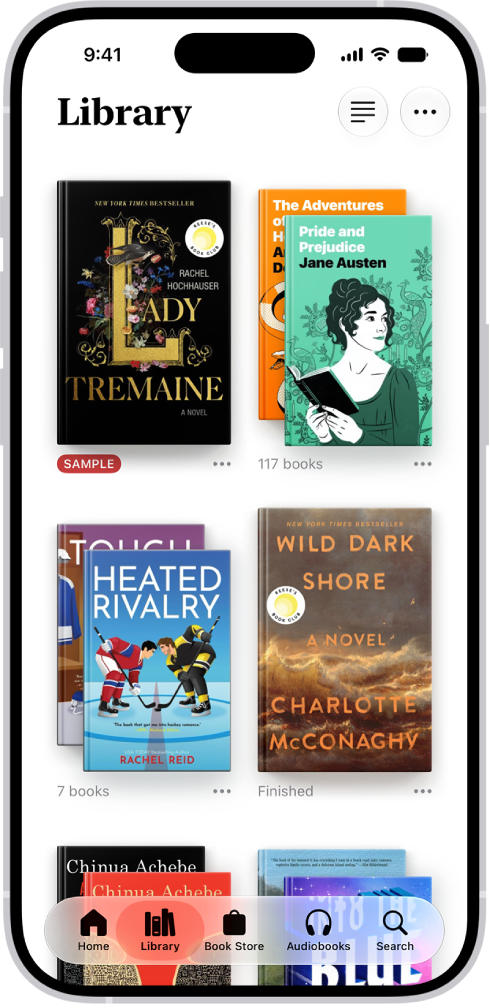
The books and audiobooks you purchase in the Books app are saved in your library and automatically sorted into collections, such as Audiobooks, Want to Read, and Finished.

You can create your own collections, too, to organize and personalize your library, for example, Beach Reads or Book Club. Then you can add a book to a collection, organize your books, and remove books, audiobooks, and PDFs. And if a collection outlives its use, you can delete it.

The Library screen in the Books app. At the top of the screen is the Collections button. In the middle of the screen are book covers. At the bottom of the screen are, from left to right, the Home, Library, Book Store, Audiobooks, and Search tabs. The Library tab is selected.

Note: Apple Books isn’t available in all countries or regions.

Create a collection

To organize and personalize your library, you can create your own collections.

  1. Start the Books app on your iPhone.
  2. Tap Library, tap the Collections button, and then tap New Collection.
  3. Name the collection—for example, Beach Reads or Book Club—then tap the Done button.

Add a book to a collection

The collections you create can include books from your library or from the Book Store.

  1. Start the Books app on your iPhone.
  2. Go to a book. Tap the More Info button below the cover.

Tap Add to Collection, then tap the collection you want to add it to.

Quick tip: You can add the same book to multiple collections.

Organize your books

You can choose how books are displayed and sorted in your library or a collection.

  1. Start the Books app on your iPhone.
  2. Tap Library or go to a collection.
  3. Tap the More button. Then do either of the following:
    • Change the book display: Tap Grid or List.
    • Sort your books: Tap Recent, Title, Author, or Manual.

If you choose Manual, touch and hold a book cover, then drag it to a new position.

Remove books, audiobooks, and PDFs

From Home, Library, and your library collections, you can remove or hide books, audiobooks, and PDFs.

  1. Start the Books app on your iPhone.
  2. Go to a book or audiobook you want to remove and tap the More Info button below the cover.
  3. Tap Remove and choose an option.

Note: Choose Remove Download, and the title’s content and data are no longer stored on your iPhone. To get it back, tap the More Info button and then tap Download. Choose Hide Book instead, and the book won’t show up in your library or collections. To unhide books and audiobooks later, tap Home and tap your account icon, then tap Manage Hidden Purchases.

You can automatically remove downloads from your iPhone after you finish a book. Tap Library, then tap the More button. Tap Remove Downloads, then tap Automatically When Finished.

Delete a collection

  1. Start the Books app on your iPhone.
  2. Tap Library, then tap the Collections button.
  3. Swipe left on the collection you want to delete and then tap Delete.

Note: Deleting a collection doesn’t delete the books or audiobooks in it. They’re still in your library.

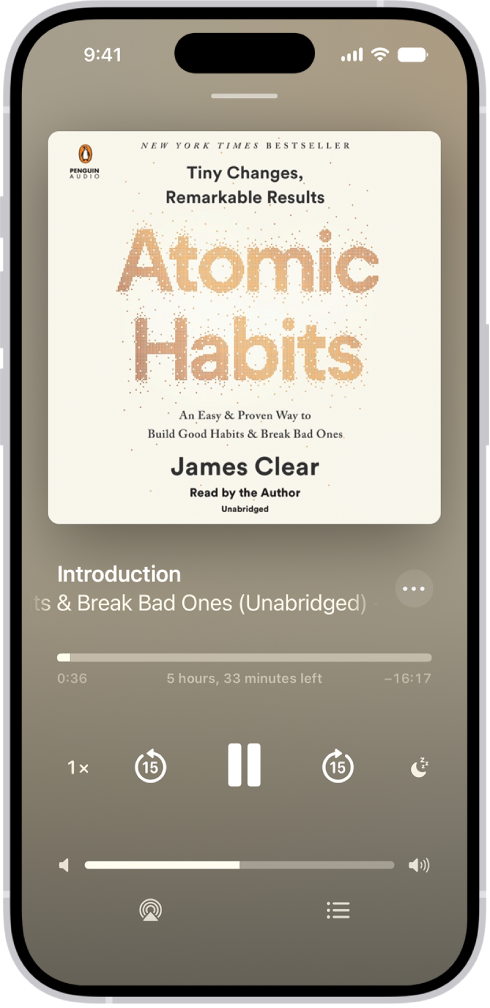
Use the Books app to listen to audiobooks on your iPhone. As an audiobook plays, you can adjust the volume, skip forward or back, go to a specific time or a different chapter, speed it up or slow it down, and set a sleep timer. Some audiobooks come with supplemental PDFs, too.

The audiobook player screen showing, from top to bottom, the audiobook cover, the name of the section that’s playing, the playhead, pause button, and the skip forward and back buttons. At the bottom is the volume slider and below that are buttons for controlling playback speed, setting a sleep timer, choosing a playback destination, and viewing a list of the book’s tracks.

Note: Apple Books isn’t available in all countries or regions.

Play an audiobook

  1. Open the Books app on your iPhone.
  2. Go to an audiobook. Tap the cover to start playing it.
  3. While the audiobook is playing, do any of the following:

    • Skip forward or back: Tap or touch and hold the rounded arrows next to the Pause button. Or, use external controls such as headphones or car controls.

      Note: To change the number of seconds to skip forward or back, go to Settings > Apps > Books. Below Audiobooks, tap Skip Forward or Skip Back, then tap an option.

    • Go to a specific time: Drag the slider below the audiobook cover left or right.
    • Go to a different chapter: Tap the Table of Content Switch button and tap a chapter.

      Note: Some audiobooks refer to chapters as tracks, or don’t define chapters.

    • Adjust the volume: Drag the slider below the Pause button left or right.
    • Speed it up or slow it down: Tap 1x in the lower-left corner and drag the dial up or down to adjust the narration speed. Touch and hold the narration speed to reset it to 1x.
    • Set a sleep timer: Tap the Sleep button, then choose a duration.
    • Play on a different device: Tap the AirPlay button. Then choose an available device such as HomePod, Apple TV 4K, or Bluetooth® speakers.
    • Switch to the audiobook mini-player: Swipe down from anywhere on the screen, or tap the Close button at the top of the screen. Tap the mini-player at the bottom of the screen to go back to full screen.
    • Close the audiobook player: Switch to the audiobook mini-player, touch and hold the audiobook mini-player and then tap Close Audio Player.

If a Wi-Fi connection to the internet isn’t available, audiobooks play over your carrier’s cellular network, which may result in additional fees.

Find supplemental PDFs

Some audiobooks come with supplemental PDFs. To view the PDF as the audiobook plays, tap the Table of Contents has Supplemental Content button, or do the following:

  1. Open the Books app on your iPhone.
  2. Tap Library. Then tap the More Info button below an audiobook cover.
  3. Tap View PDF Content.

In the Books app, you can view the books you’re currently reading, want to read, book collections, and more.

While you read, you can change text and page appearance, bookmark a page, share a text selection or book link, and turn on Line Guide. When Line Guide is on, the rest of the page dims so you can focus on individual lines of text as you read. You can also set daily reading goals.

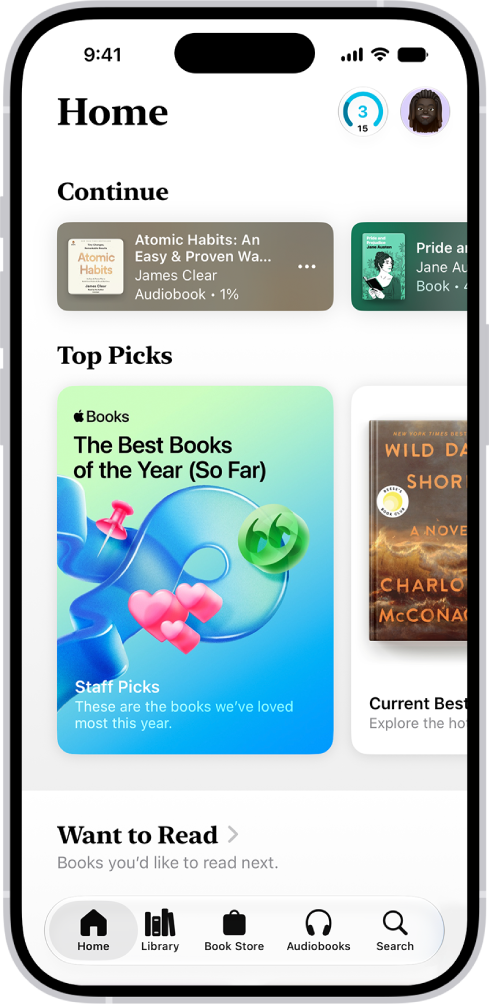
  • Home : Tap to access the books, audiobooks, and PDFs you’re currently reading, get personalized suggestions for your next read, find books you’ve marked as want to read, and more. You can also set daily reading goals and keep track of the books you finish throughout the year.
  • Library : Tap to see all of the books, audiobooks, series, samples, and PDFs you either got from the Book Store or manually added to Books. Tap the Collections button to see your library sorted into collections, such as Want to Read, My Samples, Audiobooks, Finished, or custom collections you created.

The Home screen in the Books app. At the bottom of the screen are, from left to right, the Home, Library, Book Store, Audiobooks, and Search tabs. The Home tab is selected.

Note: Apple Books isn’t available in all countries or regions.

Read a book

  1. Open the Books app on your iPhone.
  2. Go to a book and tap the cover to open it. Then do any of the following:

    • Turn the page: Tap the right margin or swipe right to left.

      To allow either the left or right margin to turn the page, go to Settings > Apps > Books, then turn on Both Margins Advance.

    • Go back to the previous page: Tap the left margin or swipe left to right.
    • Go back to previous reading location: Tap the page. Tap the rounded arrow in the top-left corner of the page. Tap the rounded arrow again, but in the top-right corner, to go back to your current location.
    • Go to a specific page or location: Tap the page, tap the Menu button, and then tap Search Book. Enter a word, phrase, or page number and then tap a result.
    • Use the table of contents: Tap the page, tap the Menu button, and tap Contents.

      Tip: To quickly move through a book, touch and hold Contents, then drag your finger left or right; release your finger to go directly to that location in the book.

    • Lock screen orientation: Tap the page, tap the Menu button, and tap the Orientation Lock button to lock the screen in horizontal or vertical orientation.
    • Close a book: Tap the page, then tap the Close button. Or swipe down from the top of the page (not available if vertical scrolling is on).

Change text and page appearance

  1. Open the Books app on your iPhone.
  2. Open a book. Then tap the Menu button at the bottom of the page.

    You may need to tap the page for the Menu button to appear.

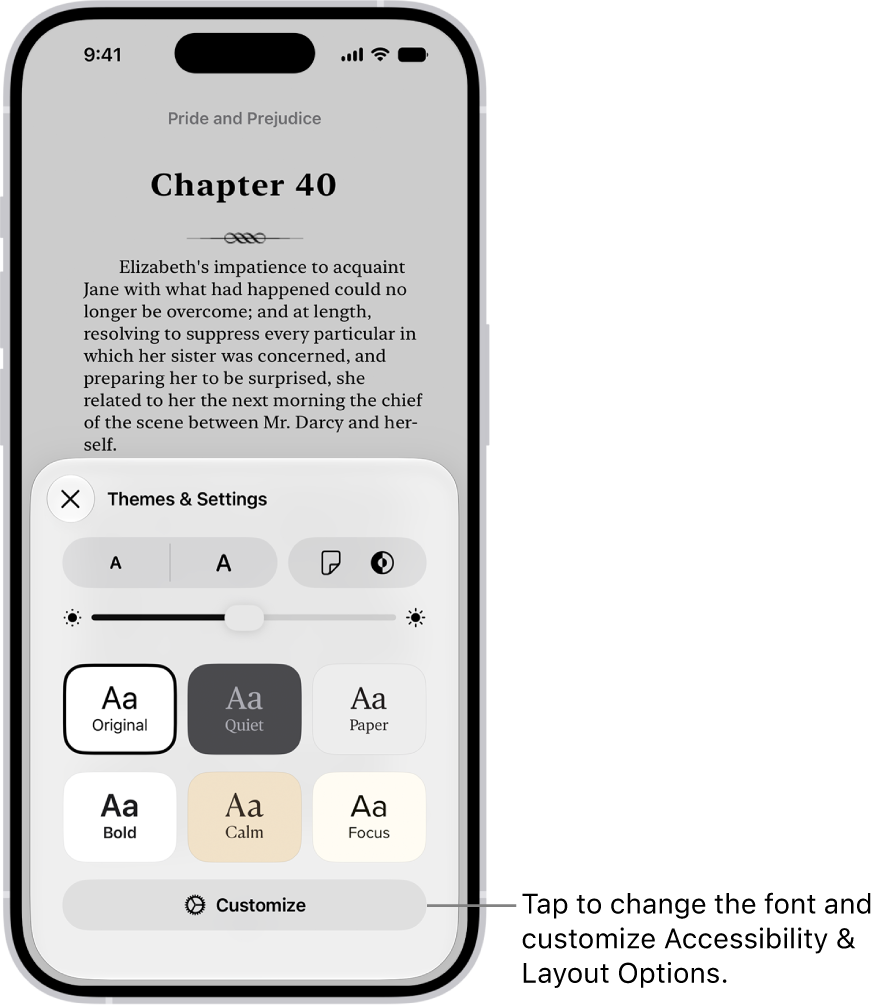
  3. Tap Themes & Settings and then do any of the following:

    • Change the font size: Tap the large A to increase the font size or tap the small A to decrease it.
    • Turn on vertical scrolling or change the page turn style: Tap the Page Turn button and tap Curl, Fast Fade, or Scroll.

      To turn on vertical scrolling when viewing a PDF, manga, or other fixed layout document, tap the Appearance button, then turn on Vertical Scrolling.

    • Adjust the background mode: Tap the Appearance Options Light button, then tap an option.
    • Adjust the display brightness: Touch the brightness bar. Then drag your finger in either direction.
    • Change the page theme: Tap a page theme such as Quiet or Bold.
    • Change the font: Tap Customize, then tap Font. Swipe up to view the font options. Tap a font name, such as Original or Palatino. Tap the Done button to apply the font.
    • Make the font bold: Tap Customize, turn on Bold Text, and tap the Done button.
    • Customize spacing and justification: Tap Customize and then below Accessibility & Layout Options, turn on Customize. Drag the sliders left or right to adjust line spacing, character spacing, word spacing, and margins. You can also turn Justify Text on or off. Tap the Done button to apply your changes.
  4. Tap the Close button to close the Themes & Settings menu.

    A page of a book in the Books app. The Themes & Settings options show controls for font size, scrolling view, page turn style, brightness, and font styles.

Note: The Menu button can appear on either side of the screen. Go to Settings > Apps > Books and choose Left or Right below Reading Menu Position.

To undo text and layout customizations, tap the Menu button, tap Customize, then tap Reset Theme.

Bookmark a page

Closing a book saves your place automatically, so you don’t need to add a bookmark. You can still add bookmarks to pages you want to return to again.

  1. Open the Books app on your iPhone.
  2. Tap a book cover to open it. Tap the page you want to bookmark.
  3. Tap the Menu button at the bottom of the page.
  4. Tap the Bookmark Ribbon to add a bookmark; tap it again to remove the bookmark.

To access all your bookmarks, tap the Menu button, tap Bookmarks & Highlights, then tap Bookmarks.

Share a text selection or book link

You can send text selections using AirDrop, Mail, or Messages, or you can add the selection to Notes. If the book is from the Book Store, a link to the book is included with the selection. (Sharing may not be available in all countries or regions.)

  1. Open the Books app on your iPhone.
  2. Tap a book cover to open it.
  3. Touch and hold a word and then move the grab points to adjust the selection.
  4. Tap the Forward button on the menu items. Then tap Share.
  5. Tap Mail, Messages, or another app or service to share the selection.

You can also share a link to view the book in the Book Store. Tap the Menu button, tap the Share button, then tap how you want to share the link.

Turn on Line Guide

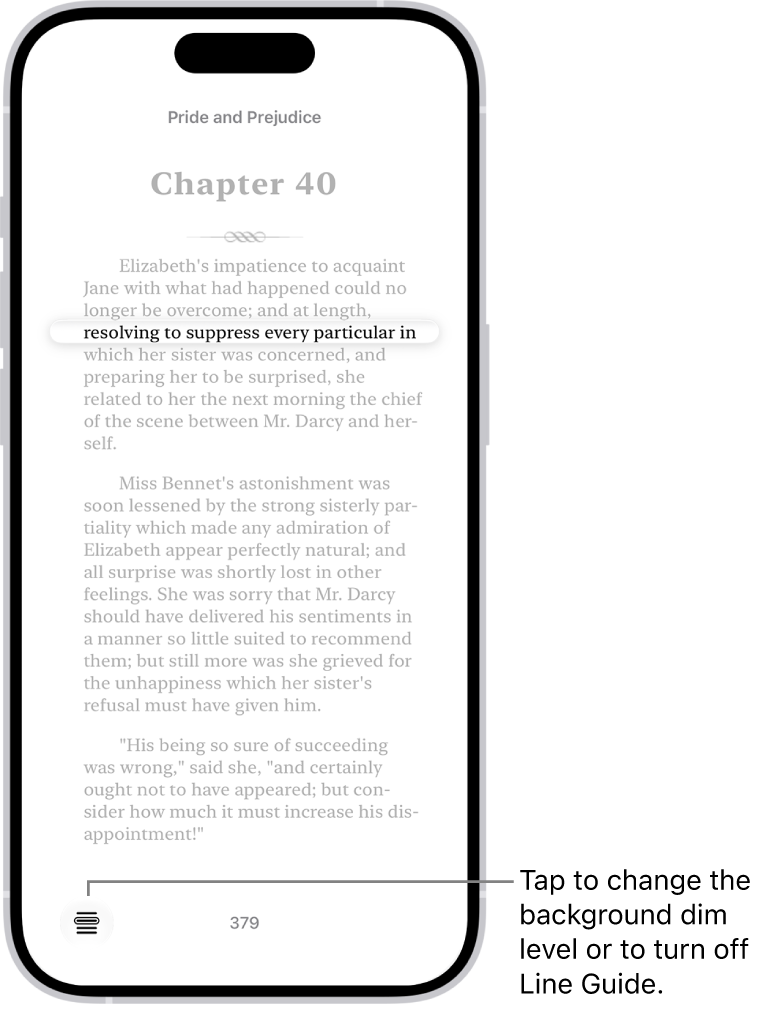
To focus on individual lines of text as you read, use Line Guide. It dims the rest of the page so the line you’re reading becomes more visible.

A page of a book in the Books app. A single line of text is highlighted and the rest of the text is dimmed. In the bottom-left corner of the screen is the Line Guide Menu button.

  1. Open the Books app on your iPhone.
  2. Tap a book cover to open it and tap a page.
  3. Tap the Menu button at the bottom of the page.
  4. Tap the Line Guide Menu button to turn on Line Guide and then do any of the following:
    • Tap the page above or below the line guide to move it up or down.
    • Tap the left or right page margin to move the line guide up or down (not available if vertical scrolling is on).
    • Touch and hold the line guide, then drag it to a new line on the page.
  5. Tap the Line Guide Menu button in the page to adjust the background dim level or turn off Line Guide.

You can open and save PDFs in the Books app that you receive in Mail, Messages, or other apps. Once a PDF is in Books, you can share it with AirDrop, Mail, or Messages, print it, or mark it up. Apple Books isn’t available in all countries or regions, though.

Note: Apple Books isn’t available in all countries or regions.

Open a PDF you receive in another app in Books

  1. Tap the PDF attachment to open it.
  2. Tap the Share button and then tap Books from the list options.

Share or print a PDF

  1. Open the Books app on your iPhone.
  2. Tap Library and tap the More button below the PDF.
  3. Tap the Share button. Choose a share option such as AirDrop, Mail, or Messages, or tap Print.

Mark up a PDF in Books

  1. Open the Books app on your iPhone.
  2. Open the PDF.
  3. Tap the page and tap the Markup button to use the drawing and annotation tools.

The Books app helps you keep track of how many minutes you read each day, and how many books and audiobooks you finish each year. You can customize your goals to spend more time reading, set new reading streaks, and receive encouragement to reach your goals.

You can change your daily and yearly reading goals, turn coaching notifications on or off, or clear reading data. You can even turn off reading goals entirely.

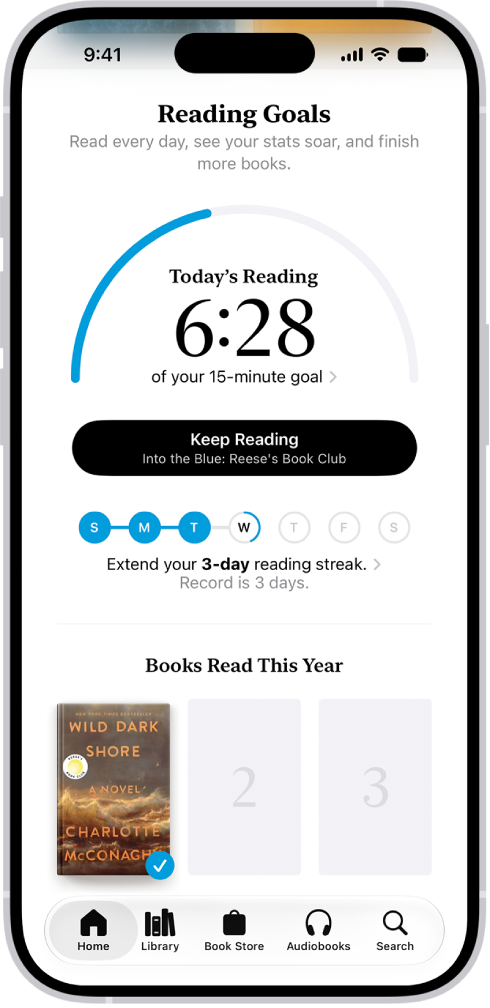
The Reading Goals screen showing stats for the user—such as today’s reading, their reading record for the week, and their books read this year. Across the bottom are the tabs Home (which is selected), Library, Book Store, Audiobooks, and Search.

Note: Apple Books isn’t available in all countries or regions.

Change your daily reading goal

If you don’t customize your daily reading goal, it’s 5 minutes per day. Adjust it depending on how many minutes you want to read each day.

  1. Start the Books app on your iPhone.
  2. Tap Home, then tap the reading goals button.
  3. Tap the reading goal timer, then tap Adjust Goal.

    Note: To count PDFs toward your reading goal, go to Settings > Apps > Books, then turn on Include PDFs below Reading Goals.

  4. Slide the counter up or down to set the minutes per day that you want to read and tap Adjust Goal.

Change your yearly reading goal

Once you finish a book, its cover appears below Books Read This Year. Your yearly reading goal is three books per year by default, though you can raise or lower it depending on how many books you want to finish.

  1. Start the Books app on your iPhone.
  2. Tap Home, then tap the reading goals button.
  3. Tap a book cover or a cover placeholder. Tap Adjust Goal.
  4. Slide the counter up or down to set the books per year that you want to read. Then tap Adjust Goal.

Quick tip: You can mark a book in your library as finished. Tap the More Info button below its cover, then tap Mark as Finished.

Turn on coaching notifications

To help you reach your reading goals, Books can send you encouragement and nudges, which you can turn on or off.

  1. Start the Books app on your iPhone.
  2. Tap Home and tap your account button.
  3. Tap Notifications, then turn on Coaching.
  4. Tap the Close button.

Turn off reading goals notifications

When you achieve a reading goal or set a reading streak, Books notifies you, and these notifications can also be turned off.

  1. Start the Books app on your iPhone.
  2. Tap Home and tap your account button.
  3. Tap Notifications, then turn off Goal Completion.
  4. Tap the Close button.

Turn off reading goals

  1. Start the Settings app on your iPhone.
  2. Tap Apps, tap Books, and then turn off Reading Goals.

With Reading Goals turned off, the Home tab’s reading indicators are hidden, and reading notifications stop.

Clear reading data

You can clear reading data such as reading streaks, reading goals, and time spent reading.

  1. Start the Settings app on your iPhone.
  2. Tap Apps and tap Books. Then tap Clear Reading Goals Data.