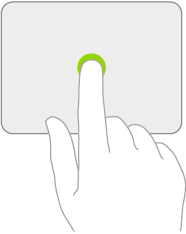
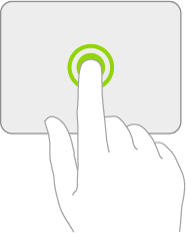
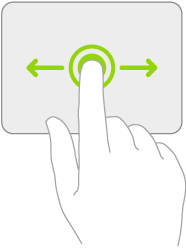
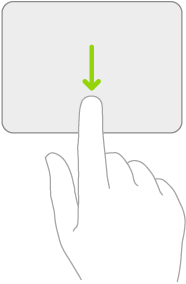
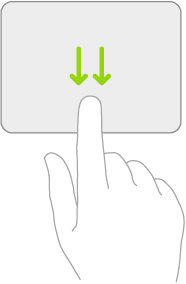
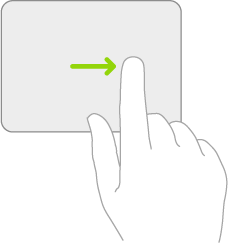
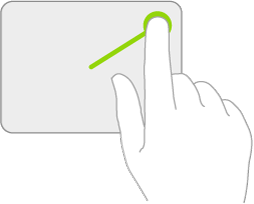
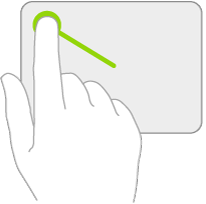
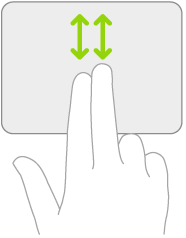
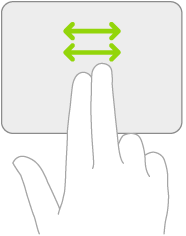
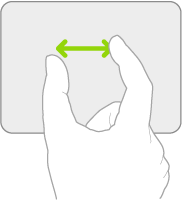
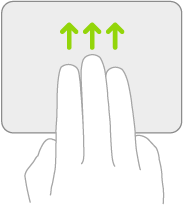
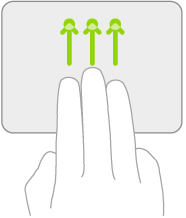
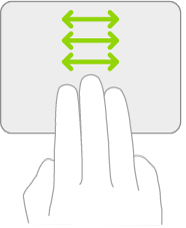
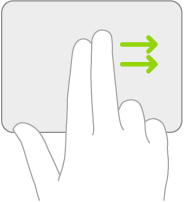
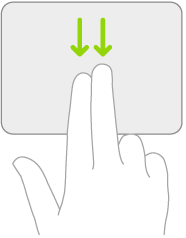
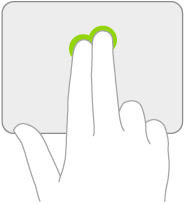
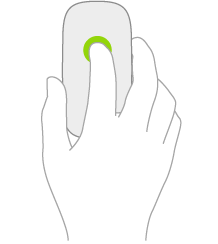
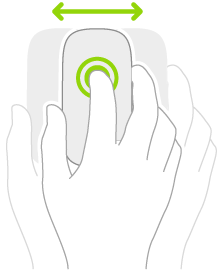
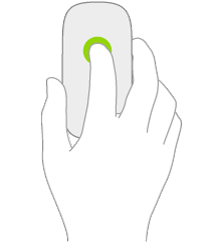
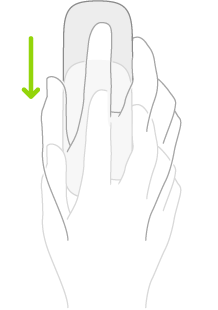
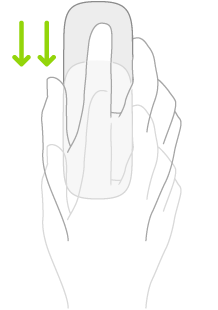
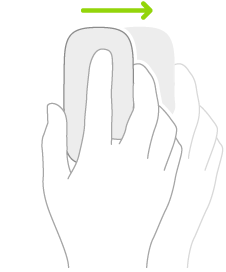
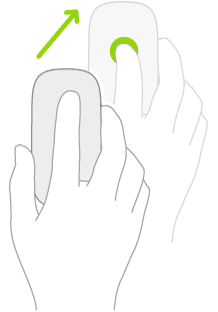
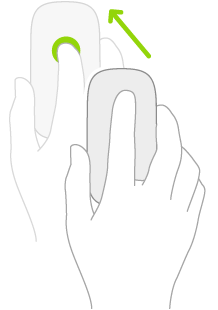
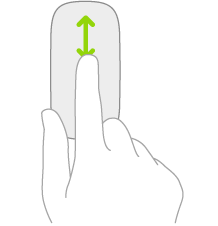
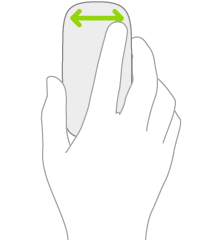
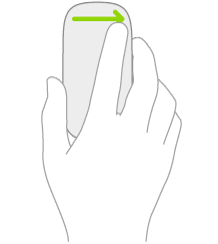
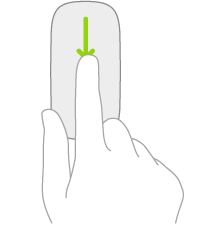
You can change how you use a mouse to interact with items on the iPad screen. You can set the tracking speed of the pointer, turn Natural Scrolling on or off, and choose which finger to use for a secondary click.
- Open Settings and tap General. Select Trackpad & Mouse.
- Do any of the following:
- Change the tracking speed: Drag the slider to set the tracking speed of the pointer when you move it across the screen.
- Turn Natural Scrolling on or off: With this option selected, the contents on the screen move in the same direction as your finger.
- Specify a finger to use for Secondary Click: You can specify either the right or left finger to show the Quick Actions menu when you click items like icons on the Home Screen, messages in a mailbox, or the Camera button in Control Center. To turn off Secondary Click, choose Off (Magic Mouse 2).
Note: It’s also possible to change how the pointer looks, including its color, shape, and size. Read our article, Make the pointer easier to see when using a mouse or trackpad with iPad.
See also
Tag: Trackpad and Mouse