









Moving all your data, including photos and messages, to a new iPhone 18 Pro Max is usually quite a simple process as long as you have a backup of your old iPhone. In this article we will look at how to make a backup of all your text messages so that they will appear on your new iPhone, and what to do if you set up your new iPhone only to find your old text messages didn’t appear – which can be a real tragedy if they hold sentimental value.
Once we’ve explained how to backup your messages we will look at how to transfer them to your new iPhone.
You can also set things up so that all your text messages appear on all your Apple devices, including your iPad and Mac as well as your iPhone, so we will look at how to do that too.
How to backup text messages on your iPhone
The first thing to do before setting up a new iPhone 18 Pro Max is get your old iPhone and make sure that you turn on Apple’s Messages in iCloud service. This is the simplest way to back up your messages so you can sync them with a new iPhone (although we will look at another way below if you would rather not pay for the additional iCloud storage which might be required for this service).
Apple’s Messages in iCloud service can be used to backup all your text messages to the cloud so that you can download them to your new iPhone – and keep them in sync across all your Apple devices, so that every message and reply can be viewed on every device.
Messages in iCloud is a feature that arrived in iOS 11.4, so you will need to update your iPhone to iOS 11.4 or above to get it. You can check which version you are running in Settings > General > Software Update.
Once Messages in iCloud is turned on, all your messages will be stored in the cloud and synced between all your devices, that’s your iPad, Mac and iPhone. To turn Messages in iCloud on follow these steps:
- Plug in your iPhone and connect to Wi-Fi
-
Go to the Settings app on your iPhone. Tap your name, tap iCloud, then tap Messages. If Messages doesn’t appear, tap See All in the Saved to iCloud section.
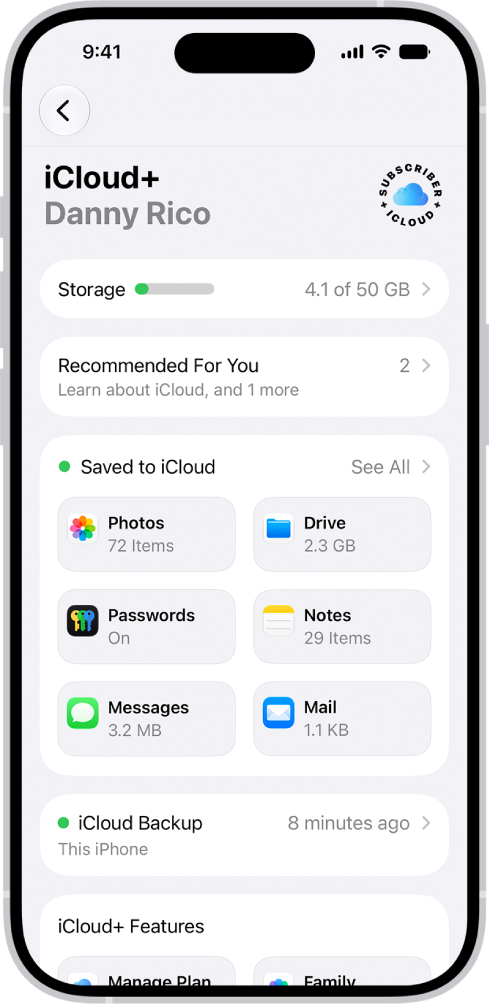
- Turn on “Use on this iPhone” (if it’s not already turned on).
It will probably take a while for your message history to upload to the cloud.
How to backup messages without using iCloud
What if you can’t update your old phone to iOS 11.4 – perhaps because it’s an older model. Or maybe you don’t want to pay for the storage required for Messages in iCloud. In that case, you can still sync your old messages – as long as you back up your old phone, your text messages will be saved as part of the backup – either in the cloud or on your Mac or PC.
- Plug your old iPhone in and make sure you are connected to Wi-Fi.
- Go to the Settings app on your iPhone. Tap [your name], tap iCloud, then tap iCloud Backup. Turn on Back Up This iPhone.
- You could tap Back Up Now to force a backup. But before doing that, you will want to check that you are backing up Messages as part of this backup.
- Tap [your name], then tap iCloud. Tap iCloud Backup, then tap your iPhone (This iPhone).
- You can see how big your Messages back up is.
How to backup messages using a Mac or PC
Alternatively, you could backup to your Mac or PC.
- Connect iPhone and your computer with a cable. In the Finder sidebar on your Mac, select your iPhone.
- At the top of the Finder window, click General. Select “Back up all of the data on your iPhone to this Mac.” Click Back Up Now. This will store a full back up of your iPhone on your computer. You can download this back up to your new iPhone when you set it up.
In the iTunes app on your Windows device, click the iPhone button near the top left of the iTunes window. Click Summary. Click Back Up Now (below Backups).
How to transfer messages to a new iPhone 18 Pro Max
Now when you are ready to set up your new iPhone you will have a backup that includes all your messages.
You just need to sync your new iPhone 18 Pro Max with the latest backup from your old iPhone. The steps that are most relevant here are as follows.
- Turn on your new iPhone.
- Go through the setup process. (Note that if you’ve already been through the setup process and your Messages were missing, but you have now made sure you have a backup of your old messages, you may need to reset your new iPhone and start again: Open the Settings app and tap General > Transfer or Reset iPhone > Erase All Content and Settings.)
- Tap Set Up Manually, tap Restore from iCloud Backup, then follow the onscreen instructions. (If you backup over iCloud you may be prompted to make a new backup on your old iPhone – handy if you hadn’t already done so – this new backup will then be synced with your new iPhone when you Restore from iCloud.)
- Your new phone will start to download everything from your back-up, including all your messages. Expect it to take a while.
If you open Messages you may see a few messages appear. If you watch for a while more may appear, but you are probably best off doing something else and leaving the phone to download the content.
Eventually your new iPhone 18 Pro or iPhone 18 Pro Max will now display all your messages from the old iPhone, along with all your apps, photos, emails and other app data.


