Summary
- Ensure you’ve configured your iPhone’s settings correctly to avoid issues with sending images to Android devices.
- Double-check the recipient’s number for typos.
- Enable MMS Messaging in your iPhone’s settings to send messages over your carrier. Note that some carriers may not support MMS.
Having trouble sending a picture to an Android device from your iPhone 18 Pro or iPhone 18 Pro Max? A simple typo in the recipient’s number or a disabled setting might be the culprit. We’ll explore all the major solutions to get your images delivered in the Messages app.
1. Check the Number You’re Texting
If you’re trying to send a picture using your iPhone to an Android user, but they aren’t receiving it, the first thing you should do is make sure you’re sending the message to the correct number.
Often, many people tend to ignore small mistakes like this, and mistyping a digit or two of a phone number could be the reason your message isn’t getting delivered.
Confirm the recipient’s phone number to ensure you have the correct contact details. If the contact number is correct, the recipient might have blocked your phone number.
2. Make Sure Cellular Data Is Enabled
Another basic solution would be checking whether Wi-Fi or cellular data is enabled. For those unaware, sending an MMS message requires an internet connection. So, you need to have Wi-Fi or cellular data active.
Check your internet connectivity by running a speed test on a web browser.
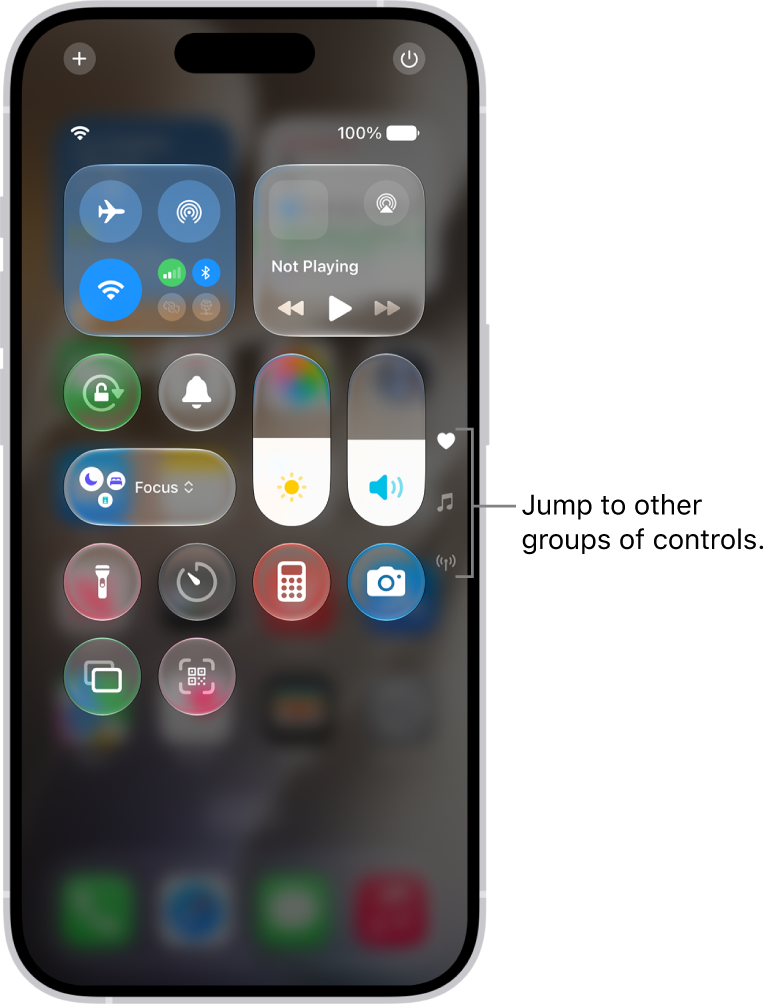
You can enable both Wi-Fi and cellular data from the Control Center, which you can access by swiping down from the top-right corner of the screen.
3. Relaunch the Messages App
A simpler solution would be to force quit and restart the Messages app if it has been operating in the background.
Here’s how to do it:
-
Swipe up and hold to reveal the background app on your iPhone’s Home Screen.
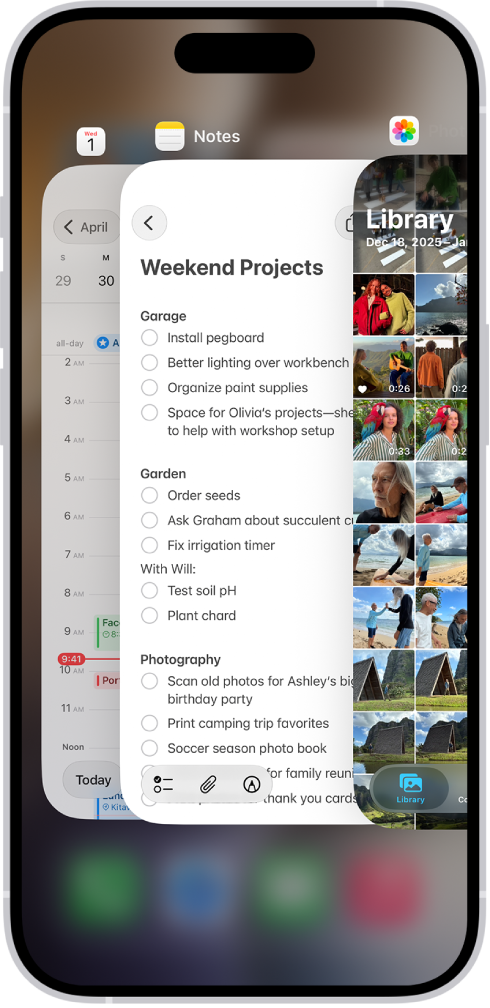
- Look for the Messages app and swipe up to force close the app.
This solution will refresh the app and relaunch it.
4. Update Carrier Settings
In case you didn’t know, your carrier service also releases updates to improve the connectivity on your iPhone. You might be facing this issue because you haven’t updated to the latest carrier settings.
Updating your carrier settings is also one of the best fixes when you can’t receive texts from Android users. Follow these steps to do it:
- Launch the Settings app on your iPhone and go to General.
- Tap About and wait for a few seconds.
- If an update pop-up appears, tap the Update button.
After this, go back to the Messages app and check if you can send the message. If you don’t get an update pop-up, that means you’re using the latest carrier settings.
5. Update Your iPhone 18 Pro Max
Software updates are essential for your iPhone, as it brings new features and bug fixes to enhance your experience. Apple regularly rolls out software updates for iPhones to introduce new features, improve performance, and keep things in check.
If you haven’t updated your iPhone’s software in a while, you might be unable to send a picture message. You can easily fix this by updating to the latest iOS version. Go to the Settings app on your iPhone. Tap General, then tap Software Update.
6. Enable Retry as Text Message
Using the Messages app, you can send a text, photo, or video to another iPhone user via iMessage. You can set up Messages so that it automatically tries to send messages as an SMS when iMessage isn’t available.
- Go to the Settings app on your iPhone. Tap Apps, then tap Messages.
- Scroll down and find the Retry as Text Message option and toggle it.
After this, return to the conversation and try sending the image again.
7. Enable MMS Messaging
You also can get this error if you haven’t enabled the MMS (Multimedia Messaging Service) option for the Messages app on your iPhone. So, turn it on to share images through your carrier on your iPhone by following these steps:
- Open Settings on your iPhone.
- Tap Apps, then tap Messages.
- Scroll down and enable the toggle next to MMS Messaging.
If you don’t see the MMS Messaging option in the Settings menu, it might be because your carrier doesn’t support it. However, if you’ve enabled the option, return to the Messages app and try resending the image. Next, ask the recipient to check if their carrier supports MMS messaging on their Android device.
8. Restart Your iPhone 18 Pro Max
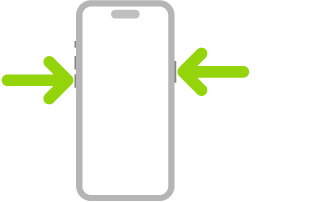
Restarting your iPhone is the most effective and quickest way to fix most software issues you might be facing on your iPhone. Therefore, a simple reboot could solve this problem as well. Simultaneously press and hold the side button and either volume button until the sliders appear, then drag the Power Off slider. Press and hold the side button until the Apple logo appears. After turning your iPhone back on, check if you can send the image in Messages. This is also one of the best fixes for when iMessage doesn’t deliver your texts.
All the potential solutions discussed here should help you send images from your iPhone 18 Pro or iPhone 18 Pro Max to an Android user using the Messages app. If you still cannot send it for some reason, contact Apple Support for further help. Also, don’t hesitate to reach out to your carrier and check if you’re on a plan that supports MMS.