









AirDrop is a quick and easy way to send photos and video, and copy files, PDF, or other file types from your iPhone 18 Pro Max to your Mac, your Mac to your iPhone, from your iPhone to a friend’s iPhone, or any scenario including an iPhone, iPad and a Mac. It’s faster and neater than sending files via email. Cellular data charges may apply when you use AirDrop.
You can even use AirDrop to send a link to a webpage to a colleague, share a location on a map, share a contact, and much more.
AirDrop also allows you to share Wallet passes and apps with AirDrop (just press and hold the app icon on the Home screen until you see an option to Share).
You can even share Notes or Pages documents via AirDrop (but remember that you can also add other people to collaborate from the apps themselves).
Make sure that both the sender and recipient have Wi-Fi and Bluetooth turned on and that you’re both using an iPhone, iPad, or Mac. If you are sharing to or from a Mac you will need Wi-Fi enabled on the Mac (AirDrop won’t work if you are using the Wi-Fi to share your wired connection to other devices) and Bluetooth turned on.
How to AirDrop from iPhone 18 Pro Max to iPhone/iPad
To send an item to someone with AirDrop, both you and your recipient must have AirDrop turned on.
On the sending iPhone or iPad…
-
Check that Bluetooth and Wi-Fi are on: open Control Center by swiping down from the top-right edge and make sure the Wi-Fi and Bluetooth icons are blue.
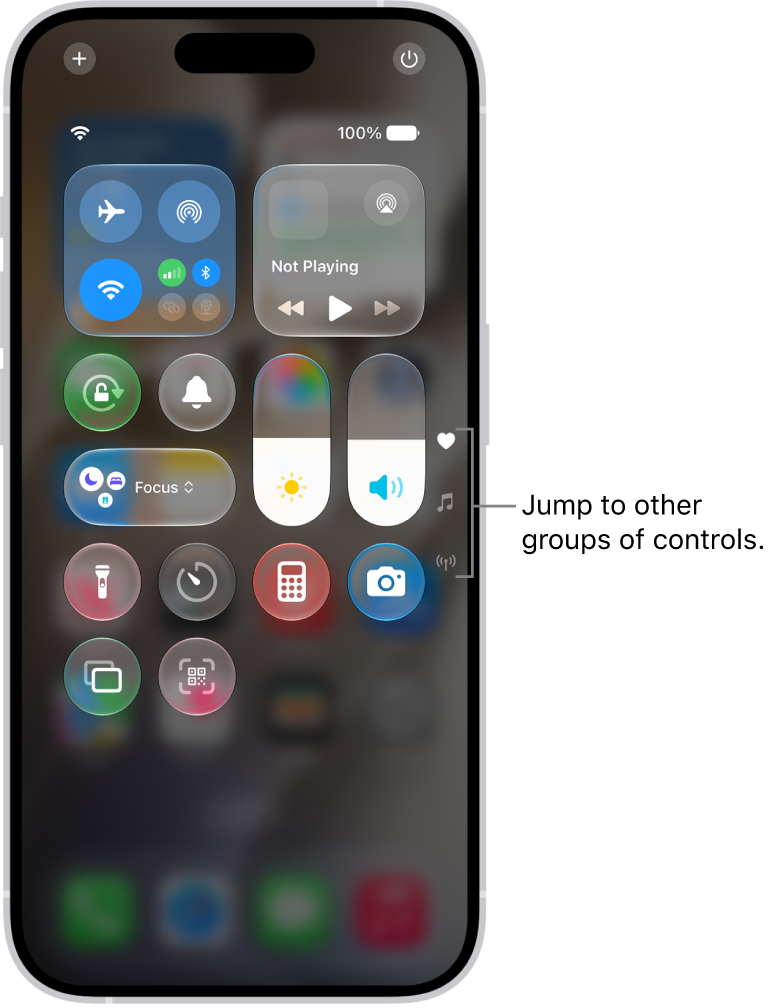
- On the device you are sending from, locate the thing you want to share with your friend. e.g. To share a photo you’d open the Photos app and find that image, if it’s a contact you are sharing, open the Contacts file and find the relevant entry.
-
Once you have selected the photo or file, tap on the Share icon (it’s a square with an arrow pointing upwards, you’ll see it in most apps although sometimes you will just see the word ‘share’).

-
A page will open with various sharing options (Message, Mail, etc). Above that row you’ll initially see the AirDrop icon, but after a few seconds (sometimes minutes) this should be replaced by icons representing people and devices you can share with (it will indicate if it’s an iPhone, iPad or Mac, for example).
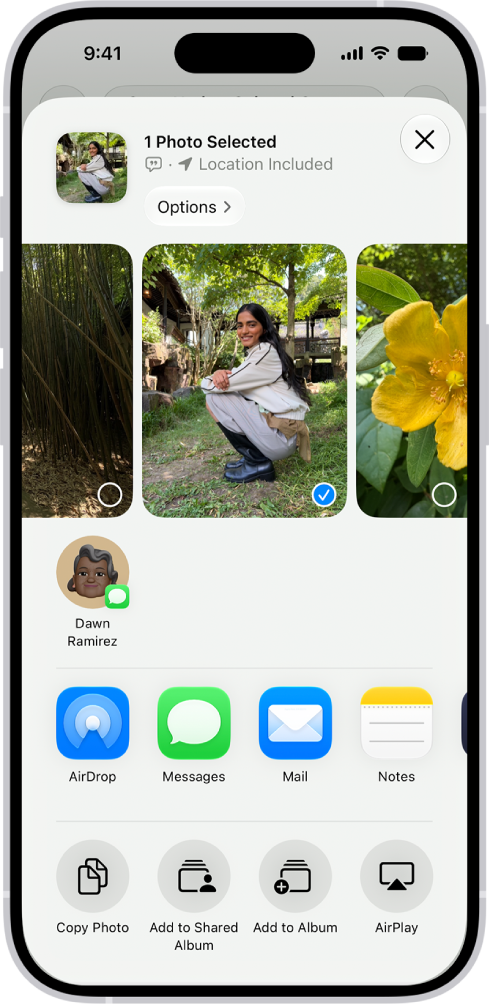
- Tap on the icon for the person you want to share with and your photo or file will be shared with them – as long as they accept the transfer.
- You can send as many files or photos as you like and send them to multiple contacts at the same time.
- After sending the photo or file you will see the word ‘Sent’ under the person’s device in your AirDrop row.
On the receiving iPhone or iPad…
- As above, check that Bluetooth and Wi-Fi are on: open Control Center by swiping down from the top-right edge and make sure the Wi-Fi and Bluetooth icons are blue.
- When your friend attempts to share the content with you an alert will appear on your device asking if you wish to Accept or Decline.
- Choose Accept and the content will start to download.
- If you are AirDropping between your own devices you won’t see an option to accept or decline, as long as both devices are signed into the same Apple Account.
Where are AirDrop files saved in iPhone
Wondering where the files have gone now that they have been transferred to the other iPhone?
The content should appear in the relevant app – photos in the Photos app, location information in Maps, etc.
What if your iPhone/iPad can’t see/be seen for AirDrop?
If iPad or iPhone you are sharing to isn’t showing up in the list of potential AirDrop destinations there are a couple of possibilities. Bluetooth and Wi-Fi may be off. AirDrop itself may be turned off. Or your ‘friend’ may have it set to only receive from a Contact (and inexplicably don’t have your details).
- To establish if one of the above is the case, start by swiping down from the top-right edge on the iPhone or iPad that won’t receive to confirm that Bluetooth and Wi-Fi are on. (Double check the same on the sending device).
- Now check that AirDrop isn’t turned off: Open Control Center, touch and hold the top-left group of controls.
- This will take you to a second screen where you gain AirDrop and Personal Hotspot options. AirDrop should be on by default but if it isn’t, tap that icon (you should now find that you have fixed the problem).
- However, it’s possible that AirDrop is on but that the device is set to only receive from Contacts. In which case, tap the AirDrop icon and switch from Contacts Only to Everyone for 10 Minutes (your friend may want to switch back to Contacts Only later on if they want to avoid being AirDropped by people they don’t know.)
- If the iPhone or iPad still isn’t showing up, and you’ve checked all the usual suspects: turned it off and on again, checked the software is up to date, there may be another issue at fault such as your Wi-Fi connection.
Once you are done transferring files, you may want to turn off AirDrop on your iPhone or iPad.
How to AirDrop from iPhone to Mac
Setting up your iPhone 18 Pro or iPhone 18 Pro Max for AirDropping files to a Mac is a similar process to that described above.
On the sending iPhone or iPad…
- Check that Bluetooth and Wi-Fi are on: open Control Center by swiping down from the top-right edge and make sure the Wi-Fi and Bluetooth icons are blue.
- On the device you are sending from, locate the thing you want to share to the Mac. e.g. To share a photo you’d open the Photos app and find that image, if it’s a contact you are sharing, open the Contacts file and find the relevant entry.
- Once you have selected the photo or file, tap on the Share icon (it’s a square with an arrow pointing upwards, you’ll see it in most apps although sometimes you will just see the word ‘share’).
- A page will open with various sharing options (Message, Mail, etc). Above that row you’ll initially see the AirDrop icon, but after a few seconds (sometimes minutes) this should be replaced by icons representing people and devices you can share with (it will indicate if it’s an iPhone, iPad or Mac, for example).
- Tap on the icon that represents the Mac you want to share with and your photo or file will be shared with that device – as long as the transfer is accepted. (If you are sending files from your own iPhone to your own Mac this way you won’t have to accept the transfer, it will happen automatically.)
- The transferred file will download into the Downloads folder (which you can find in the Dock).
- After sending the photo or file you will see the word Sent under the person’s device in your AirDrop row.
On the receiving Mac…
- Ensure that Wi-Fi is turned on on your Mac. This should be apparent if the curved Wi-Fi icon in the menu at the top right of the screen is black. If it isn’t, click on this icon and choose Turn Wi-Fi On.
- When the file is ready to be sent you should receive an alert on the Mac asking you to approve that a file is being shared. (If you are sharing a file to your Mac from your iPhone then you won’t see the alert, the transfer will happen automatically).
- Approve the transfer and the file should appear in your Downloads folder (which you can find in the Dock).
- If it’s your Mac, using the same Apple Account as the iPhone, you won’t see an alert but the file will automatically transfer to your Downloads folder.
Where do AirDrop files go on Mac?
On a Mac, some items are automatically saved in the Downloads folder, but you may also have the option to choose where to save items—for example, whether to save a photo in the Downloads folder or open it in Photos. For this reason, you may still want to move photos sent this way to Photos and so on.
What if the Mac can’t see/be seen for AirDrop?
There are a few possibilities if the Mac you are attempting to send to isn’t showing up for AirDrop.
- Check that Internet Sharing isn’t turned on.
- Make sure both devices are connected to the same Wi-Fi network.
- Turn on Bluetooth.
- Sometimes just opening a Finder window and choosing AirDrop tab is enough to ‘wake up’ AirDrop.
- Open a Finder window and click on the AirDrop tab under Favourites. You will see the option ‘Allow me to be discovered by’ and the choice of Everyone, Contacts Only, or No One. Choose Contacts Only or Everyone. (Everyone is probably best if you want to make sure your Mac is seen in this instance).
How to turn off Internet sharing
The Mac could be sharing its internet connection via Wi-Fi, in which case you would see an Arrow pointing upwards where you would normally see the Wi-Fi symbol.
If you are sharing your connection from the Mac to your iPhone or iPad you will have to stop doing this and log both devices onto the same Wi-Fi network.
How to AirDrop from Mac to iPhone/iPad
AirDropping from a Mac used to only be possible via the Finder, but it is now possible to select AirDrop as a Share option. We’ll show you how.
On the sending Mac…
Here’s how to AirDrop via the Finder.
- Make sure your Mac has Wi-Fi on. (If you are sharing your internet connection from the Mac to an iPhone or iPad you will have to stop doing this and log both devices onto the same Wi-Fi network.)
- Open a Finder window and select AirDrop from the options on the left.
- Check that either ‘Everyone’ or ‘Contacts Only’ appears beside ‘Allow me to be discovered by’. If the option ‘No one’ appears here click on it and choose an option that will make your Mac visible. (To increase the chances of your Mac seeing your devices and vice versa we suggest making sure you can be seen by Everyone.)
- As long as the iPhone or iPad has AirDrop turned on, and isn’t asleep, you should see it appear in the AirDrop window in the Finder on the Mac.
- Drag and drop the image or file onto the icon representing the iPhone.
- A blue ring will appear and circle the iPhone icon as the file is transferred.
- After sending the photo or file you will see the word Sent appear under the device icon.
Alternatively, you might like to share the file or photo from within an app, by right/control-clicking on it, or by using Quick Look to preview a file and then clicking the Share icon (to Quick Look, click on a file and press the Space Bar). To share from your Mac, follow these instructions:
- Look for the Share icon (a square with an arrow pointing out). You’ll see this in the top right of a Quick Look preview, a Safari page, and the Photos app, while in Preview you’ll see it on the left. Click this icon and then from the list that appears choose AirDrop.
- If you don’t see the Share icon, it’s likely that there will be an option to ‘Share’ or ‘Collaborate’. Click on this and you should also see AirDrop as an option.
- A screen will open that will list the available devices. Just click on the one you wish to share with and wait for the file to transfer.
On the receiving iPhone/iPad…
- As above, you’ll need to ensure that Bluetooth and Wi-Fi are turned on.
-
When the Mac user shares the file or photo you should see an alert asking for your approval of the transfer before it copies over (unless you are sharing to your iPhone from your Mac and they are both logged in using the same Apple Account).
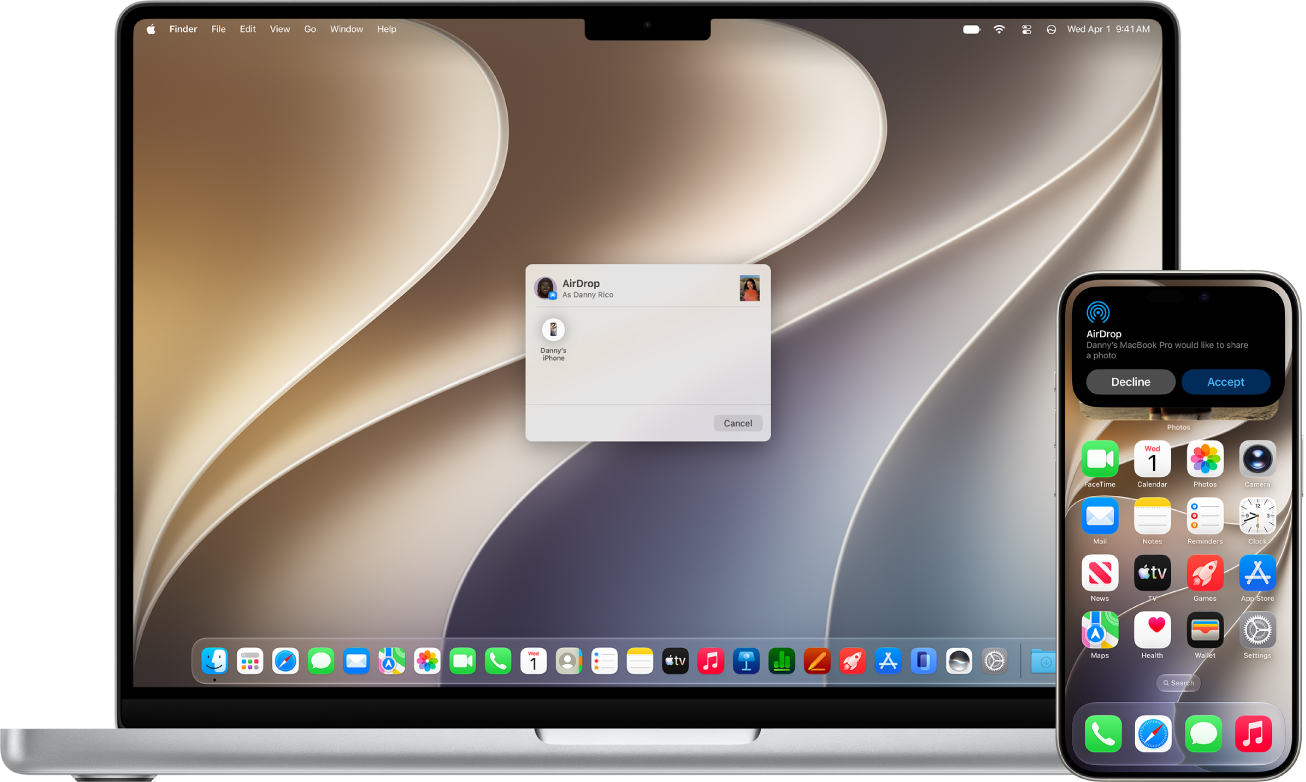
- Accept the alert and the file will transfer.
- You will see an alert that a file is incoming.
- If you were sent an image you will find it in your Photos app on the iPhone 18 Pro Max. Other file types should end up in the relevant app, unless it’s not obvious what app they should go to. For example, we sent a PDF to our iPhone and were given the option of opening it in nine different apps.
If you have any problems with the iPhone or iPad not receiving the file take a look at our advice above.
