








Got a tip for us?

GeeksModo Story Archive - October 2026
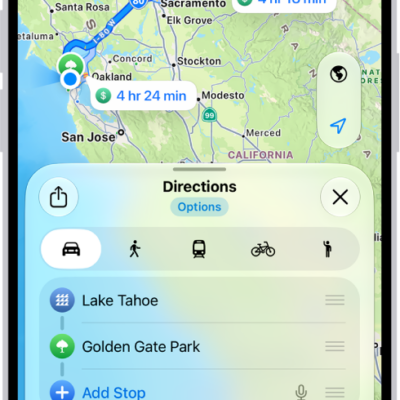
An iPhone showing a map with several driving route options to the same destination. Each route shows the estimated time and distance, and a Go button to start turn-by-turn directions. Color coding on each route indicates traffic conditions.

How to get driving directions in Maps on iPhone

You can get detailed driving directions in Maps on iPhone, with lane guidance in select cities and alerts about delays on routes you drive often.
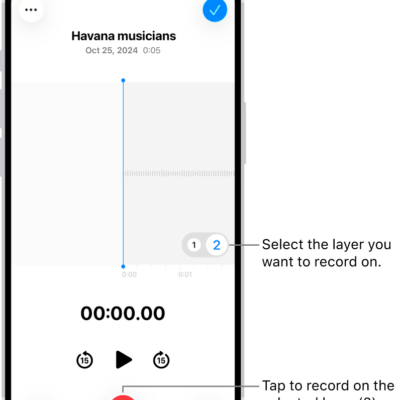
The screen for recording a second layer in Voice Memos.

How to add a second layer to a Voice Memos recording on iPhone

You can add a vocal layer to a Voice Memos recording, then mix or separate the layers or move them into Logic Pro on supported iPhone models.
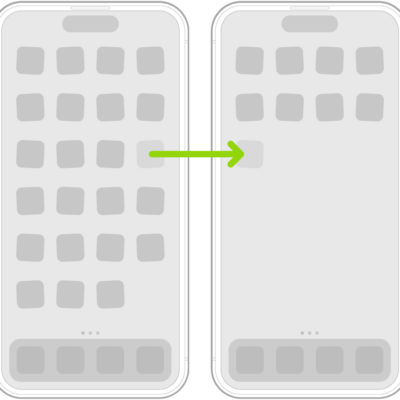
Jiggling apps on the Home Screen with an arrow showing one app being dragged to the next page.

How to organize your apps in folders on iPhone

You can organize apps into folders on your iPhone Home Screen, rename and delete folders, and move apps back out.
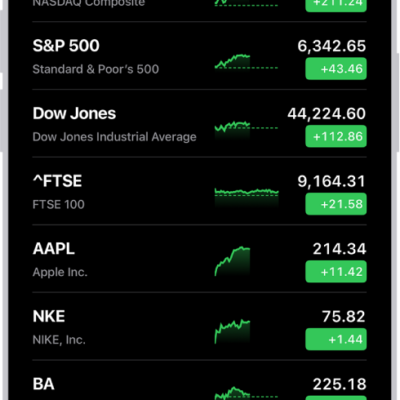
A watchlist in the Stocks app showing a list of different stocks. Each stock in the list displays, from left to right, the stock symbol and name, a performance chart, the stock price, and price change. At the top right is the search button. At the bottom of the screen is Business News.

How to check stocks on iPhone

You can use the Stocks app on iPhone to check prices and market activity, manage your watchlists, and view charts, details, and news.
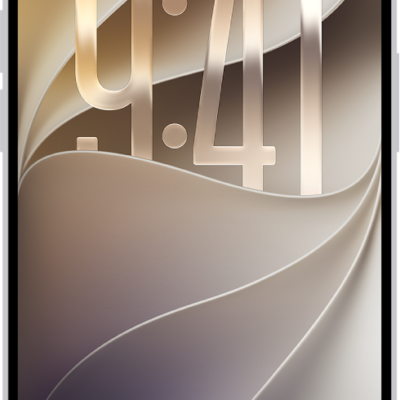
The iPhone Lock Screen showing the time and date near the top and icons for the Flashlight and Camera near the bottom.

How to access features from the iPhone Lock Screen

You can use the iPhone Lock Screen to open Camera and Control Center, view notifications, control media, and follow Live Activities.
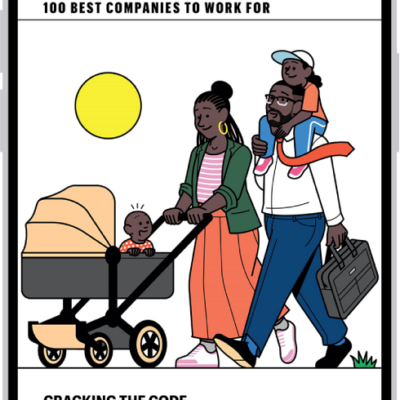
An article from Apple News. At the top-left corner of the screen is the Back button to return to business-related news. In the top-right corner are the Save, Share, and More buttons.

How to read business news in Stocks on iPhone

You can read business news in the Stocks app on iPhone, including stories from Apple News editors, and listen to stories.
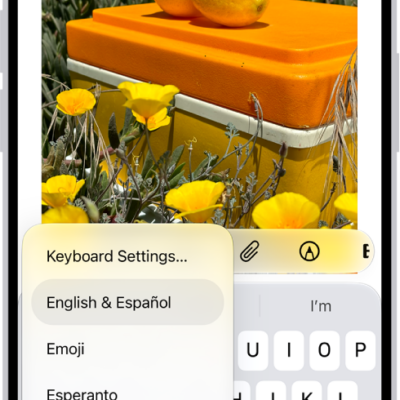
The Keyboard Settings menu is open, and shows three options: English (US), Emoji, and Keyboard Feedback. At the bottom of the menu, from left to right, are buttons for left-handed layout, default layout, and right-handed layout. The default layout button is selected.

How to switch between keyboards with Magic Keyboard and iPhone

You can switch between language keyboards, the emoji keyboard, and the onscreen keyboard with Magic Keyboard and iPhone.
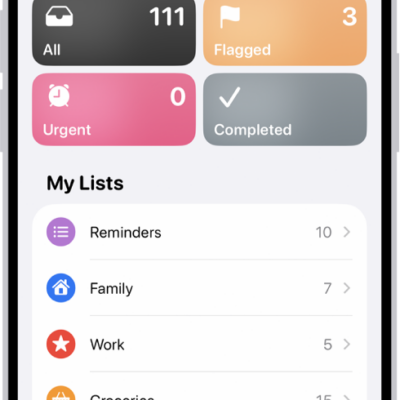
A Reminders screen showing a grid of Smart Lists, such as Today, Scheduled, and Flagged, each showing the number of items. Under the heading 'My Lists,' shows a list of custom reminder categories like Family, Work, and Camping Trip.

How to change your Reminders settings on iPhone

You can change Reminders settings on iPhone, including the default list, notifications, Today notifications for all-day reminders, and location sharing.
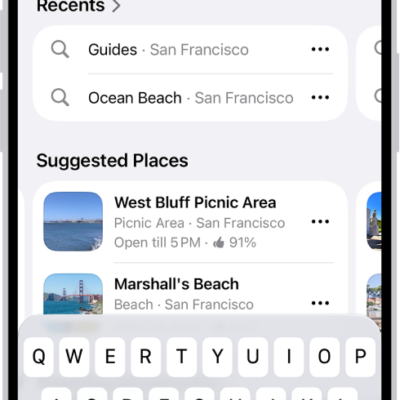
The Maps app showing the search field, categories for nearby services, and city guides. In the bottom part of the screen is the iPhone onscreen keyboard.

How to find nearby attractions, restaurants, and services in Maps on iPhone

You can find nearby attractions, restaurants, and services in Maps on iPhone by category, search, or Local Lists in select U.S. cities.
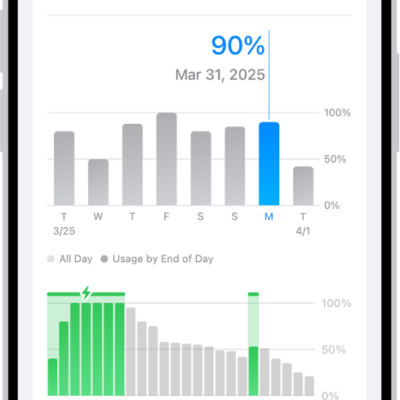
The Battery Usage screen in Settings on iPhone. It shows two graphs: the top graph displays daily battery usage for the last week, and the bottom graph details the battery level throughout the selected day, including periods of charging. Below the graphs, it summarizes total screen active and screen idle time.

How to save battery life with Power Modes on iPhone

You can save battery life on iPhone with Adaptive Power, which adjusts performance automatically, or with Low Power Mode.