









GeeksModo Story Archive - October 2026

How to use Voice Control to interact with iPhone
You can speak commands to tap, swipe, dictate, and edit text, and describe items in your own words with Voice Control on iPhone.
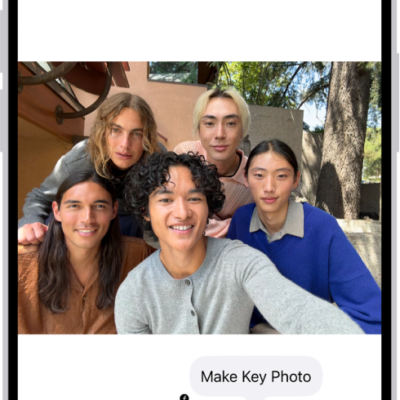
How to take Live Photos with your iPhone camera
You can take Live Photos with your iPhone camera to capture the moments just before and after a photo, with sound, and turn them off.

How to share your screen in a FaceTime call on iPhone
You can share your screen to bring apps and webpages into the call, or ask to see someone else's during a FaceTime call on iPhone.

How to customize onscreen motion on iPhone
You can reduce onscreen motion on iPhone, including motion effects, screen transitions, animated images, and Messages effects, and use Vehicle Motion Cues.

How to create and manage Hide My Email addresses in Settings on iPhone
You can create Hide My Email addresses on iPhone that forward to your inbox, and deactivate them when you're done with iCloud+.
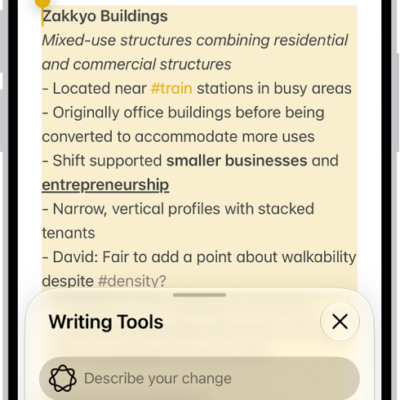
How to use Writing Tools to write, improve, and summarize content on iPhone
You can use Writing Tools on iPhone to write, rewrite, proofread, and summarize text, almost anywhere you write with Apple Intelligence.

How to save a video frame as a photo on iPhone
You can save any frame of a video as a photo in the Photos app on iPhone.

How to interact with Apple Watch on your iPhone
You can see and control your Apple Watch screen from your paired iPhone, with touch or assistive features with Apple Watch Mirroring.
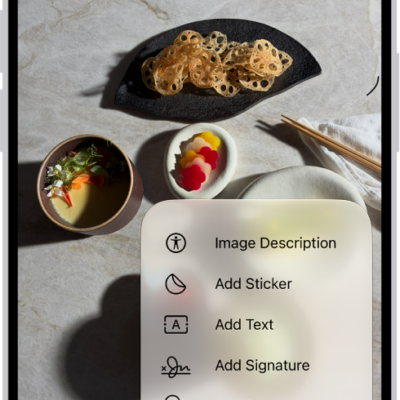
How to add text, shapes, stickers, and more with Markup on iPhone
You can use Markup on iPhone to add text, shapes, stickers, and image descriptions to images and documents in apps like Notes and Photos.
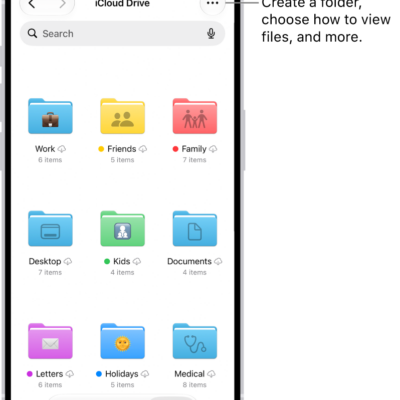
How to set up iCloud Drive on iPhone
You can turn on iCloud Drive on iPhone to store files and folders, share documents, and get to them on your Mac, PC, and iCloud.com.