








Got a tip for us?

GeeksModo Story Archive - October 2026
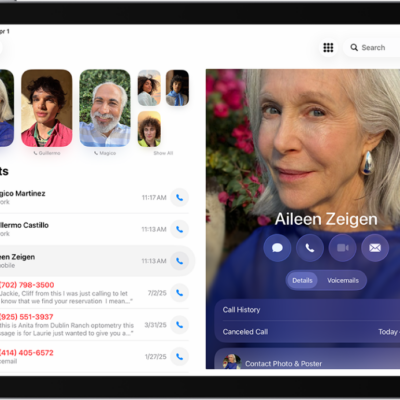
The Phone app, with Favorite contacts on the left side of the screen. Below the Favorites is a list of recent calls and voicemail. The contact information appears on the right side of the screen, with the Keypad button in the top right of the screen.

How to record and transcribe a call on iPad

You can record and transcribe a call on iPad, play a recorded call, view the transcript in Notes, and delete recordings.
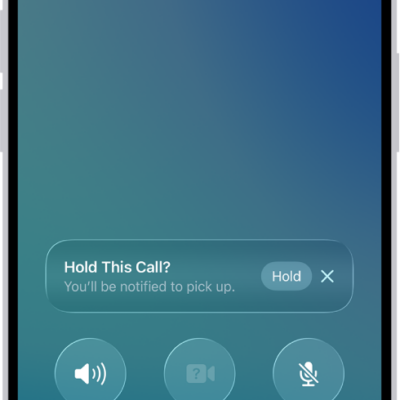
An ongoing call screen showing a banner that asks if the caller would like to use Hold Assist to receive a notification when they’re no longer on hold.

How to set up call waiting on iPad

You can set up call waiting on iPad with cellular service through a GSM network, in Phone settings.
The Phone app, with Favorite contacts on the left side of the screen. Below the Favorites is a list of recent calls and voicemail. The contact information appears on the right side of the screen, with the Keypad button in the top right of the screen.

How to set up call forwarding on iPad

You can set up call forwarding on iPad with cellular service through a GSM network, in Phone settings.
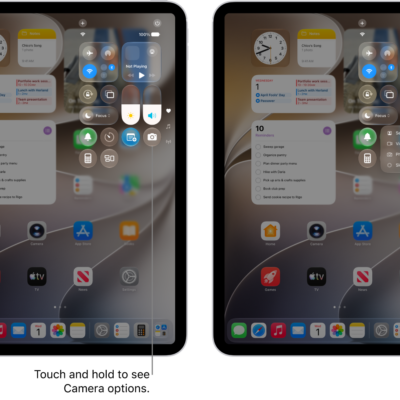
The iPad Control Center. Controls for Airplane Mode, cellular data, Wi-Fi, and Bluetooth are in the top-left group in Control Center for Wi-Fi + Cellular iPad models. The Camera control is at the bottom right of Control Center. The screen on the right shows the quick menu of options that appear when you touch and hold the Camera control.

How to make calls using Wi-Fi on iPad

You can make calls using Wi-Fi on iPad with Wi-Fi Calling when your cellular signal is low.
The iPad Control Center. Controls for Airplane Mode, cellular data, Wi-Fi, and Bluetooth are in the top-left group in Control Center for Wi-Fi + Cellular iPad models. The Camera control is at the bottom right of Control Center. The screen on the right shows the quick menu of options that appear when you touch and hold the Camera control.

What iPad status icons mean

You can learn the meaning of iPad status icons for privacy, battery, connectivity, active sessions, and Stage Manager.
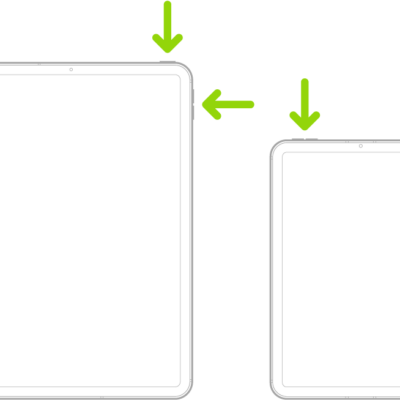
Two iPad models, each with a top button. One model has volume buttons on the side; the other has volume buttons at the top.

How to get information about your iPad

You can get information about your iPad, like its serial number, IMEI, and model, and view its cellular data usage.
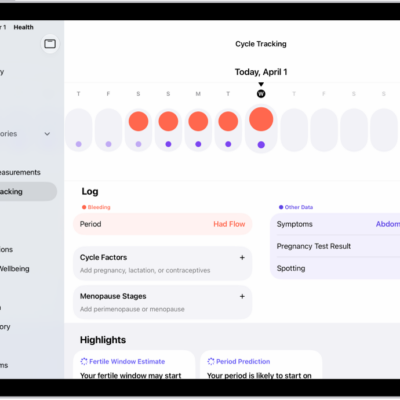
The Cycle Tracking screen showing the timeline for a week at the top of the screen. Solid red circles and purple dots mark the first 5 days on the timeline. Below the timeline are options to add information about periods, symptoms, and more.

How to view menstrual cycle predictions and history in Health on iPad

You can view menstrual cycle predictions and history in Health on iPad, check predicted dates, and view your cycle history.
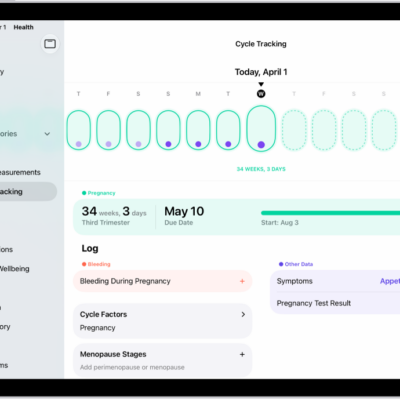
The Cycle Tracking screen with a pregnancy timeline for a week at the top of the screen. Light green ovals and purple dots mark the first 7 days on the timeline. Dashed light green ovals mark the other days on the timeline. Below the timeline is the pregnancy summary showing the gestational age, start date, and estimated due date. Below the pregnancy summary are options to add information about bleeding during pregnancy, symptoms, and more.

How to log a pregnancy in Health on iPad

You can log a pregnancy in Health on iPad, view your gestational age, log symptoms, and see your pregnancy cycle timeline.
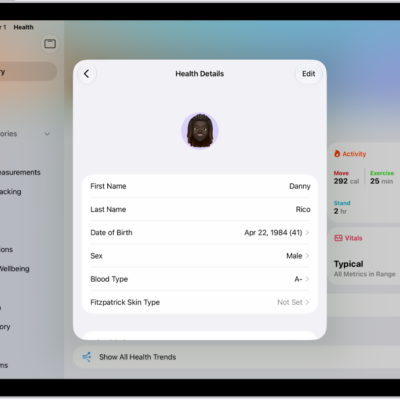
The Health Details screen, which includes fields for name, birth date, sex, blood type, and other information.

How to fill out your Health Details in Health on iPad

You can fill out your Health Details in Health on iPad with your name, date of birth, sex, blood type, and other basic information.
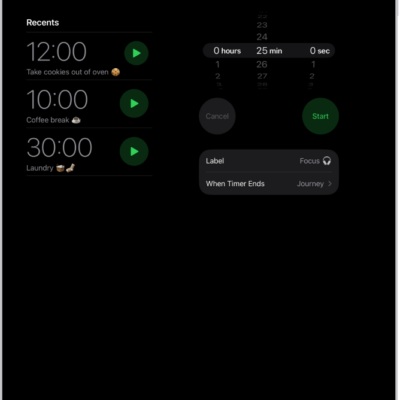
The Timers tab showing settings to set a timer. A recently created timer is below the timer settings. The World Clock, Alarm, Stopwatch, and Timers buttons are along the bottom.

How to set timers in Clock on iPad

You can set timers in Clock on iPad, set multiple timers, and set a timer to stop playing audio or video.