









GeeksModo Story Archive - October 2026
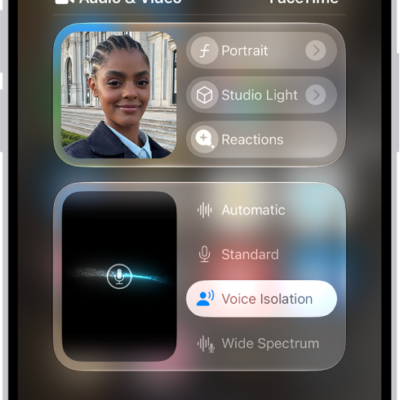
How to change FaceTime video settings on iPad
You can change FaceTime video settings on iPad, blur the background with Portrait mode, use Studio Light and Center Stage, and switch cameras.
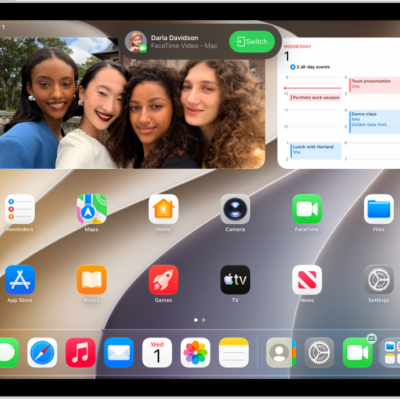
How to hand off a FaceTime call from your iPad to your other Apple devices
You can hand off a FaceTime call from your iPad to your iPhone or Mac, or move a call from another device to iPad.
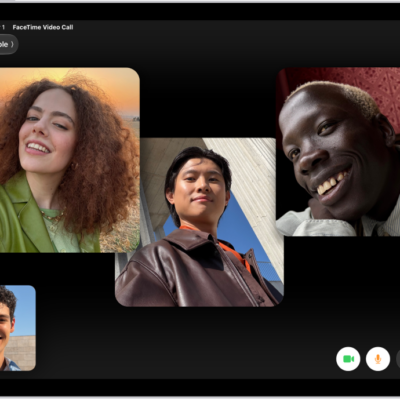
How to share screens using Messages on iPad
You can share screens using Messages on iPad, see someone else's screen, and use SharePlay to watch or listen together.
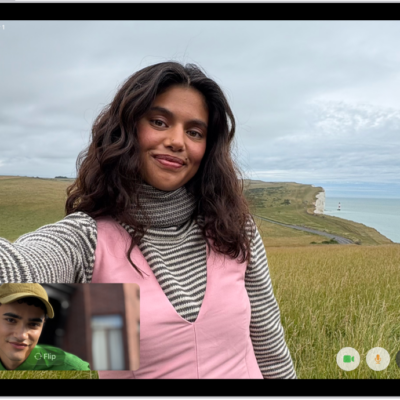
How to request or give remote control in a FaceTime call on iPad
You can request or give remote control in a FaceTime call on iPad, and accept or decline a remote control request.
How to share your screen in a FaceTime call on iPad
You can share your screen in a FaceTime call on iPad, bring apps and webpages into the call, and ask someone to share theirs.
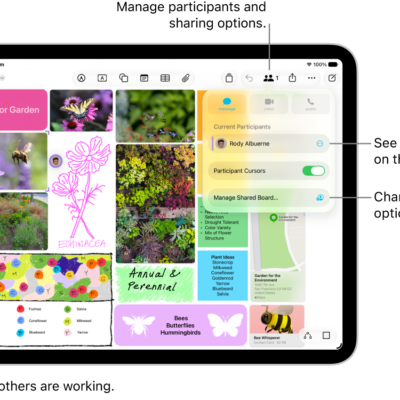
How to collaborate on a document in FaceTime on iPad
You can collaborate on a document in FaceTime on iPad, share it during a call, and see everyone's changes.
How to use video conferencing features on iPad
You can use video conferencing features on iPad, like video effects and reactions, in FaceTime and third-party apps.
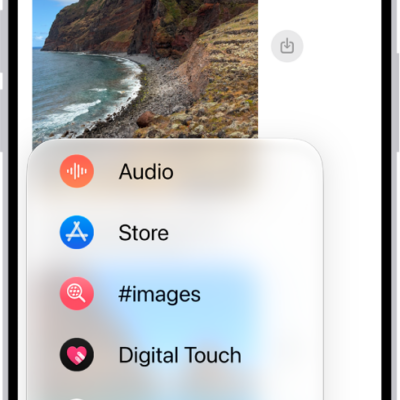
How to create and send Memoji in Messages on iPad
You can create and send Memoji in Messages on iPad, duplicate and edit them, and send animated Memoji that record your voice.
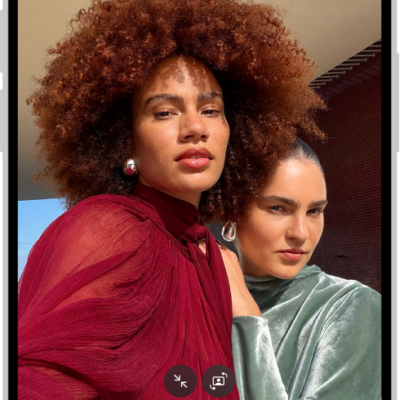
How to take a selfie with your iPad camera
You can take a selfie with your iPad camera in Photo, Portrait, Video, or Square mode, and mirror the front camera.
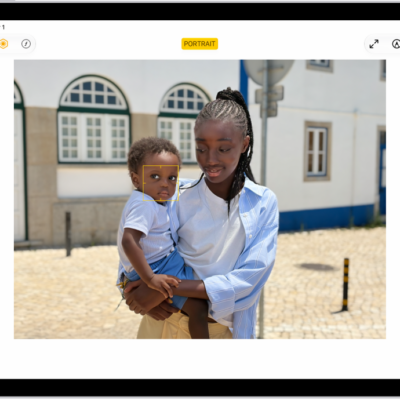
How to edit Portrait mode photos on iPad
You can edit Portrait mode photos on iPad, change the Portrait Lighting effect, blur the background, and change the focus point.