








Got a tip for us?

GeeksModo Story Archive - October 2026

A Group FaceTime call showing four participants in individual tiles at the top of the screen. Two additional participants appear together in a tile at the bottom left. At the bottom right are FaceTime controls: the Video, Microphone, More, and End Call buttons.

How to make a Group FaceTime call on iPad

You can make a Group FaceTime call on iPad with up to 32 participants, or start one from a group Messages conversation.
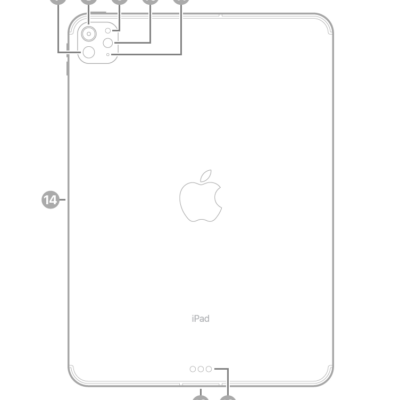
The back view of iPad Pro with callouts to LiDAR, the rear camera, rear ambient light sensor, flash, and microphone at the top left, the Smart Connector and USB-C connector at the bottom center, and the magnetic connector for Apple Pencil on the left.

How to flash the iPad screen or indicator light for notifications

You can flash the iPad screen or indicator light for notifications with Flash for Alerts on supported iPad models.
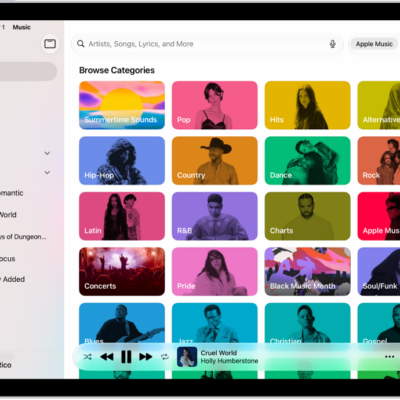
The Search tab showing the sidebar at the left and a search field at the top. Below the search field, various categories of music appear. The MiniPlayer is at the bottom.

How to search for music on iPad

You can search for music on iPad, browse categories, see recent searches, and search Apple Music or your library.
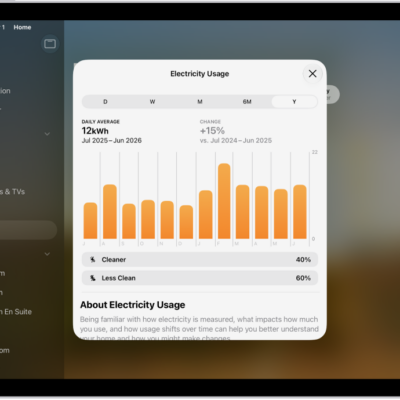
A view of the Home app showing energy usage.

How to use Adaptive Temperature and Clean Energy Guidance on iPad

You can use Adaptive Temperature and Clean Energy Guidance on iPad with the Home app and a compatible Matter thermostat.
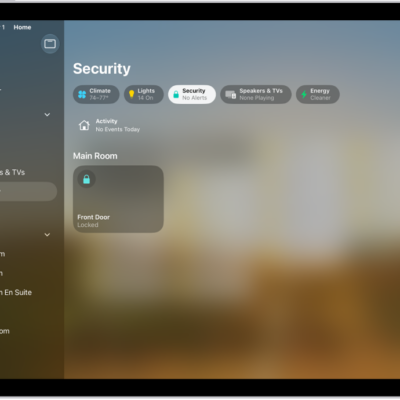
The Home app with the sidebar on the left. Security is highlighted. On the right, the Security category button is highlighted. Below are security accessories such as locks and garage doors.

How to control accessories with Home on iPad

You can control accessories with Home on iPad, turn them on or off, add them to Control Center, and view categories and home status.
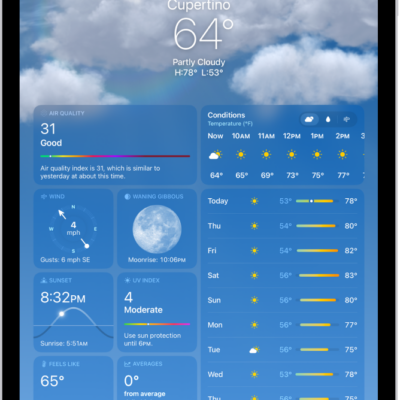
The Weather screen, showing the location, current temperature, the high and low temperatures for the day, hourly forecast, and 10-day forecast on the left side of the screen and a precipitation map and air quality scale on the right side of the screen.

How to get weather info in Maps on iPad

You can get weather info in Maps on iPad, see current conditions and the air quality index, or turn them off.
The Weather screen, showing the location, current temperature, the high and low temperatures for the day, hourly forecast, and 10-day forecast on the left side of the screen and a precipitation map and air quality scale on the right side of the screen.

What the Weather app icons mean on iPad

You can learn the weather icons on iPad and what each one means in the Weather app, from sunrise to fog and haze.
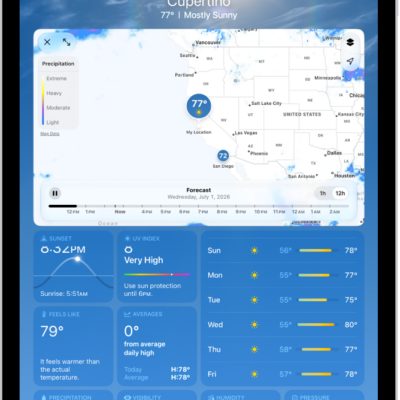
A wind map of the ocean fills the iPad screen. The Toggle Full Screen Map button and the Wind Map Overlay Scale are in the top-left corner. In the top-right corner, from top to bottom, are the Overlay Menu, Current Location, and Favorite Locations buttons. Along the bottom is a timeline.

How to view weather maps on iPad

You can view weather maps on iPad in the Weather app for precipitation, temperature, air quality, and wind in your area or others.
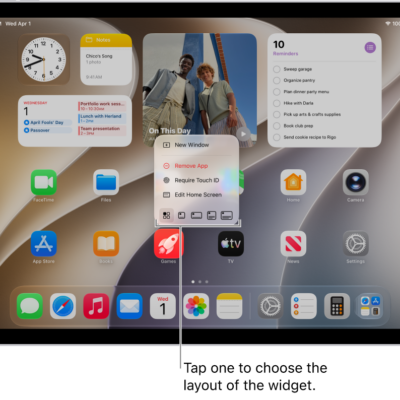
A Home Screen showing an app pop-up menu being used to transform an app icon into a widget for the app.

How to use Weather widgets on iPad

You can use Weather widgets on iPad to check the forecast and other weather conditions at a glance on your Home Screen.
The Weather screen, showing the location, current temperature, the high and low temperatures for the day, hourly forecast, and 10-day forecast on the left side of the screen and a precipitation map and air quality scale on the right side of the screen.

How to check the weather on iPad

You can check the weather on iPad for your current location, see hourly and 10-day forecasts, and customize the weather units.