








Got a tip for us?

GeeksModo Story Archive - October 2026
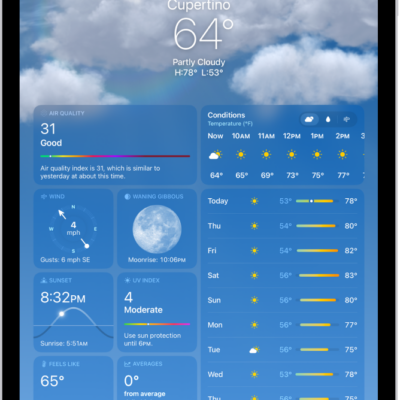
The Weather screen, showing the location, current temperature, the high and low temperatures for the day, hourly forecast, and 10-day forecast on the left side of the screen and a precipitation map and air quality scale on the right side of the screen.

How to manage weather notifications on iPad

You can manage weather notifications on iPad for precipitation and severe weather, turn on Precise Location, and get alerts for saved locations.
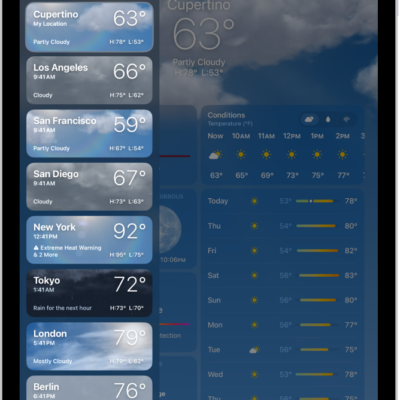
The Weather screen showing the sidebar on the left side of the screen. In the sidebar is a list of cities showing the current time, temperature, forecast, and high and low temperatures. At the top of the list, My Location is selected and on the right side of the screen are the weather forecast and conditions for that location.

How to check the weather in other locations on iPad

You can check the weather in other locations on iPad, search for a city, add locations from the weather map, and rearrange your list.

The Record Video screen, showing that the person you're calling is unavailable. The screen includes a Call Again button and a Record Video button you can tap to record a video message.

How to make FaceTime calls on iPad

You can make FaceTime calls on iPad over Wi-Fi or cellular, view call information, and record a video message.
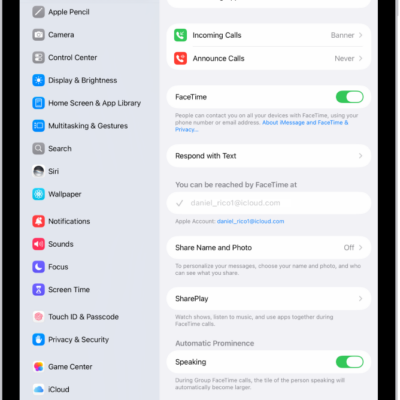
The FaceTime Settings screen, showing the control to turn FaceTime on or off and the phone number and email address where you can be reached.

How to set up FaceTime on iPad

You can set up FaceTime on iPad by signing in with your Apple Account in FaceTime settings.

An iPad with the AssistiveTouch menu visible, showing controls for Notification Center, Device, Control Center, Home, Siri, and Custom.

How to use AssistiveTouch on iPad

You can use AssistiveTouch on iPad to adapt the touchscreen to your needs, replacing gestures and pressing buttons.
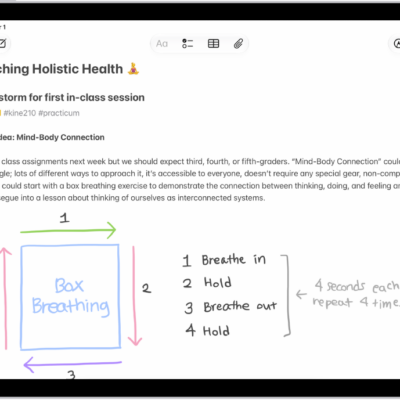
A note for a class brainstorm with tags such as #school and #kine210. The note features a hand-drawn diagram of a box breathing exercise, which illustrates a four-step breathing cycle.

How to organize your notes with tags on iPad

You can organize your notes with tags on iPad, add tags like #shopping or #work, and rename or delete a tag.
A note for a class brainstorm with tags such as #school and #kine210. The note features a hand-drawn diagram of a box breathing exercise, which illustrates a four-step breathing cycle.

How to organize your notes with Smart Folders on iPad

You can organize your notes with Smart Folders on iPad, create one from tags, convert a folder, and edit or delete a Smart Folder.
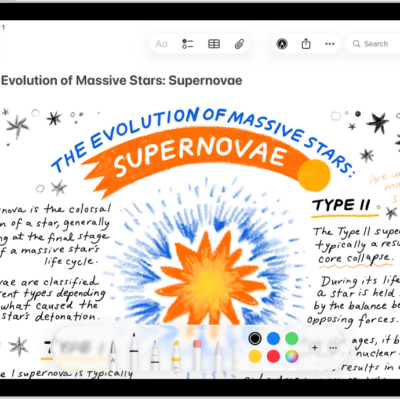
A note showing a drawing and Markup tools along the bottom of the screen.

How to search through your notes on iPad

You can search through your notes on iPad for typed and handwritten text, objects in images, and text in scanned documents.

A note in the Notes app, with collapsible headings at the top of the screen.

How to create and format notes on iPad

You can create and format notes on iPad, add checklists, tables, and divider lines, and organize notes with sections and headings.
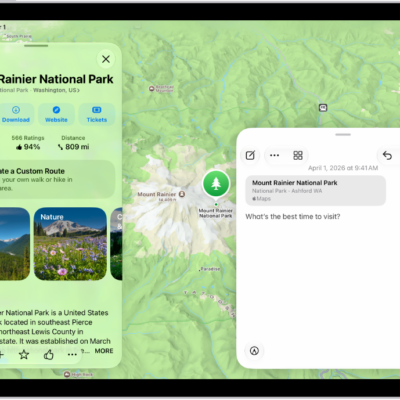
A Quick Note in a window overlay over a map of Mount Rainier National Park. The note has a link to the map, a photo, and text.

How to use Quick Notes on iPad

You can use Quick Notes on iPad to jot down information over any app or screen, and see your notes on iPhone and Mac.