- If your iPhone’s Personal Hotspot is not working after iOS 26 update, ensure the internet works and you’re entering the right password.
- You can also try disabling Low Data mode or restarting your phone’s Wi-Fi.
- If your iPhone Personal Hotspot still won’t work on iOS 26, then restarting the phone or resetting network settings might help.
Your iPhone personal hotspot feature can come in handy in so many ways. For instance, if your home internet is experiencing an outage or if you brought your laptop to a cafe that doesn’t offer Wi-Fi access, you can instead use your cellular data plan to get your other devices online. But your iPhone’s Personal Hotspot won’t work after updating to iOS 26. Why?
This question has many possible answers, and most of them depend on the cause. Here’s how to fix your iOS 26 Personal Hotspot issue.
How to fix your iPhone Personal Hotspot when it’s not working on iOS 26
If your iPhone Personal Hotspot isn’t working on iOS 26, run through this troubleshooting list to figure out why. Try connecting to Personal Hotspot again after each step.
Make sure your iPhone’s internet connection is working
On your iPhone, go to Settings ⇒ Cellular and check to make sure cellular data is switched on. You should also try to use the internet on your phone to make sure you’re not in an area with slow or bad reception.
You should also check and ensure you haven’t exceeded your cellular data limit for the month — if you’re on a prepaid plan with a limit, your data speeds will be throttled when you pass it, rendering your hotspot essentially useless. To solve this issue, contact your data provider.
See also: iPhone Cellular Data Not Working on iOS 26? How to fix it
Note: If you set up your iPhone to use two SIMs, Personal Hotspot uses the line you select for cellular data.
Make Sure Personal Hotspot is set up properly on your iPhone
- On your iPhone, go to Settings ⇒ Personal Hotspot and check to make sure Allow Others to Join is on.
- Remember the iPhone’s Wi-Fi network name and password that appear on this screen. Optionally, you can change the Wi-Fi Password. Your Wi-Fi network name is your iPhone name, which you can change in Settings ⇒ General ⇒ About.
- Stay on this screen until you connect the other device to your iPhone Personal Hotspot.
If you can’t find or turn on Personal Hotspot on your iPhone, check that your wireless carrier enabled it and that your wireless plan supports it.
Turn Personal Hotspot on and off on your iPhone
- On your iPhone, go to Settings ⇒ Personal Hotspot, then turn off Allow Others to Join.
- Wait for about 15 seconds, then turn on Allow Others to Join.
Make sure the password is right
If you see a password error when you try to join Personal Hotspot, look at the password on your iPhone and make sure you’ve entered the password correctly on the device you’re connecting with — if it’s not, you won’t be able to connect to your iPhone Personal Hotspot.
On your iPhone, go to Settings ⇒ Personal Hotspot to see your Personal Hotspot password. If you’re still having trouble, you can also change the password to something that will be easier to enter without mistakes.
Turn your Wi-Fi on and off
Speaking of bugs in the system, even though your phone’s Wi-Fi isn’t usually the victim of them, it’s not impossible for that to be the case.
If it doesn’t seem to be working, try switching it off and back on again and see if that fixes the issue.
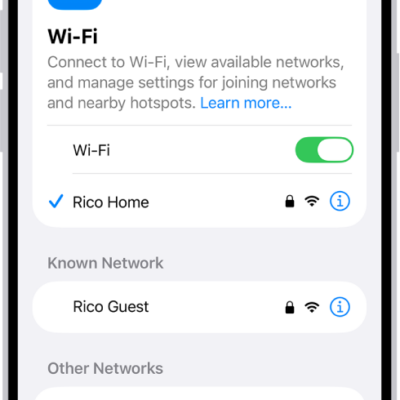
- On your iPhone, go to Settings and tap Wi-Fi.
- Tap the toggle for Wi-Fi to turn it off.
- Wait about 15 Seconds.
- Tap the toggle for Wi-Fi to turn it on
On the device that needs to connect to your iPhone Personal Hotspot, turn Wi-Fi off and back on as well. Please also make sure that you connect to the correct Wi-Fi network. The network name is the same as your iPhone and the Personal Hotspot icon might appear next to it.
Disable Low Data mode
Low Data Mode is an iOS feature that is designed to restrict background network use and save cellular data usage. If the feature is enabled, it could be the reason why your iPhone Personal Hotspot is not working after iOS 26 update. Try turning Low Data mode off and see if that fixes the issue.
- On your iPhone, go to Settings and tap Cellular.
- Tap Cellular Data Options, select Data Mode, then select Standard.
Turn on Maximize Compatibility.
On your iPhone, go to Settings ⇒ Personal Hotspot and turn on Maximize Compatibility. Then try connecting your devices again to your iPhone Personal Hotspot.
Note: When you turn on Maximize Compatibility, internet performance and Wi-Fi security might be reduced for devices connected to the hotspot.
Try restarting your devices
It’s possible the problems you’re experiencing with your hotspot could easily be simply solved by restarting your devices. Restart your iOS 26 device and the other device that needs to connect to Personal Hotspot.
Reset Network Settings
On your iPhone, go to Settings ⇒ General ⇒ Transfer or Reset iPhone ⇒ Reset, then tap Reset Network Settings. This also resets Wi-Fi networks and passwords, cellular settings, and VPN and APN settings that you’ve used before.
Connect to your iPhone Personal Hotspot with Bluetooth
Wi-Fi isn’t the only way to connect devices to your iPhone hotspot. You can connect a phone or computer to the Personal Hotspot on your iPhone using Bluetooth instead of Wi-Fi. Both devices must have Bluetooth turned on.
To connect a device to the Personal Hotspot on your iPhone using Bluetooth, follow the steps below:
- On your iPhone, go to Settings and tap Bluetooth.
- Tap the toggle for Bluetooth to turn it on – when it’s on, it will have a green background instead of gray.
- Connect to the iPhone Bluetooth from your other device, and confirm the connection on your phone.
Connect to your iPhone Personal Hotspot with a USB cable
You can also connect a Mac or Windows device to the Personal Hotspot on your iPhone using the USB cable that came with your iPhone (or another cable that matches the ports on your iPhone and other device).
Note: If you see an alert on your iPhone that says Trust This Computer? tap Trust. You may be asked to enter your device passcode to proceed. If you see an alert on your Mac that says “Allow accessory to connect?” click Allow.
As soon as it’s connected by a cable, your Mac or Windows device is able to use the cellular connection on your iPhone.
Conclusion
In most cases, this is about all you can do to fix any iOS 26 hotspot issues you might be having. If none of these troubleshooting options can solve your problem, it may be a bug in iOS 26, or you might need to take your phone in to be looked at.