If your iPhone emails aren’t updating after iOS 26 update, several issues could be the culprit. These include incorrect settings, software problems, differences in email protocols, and more. Here are different ways to fix your problem and start receiving emails as usual.
1. Do a Manual Refresh
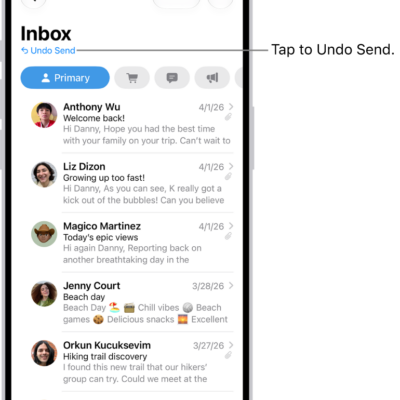
The first thing you should do when emails are not updating after iOS 26 update is to manually refresh the Mail app. Open the Mail app, drag your finger down the screen until you see a spinning wheel, then release it. This should prompt the app to (re)connect to the email servers.
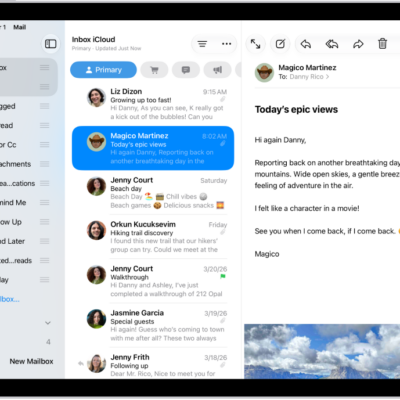
In the Mail app, you can see the last time your emails were synced at the bottom. Updated Just Now means the manual refresh was successful.
2. Toggle Airplane Mode On and Off
Network connectivity issue can cause your iPhone emails to stop updating. To refresh your connection, open the Settings app on your iPhone and turn on the switch next to Airplane Mode.
After that, wait a few seconds, turn off Airplane Mode, then check your Mail app. If you can’t see new emails, try the manual refresh in #1 above.
3. Reset Network Settings
You can fix any underlying connectivity issues preventing emails from loading on iOS 26 by resetting your network settings. To do this, head to Settings > General > Transfer or Reset iPhone > Reset > Reset Network Settings. Enter your iPhone passcode, then tap Reset Network Settings. This will reset Wi-Fi networks and passwords, cellular settings, and any VPN/APN settings you’ve used before.
After completing the network settings reset, you must manually reconnect to any Wi-Fi network. You should then force close and reopen the Mail app to see if the problem persists.
See also: iPhone Won’t Connect to Wi-Fi After iOS 26 Update? The Fix
4. Check Mail Settings
If emails are still not updating on your iPhone in iOS 26, it may be an in-app issue. Typically, you’ll get email updates and notifications if you have the Push button turned on for the app.
Instead of trying to ‘fetch’ your emails, Push instructs the email servers to ‘push’ them to your iPhone.
So, when your iPhone emails stop updating, take a quick trip to double-check your email update settings. Start by heading to Settings > Apps > Mail > Mail Accounts > Fetch New Data, then toggle on the Push button.
If you only have trouble with a specific mailbox, tap it from the Accounts list and select Push from the menu on the next page. For accounts that do not offer a Push option (such as Gmail accounts), select Fetch.
Next, select an update frequency from the Fetch Schedule below the Fetch New Data page. You want to set it to the quickest update interval possible—Every 15 Minutes. If you wish to update your email even quicker, manually refresh the Mail app.
5. Remove and Re-Add the Account
Remove and re-add any problematic accounts that refuse to update. This should help you fix problems caused by a faulty or corrupted configuration.
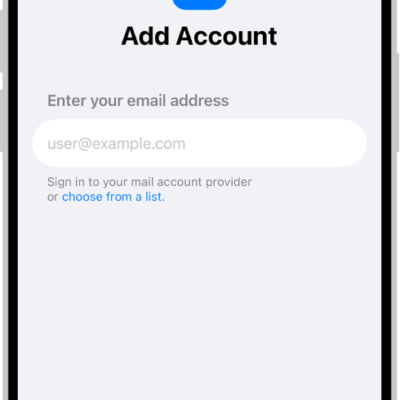
To do so, head to Settings > Apps > Mail > Mail Accounts and select the faulty account. After that, tap Delete Account. Confirm your action by selecting Delete from My iPhone. When that’s done, return to the Mail Accounts page and tap Add Account to re-add the account. Once you’re signed in and can see your emails, do a manual refresh to load new emails.
6. Check Your Notification Settings
If the problem is that you’re not getting notifications for email updates, you should check your Notifications settings. Open the Settings app and go to Notifications > Mail. If Allow Notifications is toggled off, tap the toggle to enable it.
Then, ensure that the notification settings (Alerts, Sounds, and Badges) are set up to alert you when a new email drops in your inbox. You can customize other notification settings in this section as well.
Also important, tap Customize Notifications to check the notification settings for individual accounts to ensure they’re set to your liking.
7. Enable Background App Refresh
Another possible fix when your iPhone emails are not loading on your iPhone after iOS 26 update is to enable background app refresh. This feature allows apps to update with new content even when you’re not actively using them.
To enable Background app refresh, go to Settings > General > Background App Refresh, tap Background App Refresh, and select your preferred conditions for its use—Wi-Fi only or Wi-Fi and Cellular Data. If you want to reduce your mobile data usage, select Wi-Fi; otherwise, choose Wi-Fi & Cellular Data.
8. Check Cellular Data Settings
Some people restrict certain apps from using cellular data to conserve data usage. If you notice that your iPhone Mail app does not update when you’re on cellular data, chances are you’ve blocked it from using your iPhone’s mobile bandwidth.
To check, open the Settings app and select Cellular/Mobile Service from the menu. Then, under the Cellular Data section, turn on the toggle beside Mail. You might need to tap the
See also: iPhone Cellular Data Not Working on iOS 26? How to fix itShow All button to see Mail.
9. Disable Low Data Mode
iOS has a Low Data Mode that conserves Wi-Fi and cellular network bandwidth. If you enabled the feature previously, it could be why your iPhone Mail is not updating after iOS 26 update, as it could be restricting internet activity on the app.
To allow the Mail app full internet access, you must check that you haven’t enabled Low Data Mode for Wi-Fi and Cellular Data. To disable Low Data Mode on Wi-Fi, go to Settings > Wi-Fi and tap the Info icon next to the active Wi-Fi connection. Next, turn off the switch next to Low Data Mode.
To disable Low Data Mode on cellular data, go to Settings > Cellular/Mobile Service > Cellular/Mobile Data Options. Tap Data Mode and select Standard.
10. Disable Low Power Mode
Another feature that could restrict internet activity on the Mail app is the Low Power Mode, which tends to limit various background activities, so you can conserve your iPhone battery.
To disable the feature, go to Settings > Battery and toggle off the Low Power Mode switch.
11. Restart And Update Your iPhone
Another option for resolving Mail issues is to restart your iPhone. Simply turn your iPhone off and back on and then try again. If that doesn’t solve your issue, try updating your iPhone as the Mail app may be unable to update your inbox due to bugs and glitches in the iPhone’s system software.
12. Delete and Reinstall the Mail App
A sure method to reset any possible in-app issues is to delete and reinstall the app itself. This will restore any settings you may have tampered with to default and possibly fix the problem of your iPhone emails not updating after iOS 26 issue.
To remove the Mail app, head to Settings > General > iPhone Storage > Mail, tap Delete App, and confirm by selecting Delete.
Then, reinstall the Mail app from the App Store, launch it, and sign in with your email address. You can add any additional accounts by going to Settings > Apps > Mail > Mail Accounts > Add Account.
If the Mail app continues to fail to update your mailboxes, it’s likely due to an issue beyond your control. All that’s left to do is to contact your email service provider for help.
See also: How to Fix iPhone Not Receiving Emails After iOS 26 Update