In the Notes app, you can send a copy of a note to a friend. You can also share a link to invite people to collaborate in real time on a note or on a folder of notes in iCloud, and everyone will see the latest changes.
You can view activity in a note or a folder, and change sharing settings whenever you need to.
Here’s how to share notes and collaborate on iPhone.
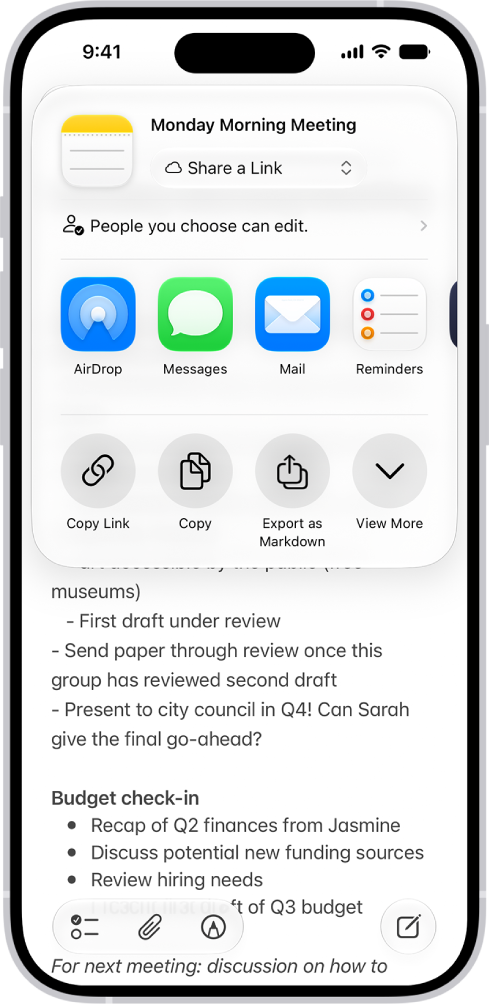
Share a copy of a note
- Start the Notes app on your iPhone.
- Open the note you want to share.
- Tap the Share button, tap the menu under the note title, and then tap Send a Copy.
- Choose how to send your note.
Collaborate on a note or folder of notes using iCloud
To collaborate with others, you can share a link to a note or a folder of notes in iCloud. You can set who can access what you share and set editing permissions. All participants see changes in real time. The participants must be signed in to their Apple Account and have Notes turned on in iCloud settings. Note: You can’t collaborate on a locked note or on a folder with locked notes.
- Start the Notes app on your iPhone.
-
Do one of the following:
- Collaborate on a note: Open the note you want to share, tap the Share button, tap the menu under the note title, and then tap Share a Link.
- Collaborate on a folder: Open the folder you want to share. Then tap the Folder Actions button.
-
To change the access and permissions, tap People you choose can edit and then set any of the following:
- Who can access: Choose People you choose or Anyone with the link. With People you choose, you can turn on Access Requests. Note: Requesting access to a note sends an email to the address associated with the owner’s Apple Account.
- Permissions: Choose Edit or View and Download Only.
Tip: If you send the invitation in Messages, you get activity updates in the Messages conversation when someone makes changes in the shared note. Tap the updates to go to the shared note.
View activity in a note
Notes that have changed since you last looked at them get an orange dot to the left of their title in the notes list.
- Start the Notes app on your iPhone.
- Open the note and then swipe right on the note or swipe up on the Activity card to see who made changes and when.
-
To adjust how the activity is shown, tap the Collaborate button. Choose any of the following:
- Show Updates: Shows changes made since you last opened the note.
- Show All Activity: Shows all activity in the note.
- Show Highlights: Shows names, dates, and changes made by each participant.
Tip: To mention a participant and notify them of important updates, type an @ sign followed by their name.
View activity in a folder
- Start the Notes app on your iPhone.
- Touch and hold the folder. Then tap Show Folder Activity.
Change sharing settings
- Start the Notes app on your iPhone.
- The owner of a shared note or folder can change the sharing settings by doing one of the following:
- Manage a shared note: Tap the Collaborate button, then tap Manage Shared Note.
- Manage a shared folder: Tap the Folder Actions button. Then tap Manage Shared Folder.
- Do any of the following:
- Remove participants or cancel invitations: Tap the participant you want to remove, then tap Remove Participant or Cancel Invitation.
- Change access and permission settings: To change the settings for one person, tap their name. To change the settings for all participants, tap Sharing Options. Making a participant a Co-Owner allows them to manage participants and permissions for everyone except the owner.
- Stop sharing: When you choose this option, the shared note or folder is deleted from the devices of the other participants.