You can keep your fitness routine on track by sharing your activity with your family and friends, and you can even share with a trainer or coach. You can view highlights and get notifications when others meet their goals, finish workouts, and earn achievements.
You can add or remove a friend, view your friends’ activity, and change your friend settings.
Here’s how to share your activity in Fitness on iPhone.
Add or remove a friend
- Start the Fitness app on your iPhone.
-
Tap Sharing, tap the Sharing button, and tap Invite a Friend.
Note: If you’re sharing for the first time, tap Sharing , then tap Get Started.
-
Do any of the following:
-
Add a friend from your contacts: Enter a contact’s name and then tap the name.
You can also tap the Add Contact button to select contacts.
- Add a friend’s phone number: Enter a phone number.
- Add a friend’s email address: Enter an email address.
-
Add a friend from your contacts: Enter a contact’s name and then tap the name.
- Tap the Send button.
If a friend hasn’t accepted an invitation, tap their name in the Invited area of the Sharing screen, then tap Invite Again.
If you want to unsend an invitation you’ve sent, swipe left next to the friend’s name, then tap Delete.
To remove a friend, tap a friend you’re sharing with, tap the More button, then tap Remove Friend.
View your friends’ activity
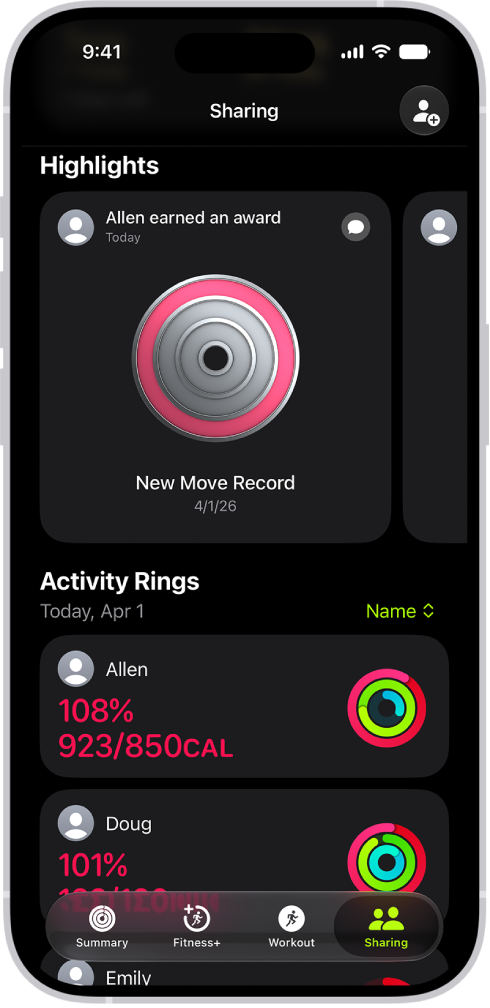
Highlights show your friends’ activity, like workouts they’ve finished or goals they’ve met. And for the last 7 days, you can view their activity rings and a summary of activities they’ve completed.
- Start the Fitness app on your iPhone.
- Tap Sharing, then do any of the following:
- View highlights: Swipe left or right below Highlights to see how all of your friends are doing.
- Reply to a friend’s activity: Swipe left or right below Highlights and tap the Message button. Tap a reply, or tap Custom Reply to enter a response.
- View a friend’s activity: Tap a friend’s name below Activity Rings to see a summary of their activity rings for the last 7 days and recently completed activities like workouts and meditations.
Change your friend settings
You can easily adjust friend settings.
- Start the Fitness app on your iPhone.
- Tap Sharing and then tap a friend.
- Tap the More button and then do any of the following:
- View the friend’s contact card: Tap View Contact.
- Mute notifications for the friend: Tap Mute Notifications.
- Hide your activity progress with a friend: Tap Hide My Activity.
- Stop sharing your activity with a friend: Tap Remove Friend.