As writers and technologists with combined experience in the tech industry of well over six decades—much of it focused on Apple—we have fairly well-developed opinions about which features are genuinely useful to a wide range of people and which ones lack practical utility and are more effective as marketing tools. That’s especially true for people in our age range (Gen X) and older, who constitute the vast majority of our readers.
Even though we want to be thorough and describe all the Apple Intelligence capabilities, there are a few that we think most people are better off avoiding because they may waste your time or may negatively impact your life. We briefly discuss the Image Playground app, Genmoji, and Write with Siri (formerly known as Writing Tools); you can make up your own mind as to whether they’re worth your time.
Image Playground
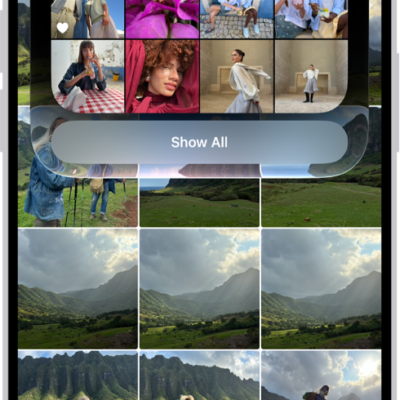
The Image Playground app uses Apple Intelligence to create images, or alter existing images from Photos or files on your device, based on descriptions you enter. So, if you ever had a burning need to see a picture of a goat skateboarding down a pyramid in central London or picture yourself dressed as a space pirate, Image Playground has you covered.
When you ask for a new image, Image Playground now displays a pop-up Any Style menu that lets you choose Animation, Illustration, Sketch, Genmoji, or ChatGPT (the latter of which is most likely to be photorealistic). It also lets you describe both the initial image and any desired changes (including changes to the style) in your own words. You can also sketch an image in Notes using the Magic Wand tool in iOS 27 and iPadOS 27 and have the app automagically interpret it.
One of us tried “An owl and a pussycat in a beautiful pea-green boat” and got a reasonable image of just that (for some values of “beautiful” and “pea-green”), something that had completely flummoxed Image Playground in Tahoe unless he replaced “pussycat” with “cat” (we’ll let you puzzle that one out on your own), but even then, the picture in Tahoe showed actual peas. The other tried to get an image of the “world’s largest collection of LPs,” and the first go-round showed someone on a ladder with just the edges of the LPs on a huge number of shelves.
When you describe a change, the image adjusts per your request. So, one of us said, “The owl is singing to a small guitar,” and sure enough, that’s what the next version showed. (And, OK, the owl wasn’t singing to the cat, nor was there any sign of honey or money, but then, he hadn’t asked for that.) The other asked Image Playground to refine his shelved LP images to show album covers face outward, and, wow, the generated cover images were something to behold—none real, but so many variations that resembled actual ones.
Genmoji creation and editing
Genmoji are conceptually similar to the images created by Image Playground, but smaller, more cartoonish, and without the backgrounds. They’re like emoji in that you can use them on the fly in Messages (and a few other places). Instead of picking from a fixed list of emoji, you describe what you want (“a squirrel playing a piano” or “a hammer with wings,” say) and let your device create it from scratch. Like Image Playground, Genmoji can also incorporate images of people from Photos (for example, “my wife riding a dragon” or “my grandmother skydiving”).
To use a Genmoji in Messages, click or tap the plus button next to the iMessage field and choose Genmoji from the pop-up menu. In the popover that appears, type a description of what you’d like to see and press Return (or tap or click the yellow arrow button), and after a moment, an image appears. If you like it, click Add to insert it in your message; if you want to see something different, type into the “Describe a change” field.