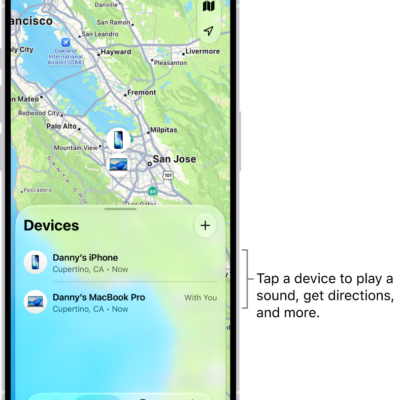
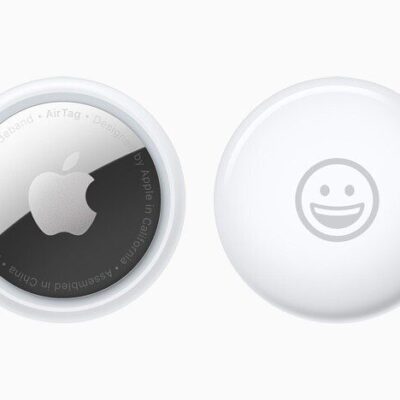
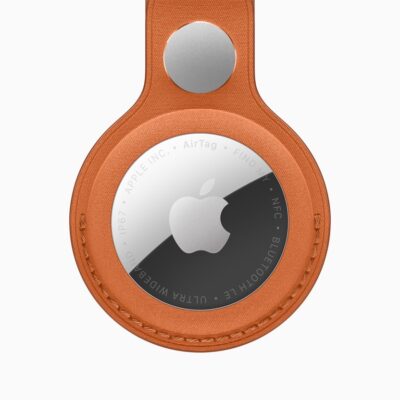
In the Find My app on your iPhone, you can create a temporary webpage to share the location of a lost AirTag or other item. For example, you can share the webpage with an airline to help them track your mishandled bag.
You can view and manage the shared item location, and stop sharing location updates when you’re done.
Here’s how to share location of a lost item in Find My on iPhone.
Note: When an item is within proximity of the device sharing your location, you can’t share its location.
Create and share a webpage for location updates
- Start the Find My app on your iPhone.
- Tap Items, tap the item that you want to share location updates for, and then tap the More button.
- Tap Share Item Location.
-
Follow the onscreen instructions to create and share a temporary webpage.
Note: To provide updated locations, at least one of your Apple devices where you’re signed in to your Apple Account needs to be online.
- Tap Done.
View and manage the shared item location
- Start the Find My app on your iPhone.
- Tap Items, tap the item with the shared webpage, and tap the More button. Share Item Location.
- Tap Share Item Location, then do any of the following:
- Copy the URL: Tap the field at the top.
- View the details: View the Visited By and Expiration rows.
- Share the webpage with additional people: Tap Share Location Link and choose a sharing option (such as AirDrop or Mail).
Stop sharing location updates
Sharing ends after 7 days, when you reunite with the item, or when you stop it manually.
- Start the Find My app on your iPhone.
- Tap Items and tap the item with the shared webpage. Then tap the More button.
- Tap Stop Sharing Item Location.
Tag: Find My