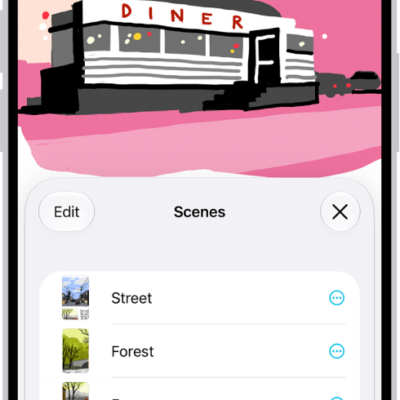
You can set up scenes, saved views of your board, to organize your boards into sections, then quickly navigate and present those parts of your board to others. You can also use scenes to identify the parts of your board you want to print or export as a PDF.
Scenes are easy to change, too. You can edit them and rearrange the order in which you present or print them.
Here’s how to navigate and present scenes in your Freeform boards on iPhone.
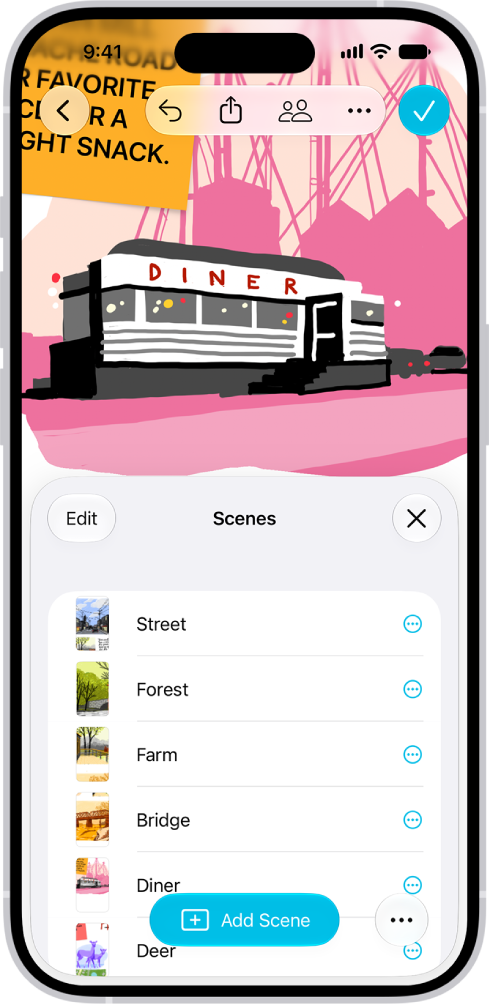
Set up different parts of your board as scenes
With scenes, you can identify and label content, then present or print parts of your board section by section, and change the order you present or print them in.
- Open the Freeform app on your iPhone.
- Open a board with content.
- Zoom and scroll until you frame the part of your board you want on the screen for your first scene.
- Tap the More button and tap Add Scene.
The Scene Navigator opens at the bottom of your board.
- Repeat these steps until you capture all the scenes you want: Frame your next scene, tap the Scene Navigator button in the Scene Navigator or tap the More button. Then tap Add Scene.
Quick tip: Don’t stress about saving scenes in order, because you can edit their sequence after you capture them.
Navigate scenes
- Open the Freeform app on your iPhone.
- Open a board with saved scenes.
- Tap the More button, tap Scene Navigator, and then do any of the following:
- Tap the Scene Navigator button, then tap the scene you want to go to.
- Tap the Back button and the Forward button to move between scenes.
Note: Scenes can look different depending on your device or view. If someone captured a scene on a Mac, for example, it may be framed differently when you view it in portrait orientation on an iPhone.
Edit scenes
- Open the Freeform app on your iPhone.
- Open a board with saved scenes.
- Tap the More button and then tap Scene Navigator.
- Tap the Show Scene List button. Do any of the following:
- Change the name of a scene: Touch and hold the scene whose name you want to change, tap Rename Scene, enter a new name, and then tap the Done button.
- Reframe a scene: Move to another part of the board, touch and hold the scene you want to reframe, and then tap Replace Scene.
- Rearrange the view order: Tap Edit, touch and hold the Reorder button, and then drag the scene up or down.
- Delete a scene: Swipe left on the scene, then tap Delete.
- Tap the Close button, then tap the Done button.
Print or export scenes
- Open the Freeform app on your iPhone.
- Open a board with saved scenes.
- Tap the More button, then do one of the following:
- Print all scenes: Tap Print and tap Scenes. Then tap Print.
- Export all scenes: Tap Export as PDF, tap Scenes, and then choose how you want to share the file or tap Save to Files.
To see Print or Export as PDF, you may have to scroll down.
Printed and exported scenes default to the size of the device you’re on. To print the scenes as they were originally framed, tap Freeform Options, then select Capturing Device.
Quick tip: Touch and hold a scene’s name in the Scene Navigator, then choose an option to print or export that single scene.
All participants can access any scenes saved in a board.