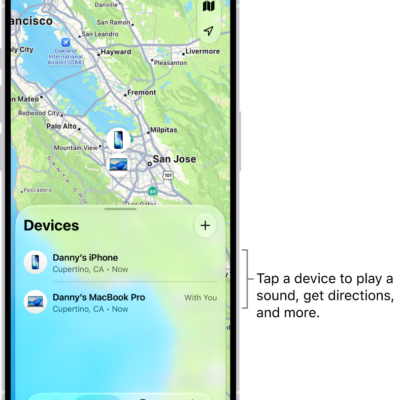
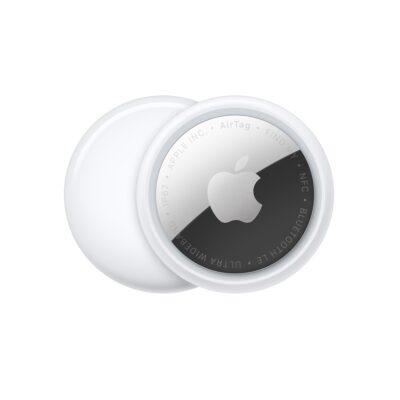
If you lose an AirTag or third-party item registered to your Apple Account, you can use the Find My app to mark it as lost.
You can add a message saying that the item is lost, along with your phone number or email address. Anyone who finds it can see that message on a website, using a supported device.
Here’s how to mark an AirTag or other item as lost in Find My on iPhone.
What happens when you mark an item as lost?
- You can add a message saying that the item is lost and include your phone number or email address.
- If someone else finds your item, they can use a supported device to see a website with the Lost Mode message.
Turn on Show Contact Info for a lost item
To Turn on Show Contact Info for a lost item, do the following:
- Open the Find My app on your iPhone.
- Tap Items, tap the name of the lost item, and tap the More button
- Below Lost AirTag, tap Show Contact Info.
-
Follow the onscreen instructions to enter a phone number where you can be reached. To enter an email address instead, tap “Use an email address.”
Important: Make sure you allow notifications for the Find My app.
- Tap the Done button.
Change the contact information in the Lost Mode message
- Open the Find My app on your iPhone.
- Tap Items, tap the name of the lost item, and then tap the more button.
- Below Lost AirTag, tap Show Contact Info.
- Edit the phone number or message. Then tap the Done button.
Turn off Show Contact Info for a lost item
Once you find your lost item, turn off Show Contact Info.
- Open the Find My app on your iPhone.
- Tap Items, tap the name of the item, and tap the more button.
- Below Lost AirTag, tap Show Contact Info.
- Tap Stop Showing Information.
Tag: Find My