You can capture what’s on your iPhone screen, grab a full page beyond the edge of the screen, or save a specific portion. After you take a screenshot, you can crop it, annotate it with the Markup tools, or capture an entire webpage in Safari. Your screenshots are saved to your photo library automatically.
Take a screenshot
-
Quickly press and release the side button and the volume up button at the same time.
Note: If your iPhone has a Home button, quickly press and release it and the side button at the same time.
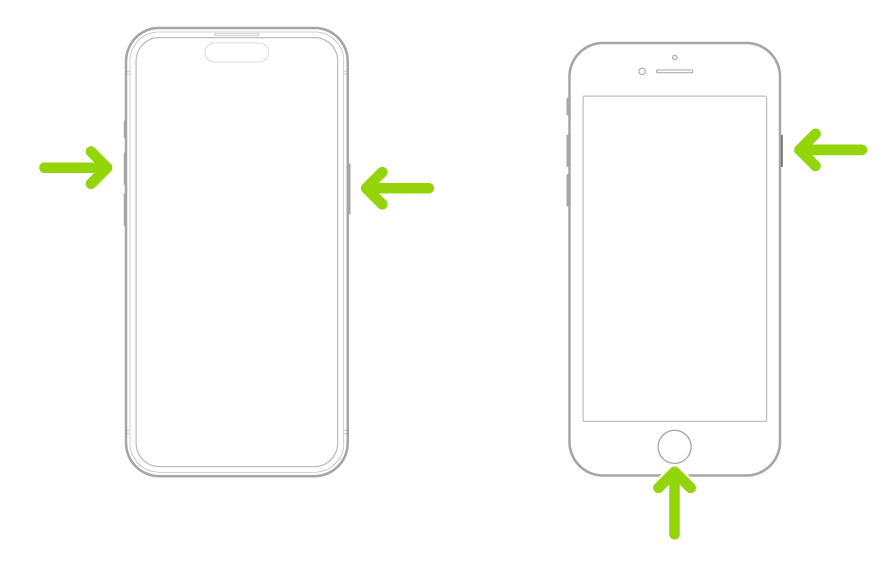
-
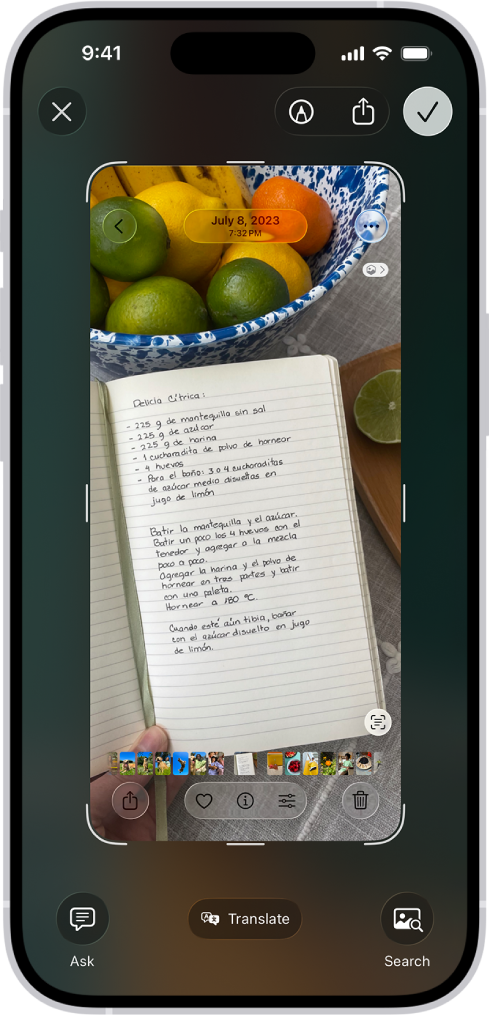
If one appears, tap the screenshot thumbnail in the lower left of the screen and then do any of the following:
- Capture content beyond your iPhone screen: Tap Full Page. To see more of the screenshot, drag your finger on the preview image on the right. For example, you can capture an entire webpage in Safari.
- Crop: Drag the handles. To save a smaller portion of a full-page screenshot, tap the Crop button. Drag the handles.
- Annotate: Tap the Markup button and then use the Markup tools.
- Cancel or delete: Tap the Close button.
- To save full-screen screenshots to your photo library, swipe up, or tap the Selected button and then choose an option. (Screenshots with thumbnails save automatically.)
To take a screenshot without the hardware buttons, you can use Siri, AssistiveTouch, or Back Tap.
Review your screenshots
Screenshots are automatically saved to your photo library.
- Start the Photos app on your iPhone.
- Tap Collections and scroll down to Media Types. Tap Screenshots.
Change the default settings for screenshots
You can adjust the screen capture settings so screenshots appear as temporary thumbnails in the lower-left corner or in full screen, and save them in SDR or HDR format.
Tag: Screenshots