Got a tip for us?

Screenshots

In Settings, you can customize how screenshots and screen recordings work on your iPad, including preview style, Visual Look Up features, and capture formats. Screenshots open in full screen by default, but you can switch to a temporary thumbnail preview in the lower left.

Preview screenshots as thumbnails

After you take a screenshot, it appears in full screen by default. If you prefer a temporary thumbnail preview in the lower left, do the following:

  1. Open the Settings app on your iPad.
  2. Tap General, then tap Screen Capture.
  3. Turn off Full-Screen Previews.

Use Visual Look Up in screenshots

Your iPad can spot objects and places in screenshots automatically and help you learn about them, on supported models and in some languages.

  1. Open the Settings app on your iPad.
  2. Tap General, then tap Screen Capture.
  3. Turn on Automatic Visual Look Up.

See also

You can capture what’s on your iPad screen, grab a full page beyond the edge of the screen, or save a specific portion. After you take a screenshot, you can crop it, annotate it with the Markup tools, or capture an entire webpage in Safari. Your screenshots are saved to your photo library automatically.

Take a screenshot

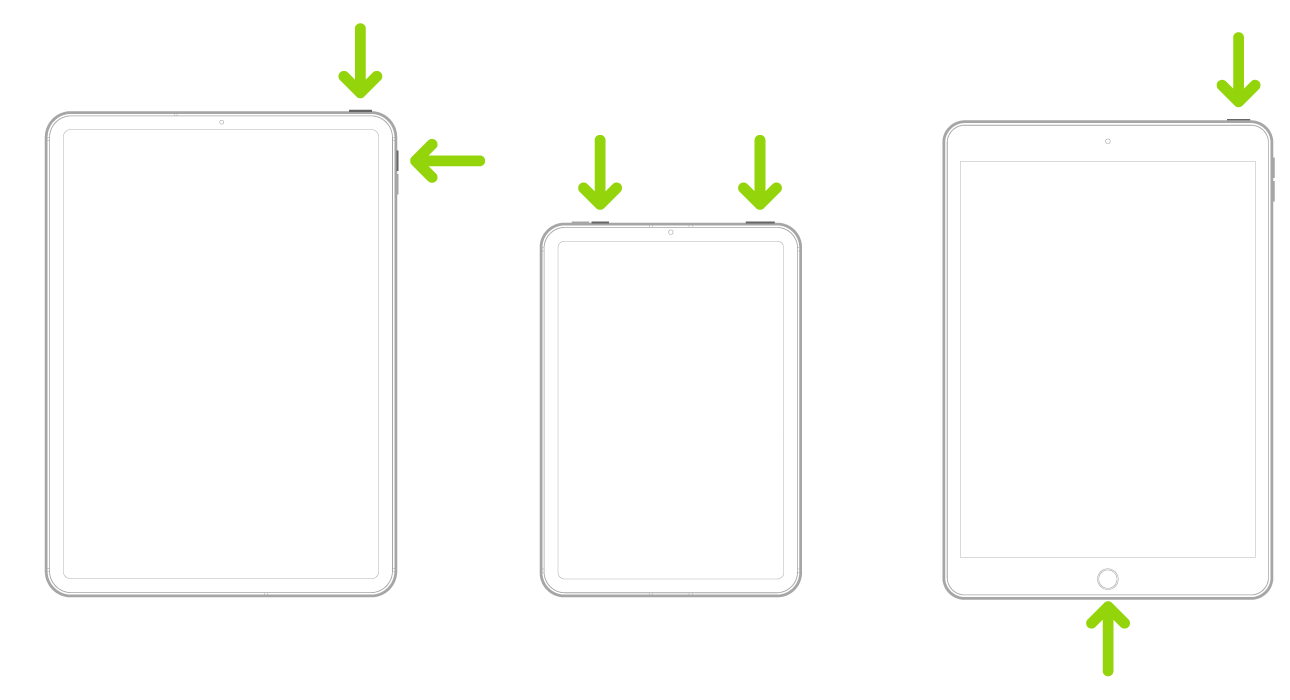
  1. Quickly press and release the top button and a volume button at the same time.

    Note: If your iPad has a Home button, quickly press and release it and the top button at the same time.

    Three iPad models. Two iPad models have a top button; one iPad model has volume buttons on the side, and the other has volume buttons at the top. Arrows point to the top buttons and volume buttons. The third iPad has a Home button, and an arrow points to the Home button and the top button.

  2. Tap the screenshot thumbnail in the lower left of the screen and then do any of the following:

    • Capture content beyond your iPad screen: Tap Full Page. To see more of the screenshot, drag your finger or Apple Pencil on the preview image on the right. For example, you can capture an entire webpage in Safari.
    • Crop: Drag the handles. To save a smaller portion of a full-page screenshot, tap the Crop button. Drag the handles.
    • Annotate: Tap the Markup button, then use the Markup tools.
    • Cancel or delete: Tap the Close button.
  3. To save, tap the Done button.

Instead of using hardware buttons to take a screenshot, you can use Siri or AssistiveTouch. Or, if you’re using Apple Pencil, swipe up diagonally from the lower-left or lower-right corner of the screen.

Review your screenshots

Screenshots are automatically saved to your photo library.

  1. Start the Photos app on your iPad.
  2. Tap Collections and scroll down to Media Types. Tap Screenshots.

Change the default settings for screenshots

In the screen capture settings, you can have screenshots appear in full screen or show up as temporary thumbnails in the lower-left corner, and you can save them in SDR or HDR format; read our guide, Change the screen capture settings.

See also

In Settings, you can customize how screenshots and screen recordings work on your iPhone, including preview style, Visual Look Up features, and capture formats.

By default, a screenshot appears in full screen right after you take it, but you can switch to a temporary thumbnail preview in the lower left instead. On supported models, iPhone can also automatically identify objects and places that appear in your screenshots, and you can even capture screenshots from CarPlay.

Preview screenshots as thumbnails

After you take a screenshot, it appears in full screen by default. If you prefer a temporary thumbnail preview in the lower left, do the following:

  1. Open the Settings app on your iPhone.
  2. Tap General, then tap Screen Capture.
  3. Turn off Full-Screen Previews.

Use Visual Look Up in screenshots

Your iPhone can automatically identify and learn about objects and places in screenshots, on supported models and in some languages.

  1. Open the Settings app on your iPhone.
  2. Tap General, then tap Screen Capture.
  3. Turn on Automatic Visual Look Up.

Capture screenshots from CarPlay

  1. Open the Settings app on your iPhone.
  2. Tap General, then tap Screen Capture.
  3. Turn on CarPlay Screenshots.

Choose SDR or HDR format for screenshots and recordings

  1. Open the Settings app on your iPhone.
  2. Tap General, then tap Screen Capture.
  3. Choose one of the following:
    • SDR: This option captures less brightness and color. It’s standard for most computer displays and mobile devices. Screenshots use PNG format, and screen recordings use HEVC.
    • HDR: This option captures more brightness and color. It requires an HDR display to show the full quality. Screenshots use HEIF format, and screen recordings use HEVC (HDR10).

Note: Viewing HDR screenshots and recordings on standard displays? Screenshots appear in SDR format, and recordings play back with slightly reduced quality.

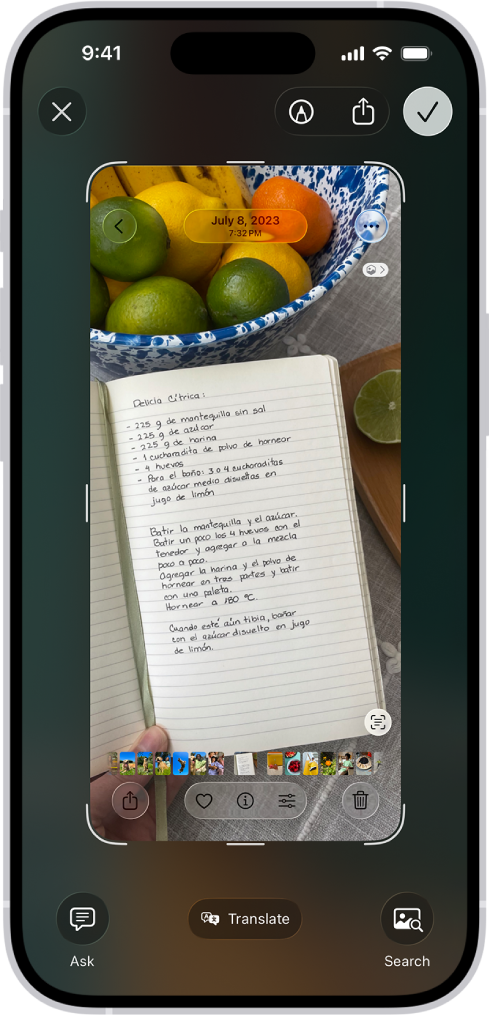
You can capture what’s on your iPhone screen, grab a full page beyond the edge of the screen, or save a specific portion. After you take a screenshot, you can crop it, annotate it with the Markup tools, or capture an entire webpage in Safari. Your screenshots are saved to your photo library automatically.

The screenshot screen, with buttons along the top (from left to right) for Close Window, Markup, Share, and Done. Along the bottom (from left to right) are buttons for Ask, Translate, and Search.

Take a screenshot

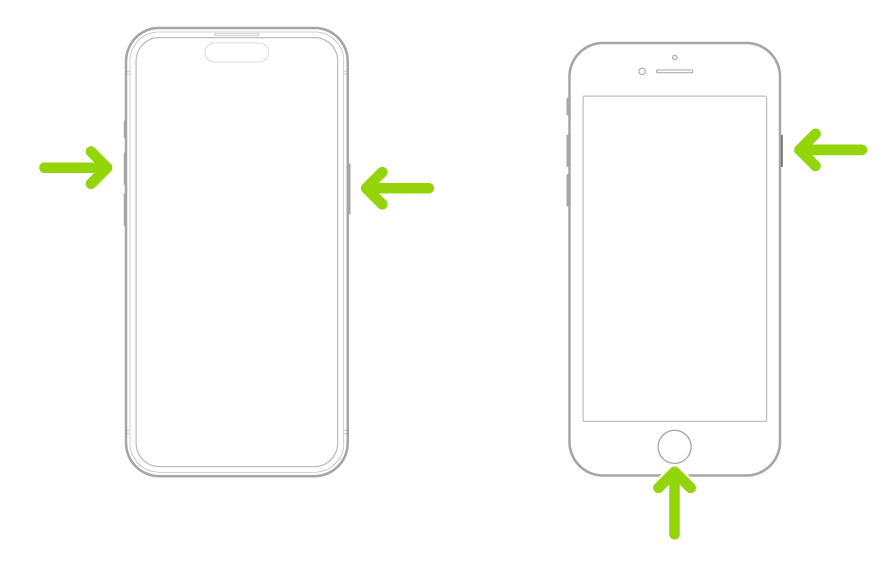
  1. Quickly press and release the side button and the volume up button at the same time.

    Note: If your iPhone has a Home button, quickly press and release it and the side button at the same time.

    Two iPhones, one with Face ID and the other Touch ID, with arrows pointing to the buttons for taking a screenshot. On the iPhone with Face ID, one arrow points to the side button and another arrow points to the volume up button. On the iPhone with Touch ID, one arrow points to the side button and another arrow points at the Home button.

  2. If one appears, tap the screenshot thumbnail in the lower left of the screen and then do any of the following:

    • Capture content beyond your iPhone screen: Tap Full Page. To see more of the screenshot, drag your finger on the preview image on the right. For example, you can capture an entire webpage in Safari.
    • Crop: Drag the handles. To save a smaller portion of a full-page screenshot, tap the Crop button. Drag the handles.
    • Annotate: Tap the Markup button and then use the Markup tools.
    • Cancel or delete: Tap the Close button.
  3. To save full-screen screenshots to your photo library, swipe up, or tap the Selected button and then choose an option. (Screenshots with thumbnails save automatically.)

To take a screenshot without the hardware buttons, you can use Siri, AssistiveTouch, or Back Tap.

Review your screenshots

Screenshots are automatically saved to your photo library.

  1. Start the Photos app on your iPhone.
  2. Tap Collections and scroll down to Media Types. Tap Screenshots.

Change the default settings for screenshots

You can adjust the screen capture settings so screenshots appear as temporary thumbnails in the lower-left corner or in full screen, and save them in SDR or HDR format.

Several users have reported that they are unable to take screenshots and screen recordings on Mac. Specifically, the captured images are not saved after they are captured on the screen. If the screenshot feature on your Mac isn’t working, here is a troubleshooting guide that can help you fix the issue.

The screenshot feature is built into macOS, so you don’t need to install any third-party software; it should just work. When you can’t take a screenshot on a Mac, it can be very frustrating. If Screenshots is not working on Mac, here are the steps you can take to quickly get Screenshots working on your Mac so you can continue communicating ideas through email and text messages with others.

How to Fix it When You Can’t take a Mac Screenshot

It’s uncommon that screenshots don’t work on a Mac, so it’s pretty easy to find out why the feature is not working as expected. There are a couple of things you can do to troubleshoot the problem. If everything else works correctly on the Mac, the keyboard is working properly and can be ruled out as the source of the problem. If screenshot feature is not working on Mac, follow these steps to fix the issue:

Fix 1: Check the keyboard shortcut settings

By default, these settings are enabled. However, they may have been disabled inadvertently or set to keyboard combinations other than the defaults. To check this, head over to System Preferences > Keyboard > Shortcuts. There you can see whether keyboard shortcuts have been disabled or reassigned to other actions.

Fix 2: Confirm the location for saving screenshots in the Screenshot app

Though the screenshots are saved to the Desktop by default, if you changed that setting, your screenshots may be hiding somewhere you haven’t checked. Check the location on the floating menu bar.

Fix 3: Restart your Mac

If captured images are not saved when you capture screen on your Mac, restarting your Mac may fix this problem. Using your Mac for long periods without restarting can cause it to perform inefficiently or prevent certain apps from working properly. If the screenshot feature on your Mac isn’t working, restart the Mac and turn it on again.

  • You can restart your Mac by choosing the Restart option from the Apple menu in the upper-left corner of the display.

Now check to see if you can find the screen images. If images are missing still, check the next solution.

Fix 4: Restart your Mac in safe mode

Starting your Mac in Safe Mode may fix your problem. Please start your Mac in Safe Mode, then in Safe Mode check if you are able to take screenshots and screen recordings. Then restart your Mac normally to exit Safe Mode. Here is how:

  • Power off your Mac: Head over to Apple menu > and choose Shut down.
  • Turn on your Mac and immediately press and hold the Shift key.
  • Keep holding the Shift key until the login screen appears.
  • When you see the login screen, let go the Shift key.
  • Login.
  • Now your Mac is running in Safe Mode. Your Mac will run slower, this is normal. Now check to see if the captured images are being saved when you capture the screen
  • Either case, exit Safe Mode. Simply restart your Mac and do not press any keys.

Fix 5: reset NVRAM (or PRAM) on your Mac

If you are unable to take screenshots and screen recordings on your Mac, resetting PRAM or NVRAM may fix this problem. PRAM or NVRAM are different things, but the resetting process is the same. Here is how:

  1. Start by pressing and holding the power button on your Mac to completely shut it down. Hard discs and fans need to stop spinning, and the screen needs to turn dark.
  2. Next, power on your Mac.
  3. Immediately after you hear the startup sound, press and hold the “Command + Option + P + R” keys.
  4. Don’t release the keys until you hear the start up sound again and the Apple logo appears.
  5. Release the keys, and the PRAM/NVRAM will have been reset. Please note, some of your settings such as display, volume, time zone, etc will be reset.