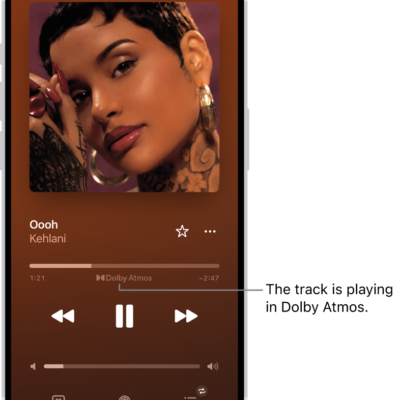
In the iTunes Store app, you can review and download music purchased by you or other family members. You can also customize content restrictions for the iTunes Store in Settings.
Family Sharing adds another layer: the family organizer can approve purchases made by younger family members. You can also view your entire iTunes Store purchase history, and see the music family members bought, too.
Here’s how to manage your iTunes Store purchases and settings on iPhone.
Approve purchases with Family Sharing
If you’ve set up Family Sharing, the family organizer can review and approve purchases from other family members under a certain age.
View and download music purchased by you or family members
- Start the iTunes Store app on your iPhone.
- Tap Purchased.
- If you set up Family Sharing, choose a family member to view their purchases.
Note: You can see purchases made by family members only if they choose to share their purchases.
- Tap Music, find the item you want to download. Then tap the Download button.
View your entire iTunes Store purchase history
Your iTunes Store purchase history shows a chronological list of everything purchased with your Apple Account, including apps, songs, books, and other items.
Your purchase history lets you do any of the following:
- View when an order was billed to your account.
- View the date of a purchase.
- Resend email receipts.
- Report a problem with purchased content.
Set content restrictions
In Music, you can restrict your child’s access to explicit content, music videos, and music profiles.
When you purchase access to movies, TV shows, music, music videos, ebooks, audiobooks, or ringtones from Apple, you also have the option to permanently download these items to a compatible iPhone, iPad, Mac, or PC. Apple cannot revoke your downloaded content, and you can always access your downloaded content without an internet connection.